Page | 1
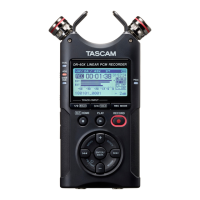
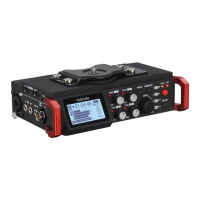
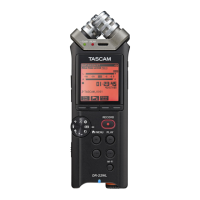
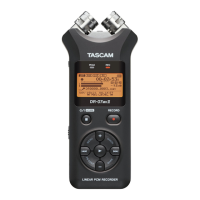
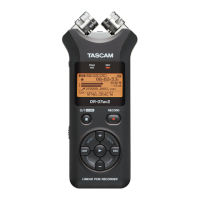
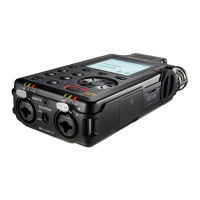
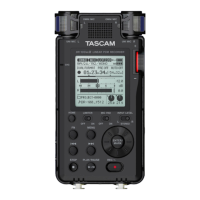
Tascam Dr-100mkII – buttons and functions
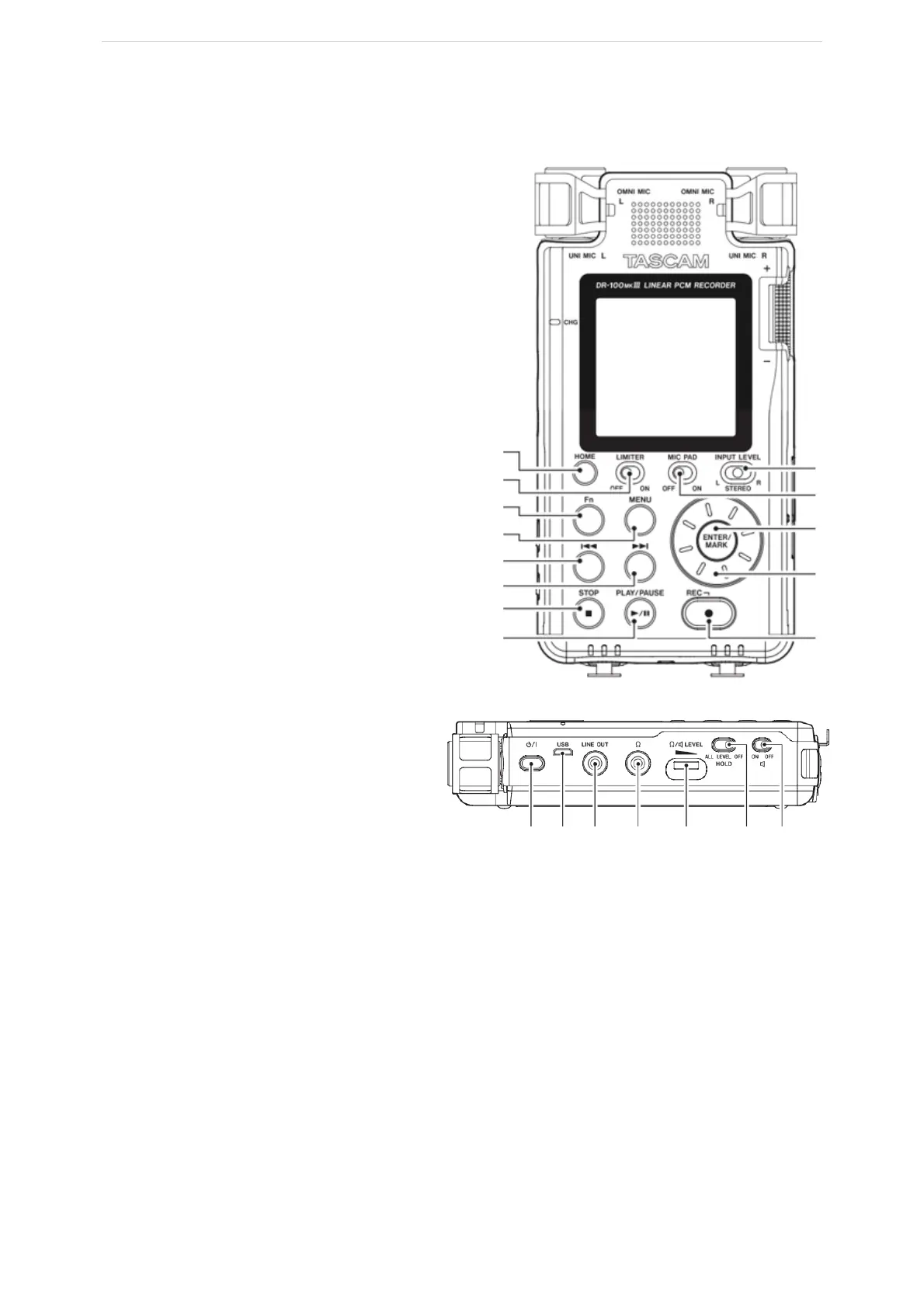
1. HOME - return to the Home Screen
2. LIMITER – Limiter adjusts gain so that if the input
level is very loud there will be less distortion in the
recording.
3. Fn – Opens the function menu. That can be used
to alter or view certain properties of the currently
selected file.
4. MENU - accesses menu options
5. |◀◀ - If on home screen goes back through files.
If on menus, goes back in the menu.
6. ▶▶| - If on home screen goes forward through
files. If on menus, goes forward in the menu.
7. STOP – stops recording and makes a new file. Stop
or pause playback. Used as ‘NO’ in a confirmation
menu screen.
8. PLAY/PAUSE - When on home screen plays the
currently selected file. When recording, pauses the
recording but does not create a new file.
9. INPUT LEVEL - Sets which input channel can be
altered with the side wheel. Left, Stereo (Both), or
Right.
10. MIC PAD – quietens the input by setting a -25db
gain pad on the input. Useful if recording loud
sounds. If under normal circumstances
recordings seem very quiet make sure this
is off.
11. ENTER/MARK - Used as ‘YES’ or ‘CONFIRM’
in the menus. During playback, press and
hold to add mark a clip.
12. WHEEL – used to scroll through the menus
and files
13. RECORD – press once to enter record standby, press again to enter recording mode.
14. On/off button – Press and hold to turn the Tascam on/off.
15. USB – a USB Micro connection used to connect the Tascam to a PC and can also be used to charge the
internal battery
16. Line output – Minijack line out female connector for line signals. This can connect to a DSLR to enable
the Tascam to become the Mic for the DSLR.
17. Headphone input – Mini jack headphone input.
18. Headphone/Speaker LEVEL – changes the headphone/ speaker volume. This is separate to the input
volume and will not change the input level on the mic, only the output level to the headphones or
speaker.
19. HOLD - Hold negates the use of any of the other buttons from working, preventing accidental pressing
of menus. Good option for hands free recording.
20. SPEAKER – Turns the mono speaker on the front on or off for playback.
2
3
4
5
6
7
8
10
11
12
13


 To Next Page