9
Chapter 3. Access the web UI
This chapter introduces how to get access to the web UI of your CPE, and gives you a
glimpse of the web UI.
3.1 Log in to the web UI
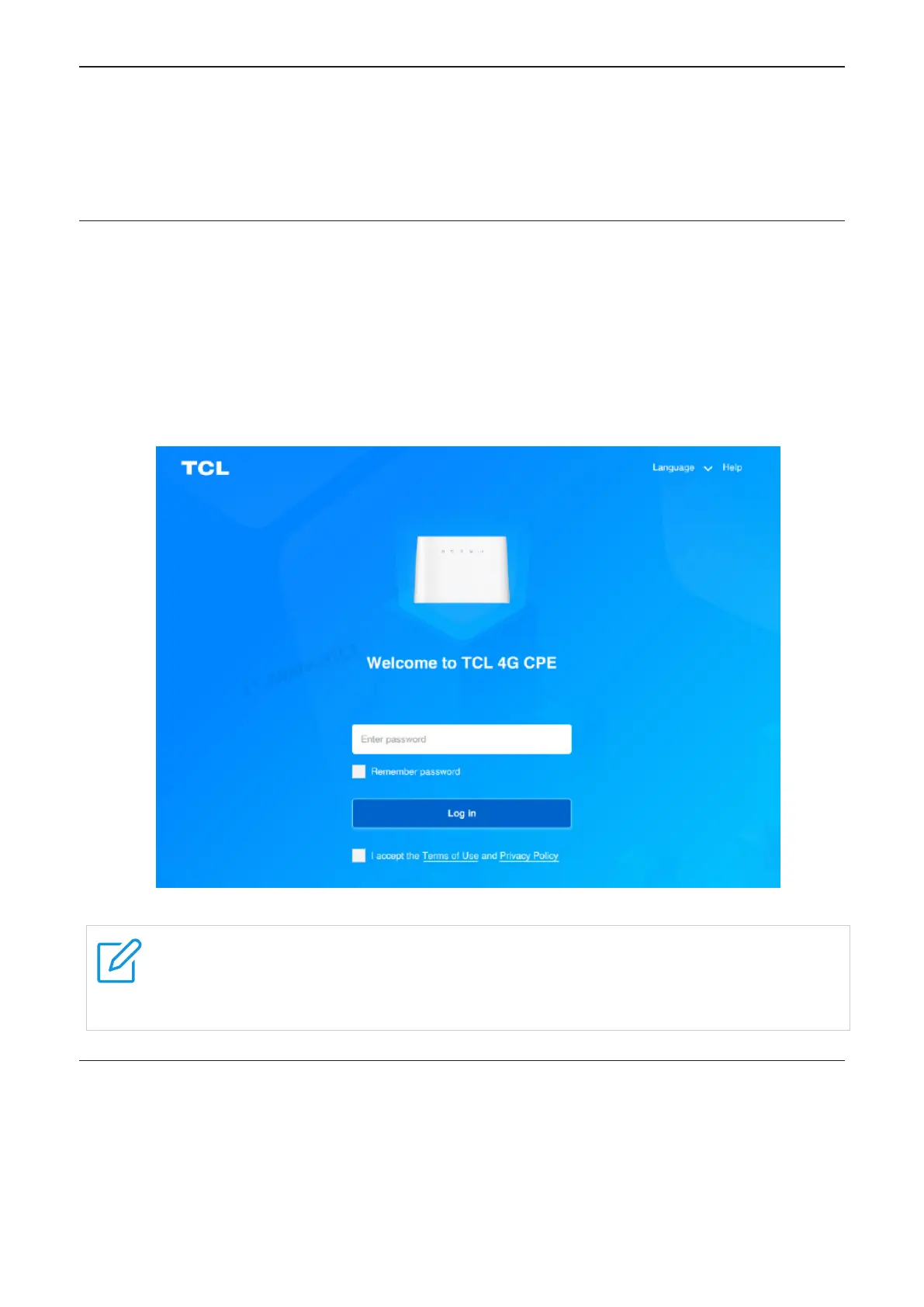
To log in to the web UI, follow these steps:
1. Open a web browser on the device connected to the CPE network wiredly or wirelessly.
2. Go to the login website which can be found on the bottom label of your CPE and follow
the on-screen instructions to finish the login process.
Note: For the default login information, refer to the bottom label of your CPE.
NOTES
• Click Language at the upper right of the screen to change the language setting.
• Click Help at the upper right of the screen to access user manual.
3.2 Explore web UI features
Home page features
The web UI is mainly comprised of the following sections: Home, Status, Services, Settings,
and System. Click on each section to display more information about your CPE.


 To Next Page