75 76
9 Google Maps
9.1 Get My Location
To activate your phone's positioning using Wi-Fi or mobile data
connection network:
1 Touch
on Quick setting bar to go to Settings.
2 Touch Location.
3 Touch the switch
beside Location to turn on.
Touch the Application tab from the Home screen, then touch
Maps.
Touch
icon on the map to view My Location.
The map will then centre on a blue dot. Your actual position at
the blue dot.
To move the map, drag the map with your finger.
To zoom in and out of a map, pinch or spread your fingers, or
you can also zoom in by double-tapping a location on screen.
9.2 Search for a location
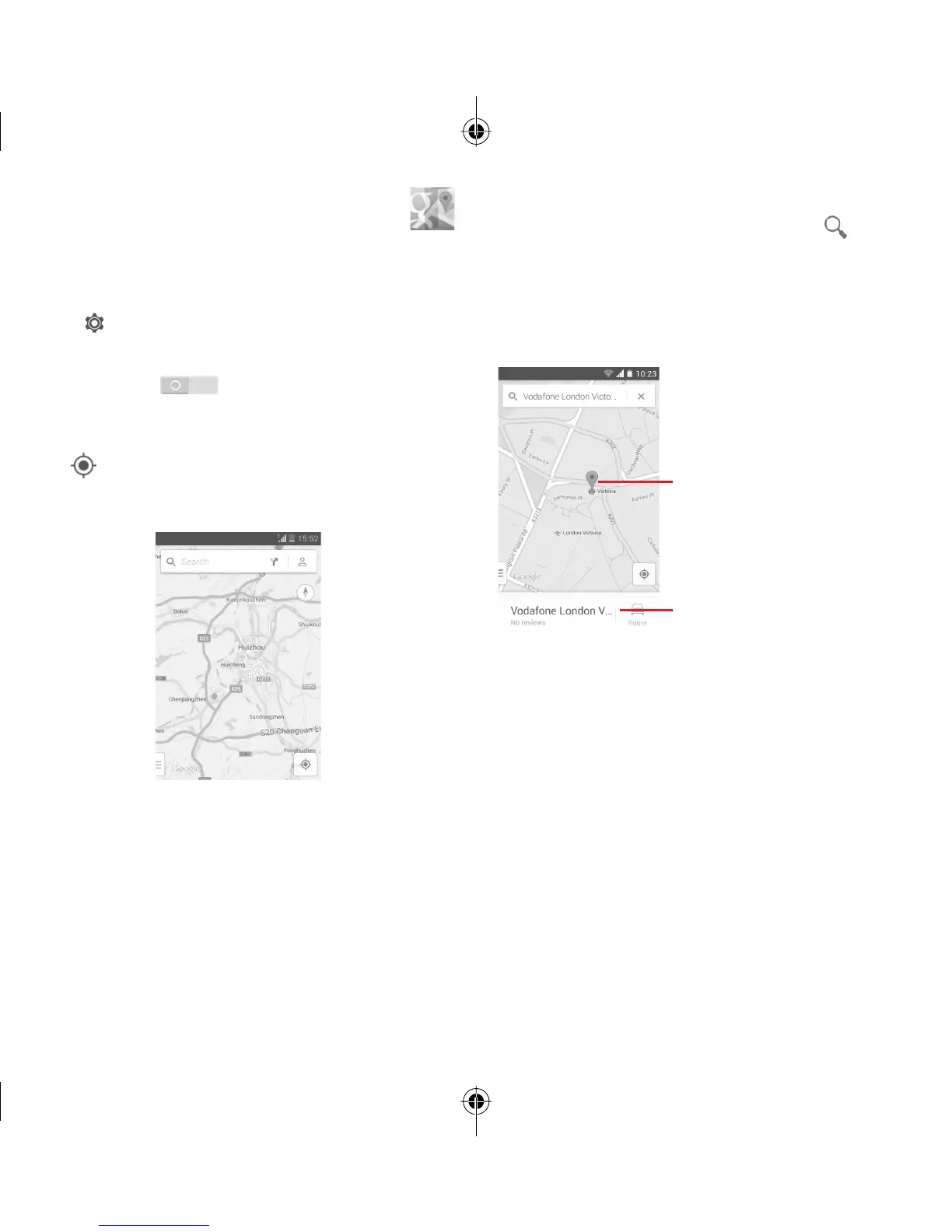
While viewing a map, touch the search icon to activate
search function.
In the search box, enter an address, a city or a local business.
Touch the search icon to search, your search results will
appear on the map as red dots. You can touch one to show
a label.
Slide left or right to view more search
results
Touch to show more information
9.3 Save a location
Just like bookmarking a web address on the Internet, you can
star any position on the map for later use.
IP5032_VF685_UM_Eng_GB_08_140901.indd Sec2:75-Sec2:76IP5032_VF685_UM_Eng_GB_08_140901.indd Sec2:75-Sec2:76 2014-9-1 16:05:442014-9-1 16:05:44


 To Next Page