System 3 1-83
RZ-UDP Communications Interface
To load an existing packet configuration:
1. Select Open from the File menu.
2. Browse to the desired *.hex file and click the Open button.
The specified *.hex file will now display any packet information.
To save a packet configuration:
1. Select Save or Save As from the File menu.
2. Type the desired name of the *.hex file and click the Save button.
To create a new packet:
1. Double-click anywhere in the packet window to access the Edit Values
dialog box.
or
Right-click the packet window to access the Packet Dialog menu.
2. Select the New Packet option. This prompts the Edit Values dialog box.
To edit an existing packet:
1. Select the desired packet and right-click to access the Packet Dialog
menu.
2. Select the Edit Packet option. This prompts the Edit Values dialog box.
To convert the Test Application packet format:
1. Right-click the packet window to access the Packet Dialog menu.
2. Select Convert To.
3. Select the desired format for the selected packet.
Example:UsingtheTestApplication
In this example we will send packets from the PC to an RZ through the UDP
interface.
To establish a connection to the RZ:
1. First, run the Test Application by double-clicking the TestApplication.exe
icon.
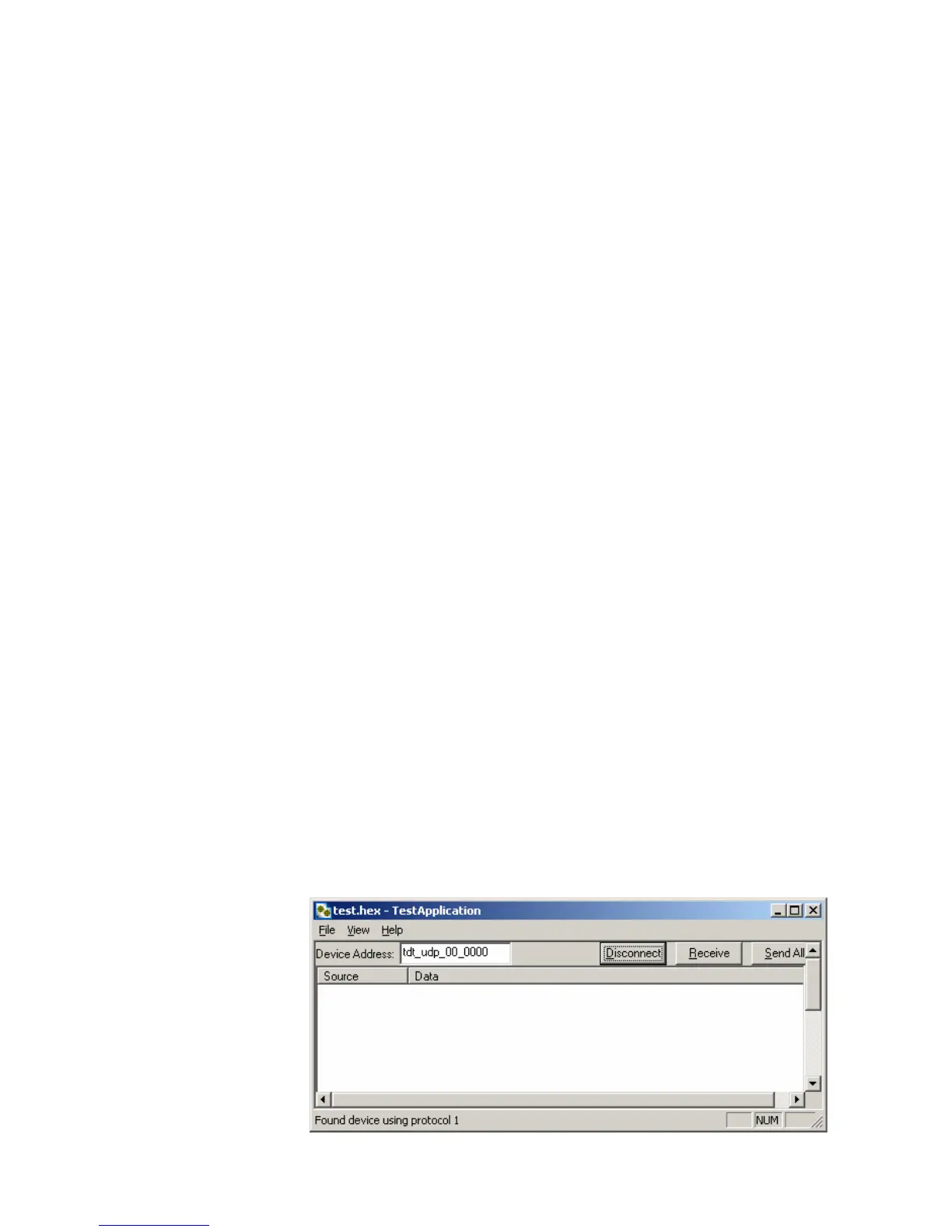
2. Enter the NetBIOS name or IP address of the RZ processor you wish to
send a packet to in the Device Address text box.
3. Click the Check button.
A connection is established and the status bar indicates a device has been
found. Packets may now be received or sent from this RZ processor.


 To Next Page