Searching for a part of a chapter or track
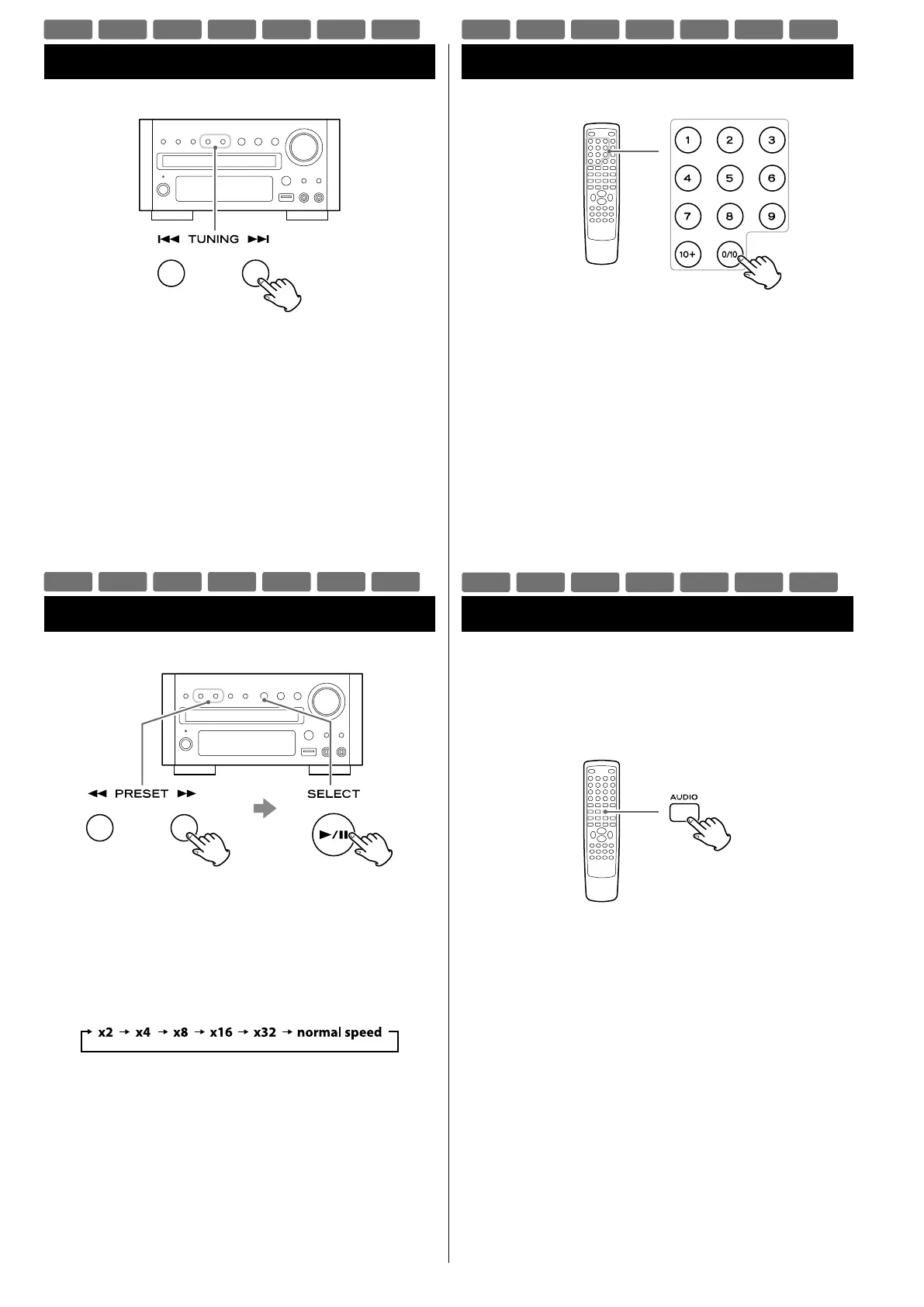
Skipping Playback
Press the Skip button (.//) repeatedly until the desired
chapter or track is found. The selected chapter or track will be
played from the beginning.
< When playing back video CDs with PBC, the . button is
disabled (page 26).
To Search quickly the disc in the forward or reverse direction,
press the Search buttons (m or ,) during playback.
Press the Play/Pause button (y/J) when the part you want to
listen to is found.
Each time the Search button (m or ,) is pressed, the search
speed changes as follows:
< VCD/CD/MP3: When you forward fast to the end of a track (or
reverse to the beginning of a track), the scan function will be
cancelled and normal speed playback will continue.
< The sound is muted during playback of DVD and VCD.
< This function may not work with some discs.
Selecting a Chapter or Track
Use the Number buttons to select tracks or chapters for playback.
For instance, to select track number 35, press “10”, “10”, “10” and “5”.
To select a MP3 or WMA file, enter 3 digit numbers. As an example,
to select number 5, press “0”, “0” and “5”. (Optionally, you may press
just the number “5” and then wait a few seconds.)
< The Number buttons do not work during PBC playback of video
CDs (page 26).
Selecting Audio
Many DVD discs include audio in different languages, as well as stereo
and multi-channel surround versions of the soundtrack.
CDs and video CDs allow the left, right or stereo channels to be
selected.
Pressing the AUDIO button changes between the different audio
tracks available, and the result is shown on screen.
< Sometimes the picture playback will appear to freeze momentarily
when the audio is changed.
< It may be necessary to change the audio on some discs using the
on-screen disc menu.
< Some discs cannot have their audio changed in the way described
here, as well as some discs which only have one audio stream. If
you attempt to select different audio with these discs, the prohibit
icon “A” is shown on screen.
DVD
VCD
CD
MP3
WMA
JPEG
DIVX
DVD
VCD
CD
MP3
WMA
JPEG
DIVX
DVD
VCD
CD
MP3
WMA
JPEG
DIVX
DVD
VCD
CD
MP3
WMA
JPEG
DIVX


 To Next Page