25
Advanced Settings
Highlight Advanced Settings and press the OK button. On the next screen you can change the IP
and DNS settings of the TV. Highlight the desired one and press the Left or Right button to change
the setting from Automatic to Manual. Now you can enter the Manual IP and / or Manual DNS
values. Select the related item in the drop down menu and enter the new values using the numeric
buttons of the remote. Press the OK button to save settings when complete.
Wireless Connectivity
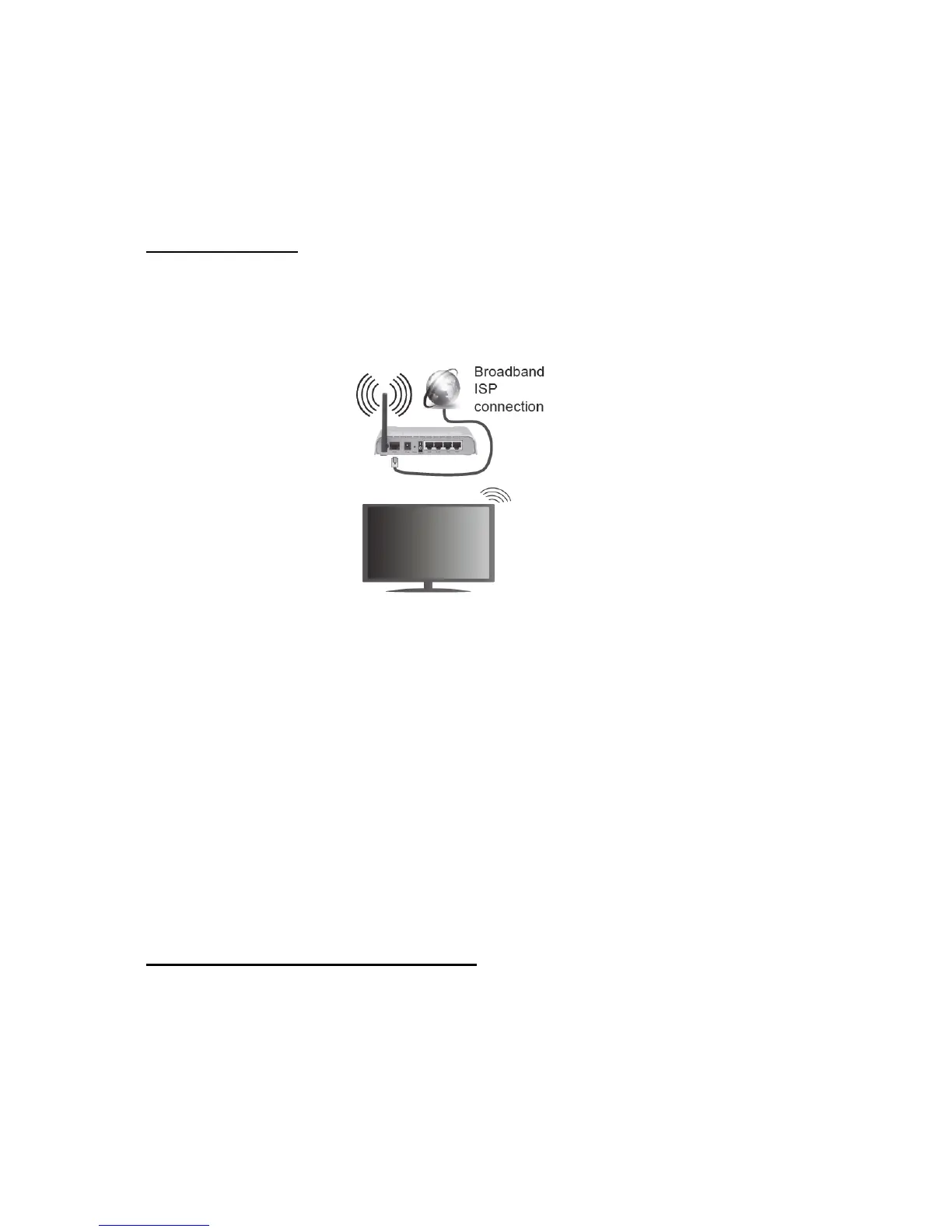
To Connect to a Wireless Network
The TV cannot connect to the networks with a hidden SSID. To make your modem’s SSID visible, you
should change your SSID settings via the modem’s software.
To configure your wireless settings please refer to the Network/Internet Settings section in
the System>Settings Menu.
• A Wireless-N router (IEEE 802.11a/b/g/n) with simultaneous 2.4 and 5 GHz bands is
designed to increase bandwidth. These are optimized for smoother and faster HD video
streaming, file transfers and wireless gaming.
• The frequency and channel differ depending on the area.
• The transmission speed differs depending on the distance and number of obstructions
between the transmission products, the configuration of these products, the radio wave
conditions, the line traffic and the products that you use. The transmission may also be cut off
or may get disconnected depending on the radio wave conditions, DECT phones or any other
WiFi 11b appliances. The standard values of the transmission speed are the theoretical
maximum values for the wireless standards. They are not the actual speeds of data
transmission.
• The location where the transmission is most effective differs depending on the usage
environment.
• The Wireless feature of the TV supports 802.11 a,b,g & n type modems. It is highly
recommended that you should use the IEEE 802.11n communication protocol in order to
avoid any possible problems while watching videos.
• You must change your modem’s SSID when there are any other modems around with the
same SSID. You can encounter connection problems otherwise. Use a wired connection if
you experience problems with a wireless connection.
Configuring Wireless Device Settings (optional)
Open the Network/Internet Settings menu and select Network Type as Wireless Device to start
connection process.
The TV will scan the wireless networks automatically. A list of available networks will be displayed.
Please select your desired network from the list.
Note: If the modem supports N mode, you should set N mode settings.


 To Next Page