Menu Operation
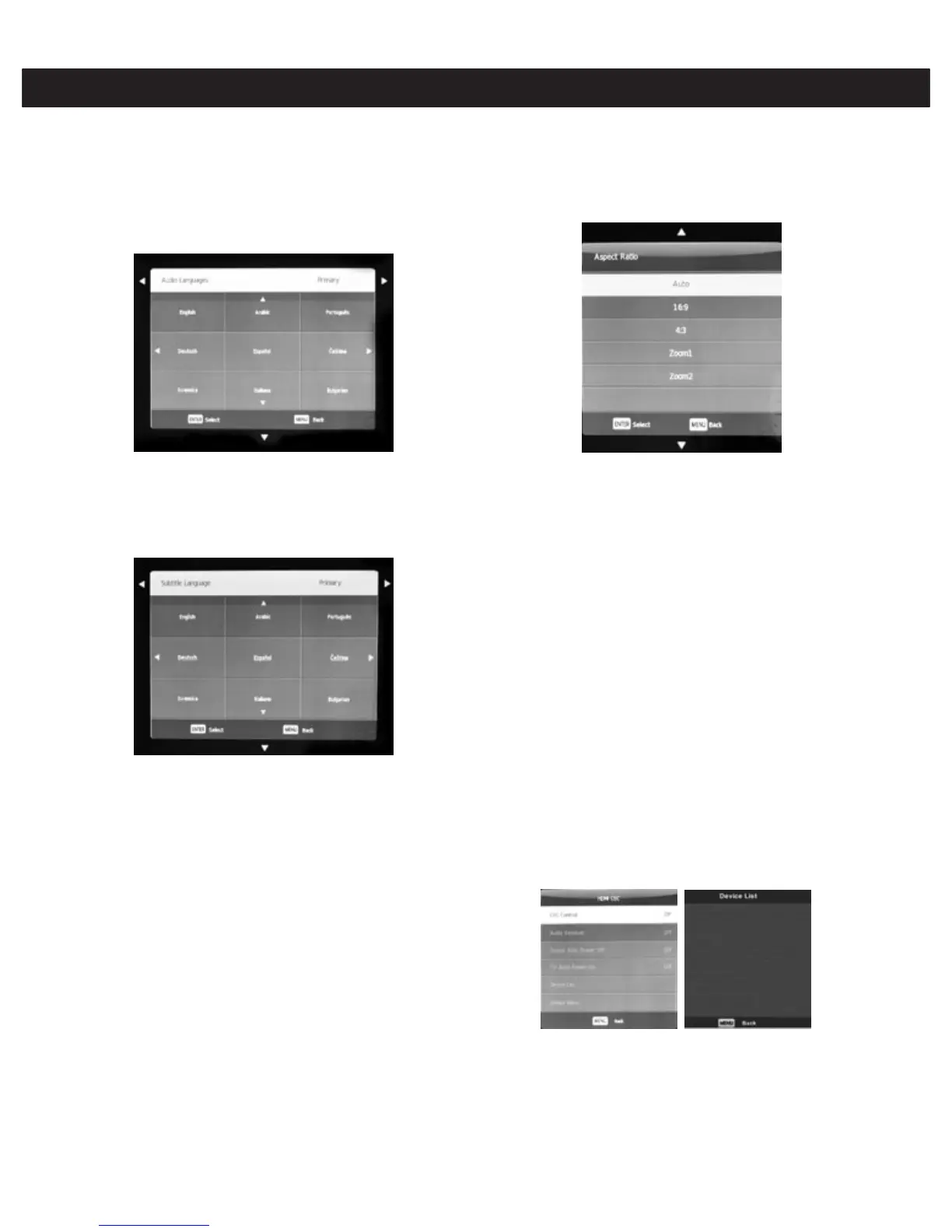
Audio Languages
Press ▼/▲ to select Audio Languages, then press the
OK button to enter the sub-menu.
Press ◄/► to select the preferred Audio Language.
Press ◄/► ▼/▲ to select the Audio Languages. Then
press OK to confirm.
Hearing Impaired
Press ▼/▲ to select Hearing Impaired, then press the
OK button to select On or Off.
PVR File System( A compatible data storage drive must
be connected)
Press ▼/▲ to select PVR File System, then press the
OK button to enter the sub-menu.
To check the usb speed, select Check PVR file system
with ▼/▲ and press OK.
TO format the data storage drive, select format with
▼/▲ and press OK.
WARNING: Formatting the usb drive will erase ALL
existing data on the drive.
Free Record Limit: Set the maximum length of time
allowed for program recording (Between I and 6 hours)
Subtitle Language
Press ▼/▲ to select Subtitle Language, then press the
OK button to enter the sub-menu.
Press ◄/► to select preferred Subtitle Language.
Press ▼/▲/◄/► to select the Subtitle Language.
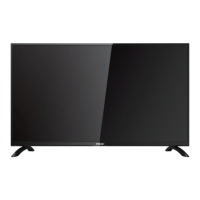
Aspect Ratio
Press ▼/▲ to select Aspect Ratio, then press the OK
button to enter the sub-menu.
Press ▼/▲ to select aspect ratio.(Available options are:
Auto, 4:3,16:9,Zoom1,Zoom2).
Blue Screen - Enables a blue screen when there is no
input signal (Default is black)
Press ▼/▲ select Blue Screen, then press OK to select
On or Off.
First Time Installation -Access the initial set up (channel
tuning) menu.
Press ▼/▲ to select First time installation, then press
OK button to enter. If Lock is enabled, you will be asked
for the password.
Reset - Reset user settings.
Press ▼/▲ select Reset, then press OK button to enter
sub-menu.
Software Update (USB)
Press ▼/▲ to select Software Update (USB), plug your
USB device in the USB slot, then press OK button
update the software.
Environment
Choose from home and store.
Note: store mode is tuned for shop display and will use
more energy, settings may be reset periodically.
HDMI CED
Press ▼/▲ to select HDMI CEC, then press OK to
enter the sub-menu.
HDMI CEC: Press ◄/► to turn the HDMI CEC on or off.
HDMI ARC: Press ◄/► to turn the HDMI ARC on or off.
Auto Standby: Press ◄/► to turn the Auto Standby on or off.
Device List: Press the OK button to open the device menu.
20



 To Next Page