25
< Press the MENU button to switch between the folder list and the
file list. When you select the file list, you can select a file without
selecting the folder.
< If you want to return to the parent folder, display the folder list
using the MENU button, select “.........” using the Cursor buttons and
press the ENTER button.
< Depending on the disc, invisible folders such as “TRASH” might
be shown on the screen. Please disregard folders which do not
contain playable files.
< During playback, elapsed time of the current file is displayed on
the front panel display.
JPEG files
1
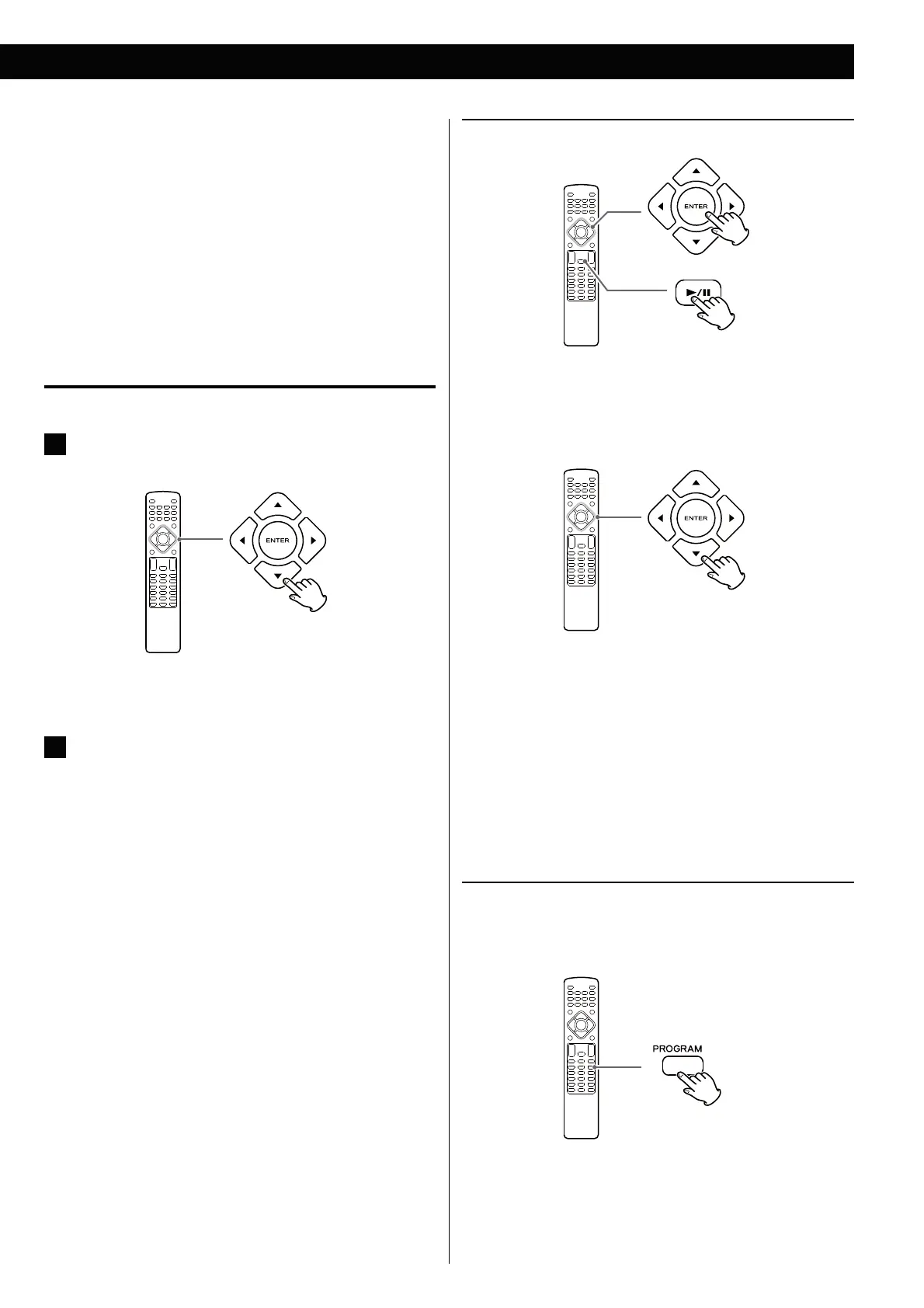
Choose a picture in the directory list by pressing the 5/b
buttons.
After a short wait a thumbnail of the picture will appear on the
right.
2
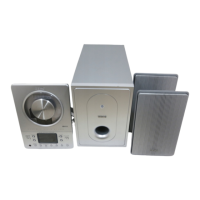
Press the Cursor buttons to select a picture for large
view.
< You can also use the Number buttons. In this case, press the
ENTER button to view the selected picture. Pictures are shown
continuously (Slide-Show) from the selected file.
< Some photos may appear distorted due to the configuration or
characteristics of the disc. Larger photos may take a short while
to appear due to their larger data size.
Viewing the picture at full-screen size
or
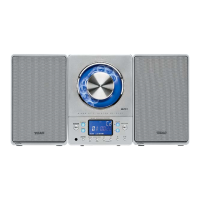
Press the ENTER or Play/Pause (y/J) button.
< When viewing at full-screen size, press Skip (.//) buttons to
view a previous or next photo. You can also use the g /t buttons
or 5/b buttons to rotate or invert the image.
< When viewing at full-screen size, press the Stop (H) button to
display a number of thumbnails at a time on the screen. You can
use the Cursor buttons to select a particular photo and then press
the ENTER button to view that image at full-screen size. You can
also select “Slide Show” to view all the photos in a series or “Menu”
to adjust settings. You can also select “gPrev” or “Nextt” to move
to the previous or next screen of thumbnail images.
< Press the MENU button to exit thumbnail or full-screen views.
Changing the transition effect of the Slide-Show
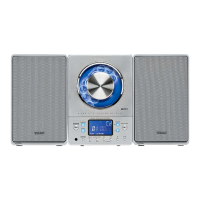
Press the PROGRAM button repeatedly to select one of the transition
effects (Example: Wipe Top, Diagonal Wipe Left Top, Window H etc.).
The Slide-Show starts with the selected transition effect.



 To Next Page