Basic
operation (cont'd)
·
When
playback
finishes
n
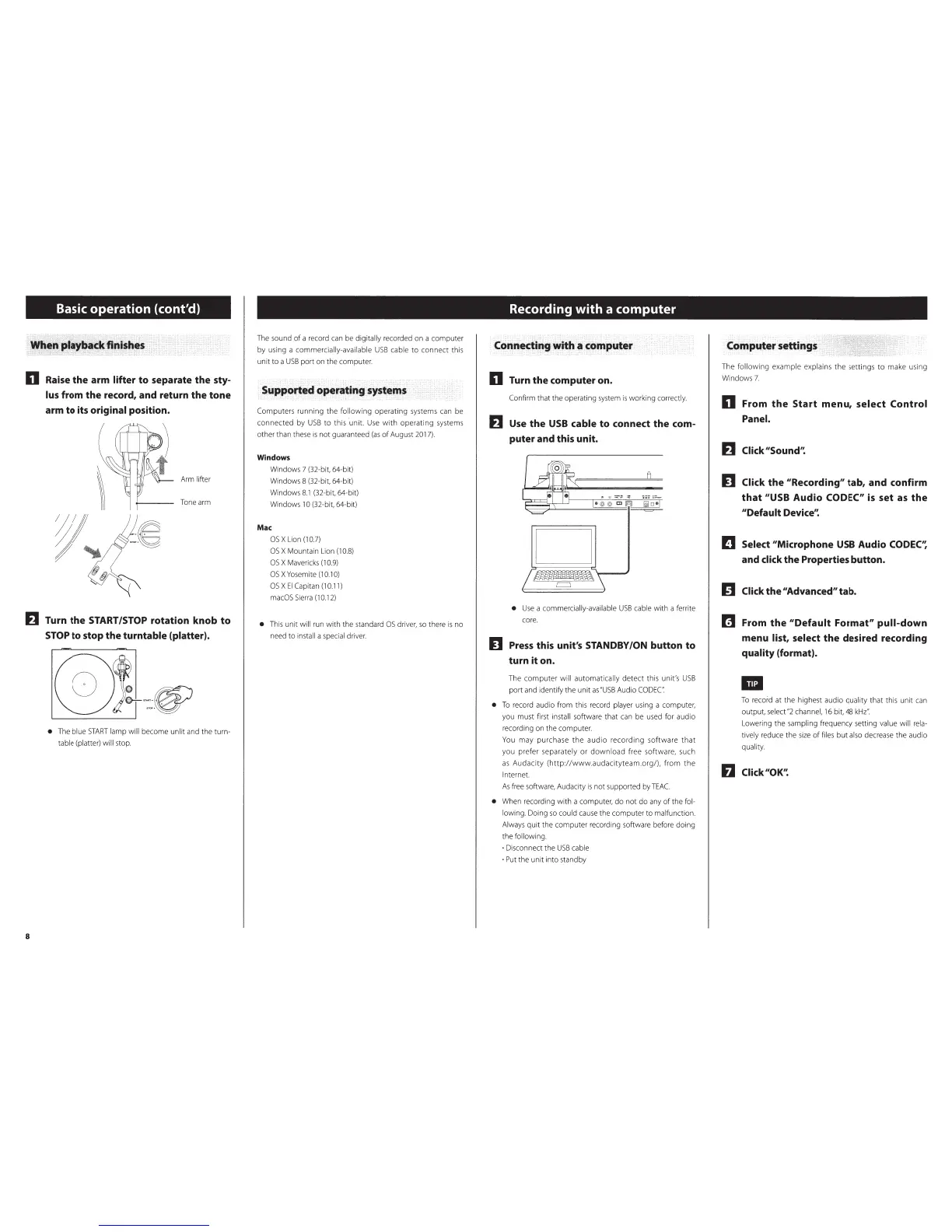
Raise
the arm lifter to separate the sty-
lus
from the record, and return the tone
Arm lifter
Tone
arm
~~
Turn the
START/STOP
rotation knob to
STOP
to stop the turntable (platter).
8
• The blue
START
lamp will become unlit and the turn-
table (platter) will stop.
The sound
of
a record
can
be digitally recorded on a computer
by
us
ing a commercially-available
USB
cable
to
connect this
unit
to
a
USB
port on the computer.
Supported operating
systems
Computers running the following operating systems
can
be
connected
by
USB
to
this unit
Use
with
operating systems
other than these
is
not guaranteed
(as
of
August
20
1
7).
Windows
Windows 7 (32-bit, 64-bit)
Windows 8 (32-bit, 64-bit)
Win
dows
8.1
(32-bit, 64-bit)
Windows 10 (32-bi
t,
64-bit)
Mac
OS
X Lion (1
0.7)
OS
X Mountain Lion (1
0.8)
OS
X Mavericks (1
0.9)
OS
X Yosemite
(1
0.1
0)
OS
X
El
Capitan (1
0.11)
macOS
Sierra
(1
0.
12)
•
This
unit will run with the standard
OS
dr
iver,
so
there
is
no
need
to
install a sp
ecia
l driver.
Recording with a computer
Connecting with a computer
n Turn the computer on.
Confirm that the operating system
is
working correctly.
IJ
Use
the
USB
cable to connect the com-
puter and this unit.
D
•
Use
a commercia
ll
y-ava
il
able
USB
ca
b
le
wi
th
a ferrite
core.
IJ
Press
this unit's STANDBY/ON button to
turn
it
on.
The
computer
will au
to
matically detect t
his
unit's
USB
port and identify the unit
as
"U
SB
Audio
CO
DEC:
• To record audio from this record player
usi
ng a computer,
you must f
irs
t insta
ll
software that can be used f
or
audio
recording on the computer.
You may purchase
the
au
dio
recording
software
that
you prefer separately or
download
free softwar
e,
such
as
Audacity
(http://www.audac
i
ty
team.org/),
from
the
I
nternet
As
free software, Audacity
is
not supported by
TEAC
• When recording With a computer,
do
not do any
of
the fol-
low
ing. Doing
so
could cause the computer
to
malfunction.
Always quit the computer recording software before
do
ing
the following.
·Disconnect the
USB
cable
·
Put
the unit into standby
Computer settings
The foll
ow
ing example explains
th
e settings to make using
Windows
7.
n From
the
Start
menu,
select Control
Panel.
IJ
Click
"Sound'~
IJ Click the "Recording" tab, and confirm
that
"USB
Audio CODEC"
is
set
as
the
"Default
Device'~
!]
Select "Microphone
USB
Audio
CODEC'~
and click the Properties button.
11
Click the"Advanced"tab.
m From
the
"Default
Format" pull-down
menu list, select
the
desired recording
quality (format).
II
To record at the highest audio q
ua
lity that this unit
can
outp
u
t,
select
"2
channel,
16
bit, 48
kH
z"
Lowering the
sa
mpling frequency setting
va
lue w
il
l r
ela
-
tively r
ed
u
ce
the si
ze
of
fil
es
b
ut
also decrease the audio
qua
li
ty.
IJ Click
"OK'~


 To Next Page