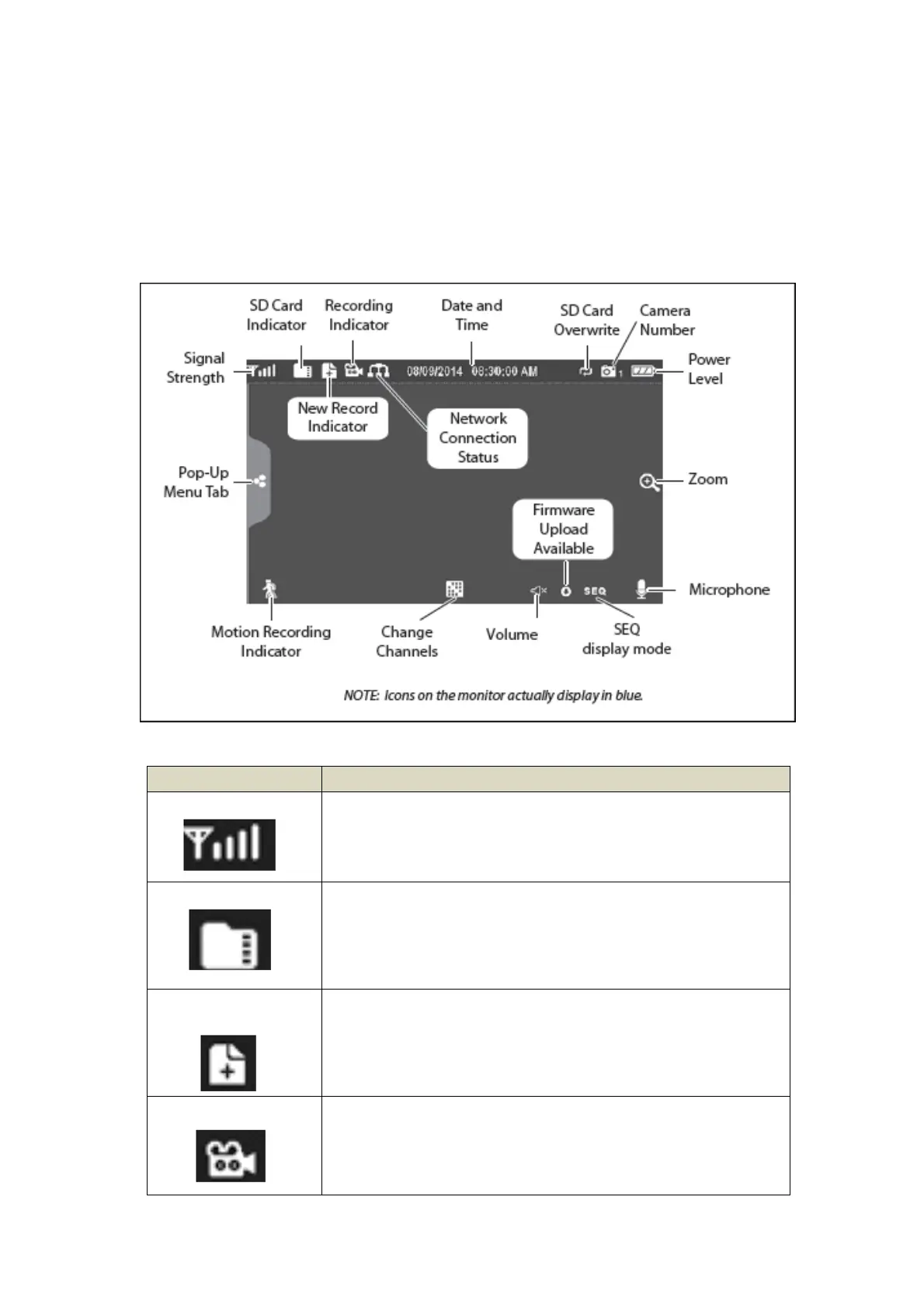
Live Screen Diagram:
Different icons are displayed on the monitor screen depending on what is going on with
your cameras. This image shown below is an example of what could be on your screen (the
video image is removed to make it easier to see the icons). Please see the icons and
descriptions listed below:
Icon Description
Signal Indicator
Shows how strong the camera's signal is. Signal ranges from 4
bars down to 0 bars (out of range).
SD Card
This graphic displays if an SD card is inserted into the monitor.
If the icon is blue, recording space is available.
If the icon is red, the SD card is full.
Tap this icon to view recorded files.
New Recording
Indicator
New recordings have been saved on the SD card.
Recording Indicator
When this icon flashes red, it indicates that recording is in
progress.


 To Next Page