Need help?
Do you have a question about the TECHVIEW QC3764 and is the answer not in the manual?
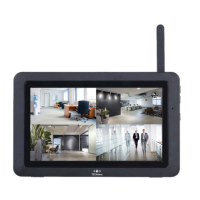
Diagrams and labels for the 7" LCD monitor, detailing its components and ports.
Step-by-step guide for setting up the monitor, including positioning antennas and connecting power.
Instructions for securely mounting the camera and connecting its power and antenna.
Explains the different display modes for the surveillance system, such as Quad View and Single View.
Guide on how to view and manage recorded video files using the playback function.
How to adjust the audible alarm volume level for motion detection alerts.
Access point for camera configuration options including pairing, on/off, and resolution.
Settings for configuring recording duration, scheduling, and file overwrite options.
Options to configure date, time, time zone, language, and format the SD card.
Step-by-step guide for pairing new or existing cameras to the monitor.
Instructions on how to enable or disable video signals from individual cameras.
How to adjust the video quality and frame rate for each camera.
Configure how long the camera records after a motion detection event.
Set up a weekly schedule for cameras to record at specific times.
Configure the system to automatically overwrite old files when the SD card is full.
How to set or synchronize the monitor's date, time, and time zone.
Set the correct time zone for your monitor's location.
Choose the display language for the monitor interface.
Steps to reset the system to its original factory default settings.
Guide to reformatting the SD card, which erases all stored data.
Displays current firmware version for the monitor and paired cameras.
Access point to configure network settings, including advanced setup and password reset.
Configure network connection using DHCP or Static IP addressing.
Resets the iHomeView app password to its default value.
Shows current network status and details when connected to the internet.
Adjust the sensitivity levels for motion detection for each camera.
Define specific areas within the camera's view to exclude from motion detection.
Instructions for updating the device firmware using an SD card.
Instructions for updating the device firmware over an Ethernet network connection.
How to access and play back recorded video files from the SD card.
Steps to download the iHomeView app from app stores and connect the monitor.
Process for adding the surveillance system device within the smartphone app.
Using the smartphone camera to scan a QR code for device setup and UID entry.
Setting a custom name and password for the surveillance system in the app.
How the system appears in the device list after setup and connection.
Steps to re-establish network connection if the surveillance kit fails.
Modify app password, video quality, and alert intervals for the device.
How to playback recorded footage from the smartphone app.
Accessing still images captured via the snapshot function.
Procedure to remove the surveillance system from the smartphone app.
Technical details for the 7" LCD monitor, including resolution, wireless range, and battery.
Technical details for the wireless camera, including image sensor, resolution, lens, and IP rating.
Table showing estimated recording times based on SD card capacity and resolution.
Details file sizes for different recording durations and resolutions.
 General
| Brand | TECHVIEW |
|---|---|
| Model | QC3764 |
| Category | Security System |
| Language | English |

 To Next Page