Recording Live Video (Monitor):
1.
On the live viewing screen, press the red viewing icon for the camera to begin
recording.
2.
The icon will blink and turn blue while recording.
3.
Press it again to stop recording. The icon stops blinking and will turn red.
Please Note: You can record from all cameras at the same time.
Play Back Recorded Video:
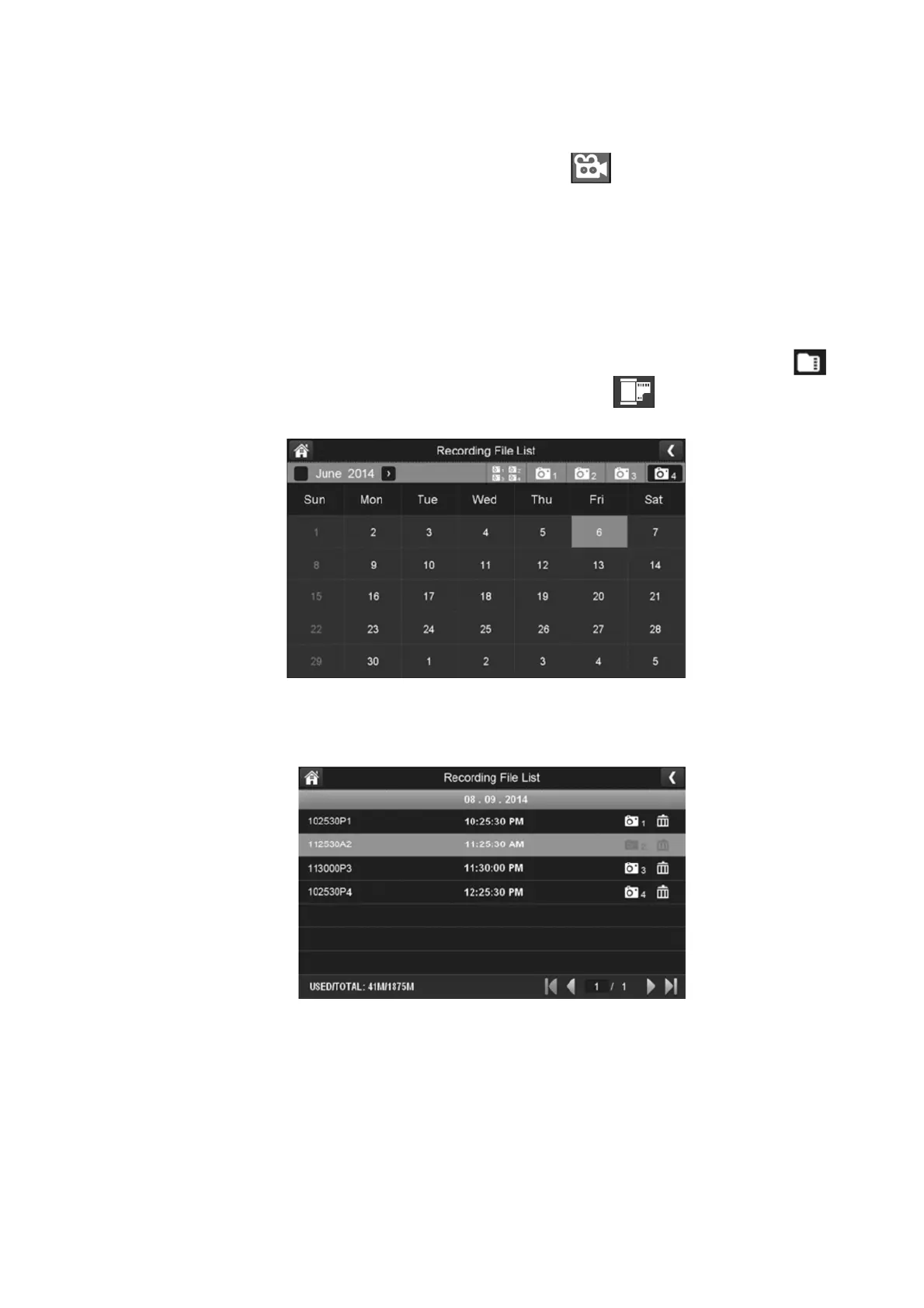
There are two ways to access recorded video files. You can either tap the SD card icon
on the live screen or you can tap the playback pop up menu. Either way, the
following screen displays:
1.
Select the highlighted day containing the recording you want to view or on a specific
camera to only view that camera’s recordings. The recording file list screen displays
those recordings.
Please Note: If you select on a day that is not highlighted, there will be no action taken
at all.
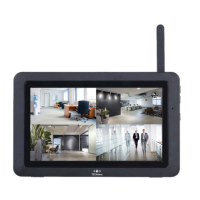
2.
Press the recording you want to view and it will begin playing. The control icons will be
displayed across the bottom of the screen.


 To Next Page