12
System Navigation
Gesture Navigation
Go to Settings > System & Updates > System Navigation and select Gesture Navigation
or Three-button Navigation.
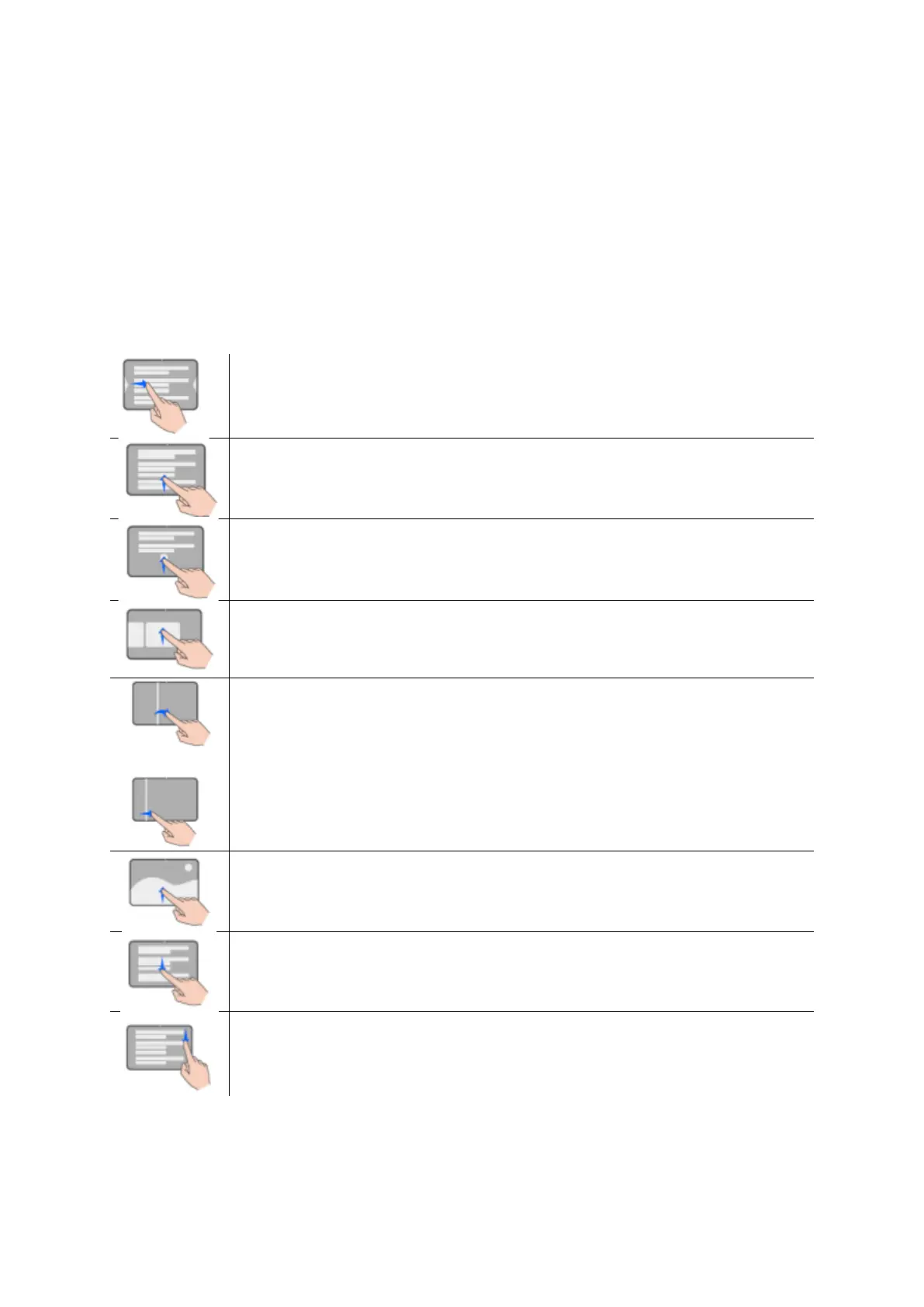
Common Gestures
Go back
Swipe inward from the left or right edge to return to the previous
screen
Go to the home screen
Swipe up from the bottom to go to the home screen
View recent tasks
Swipe up from the bottom of the screen and hold to view recent tasks
Close a task
Swipe up a task card to close the task when multiple tasks are viewed
Fast app switch
Before using this feature, go to System Navigation and touch More
Settings. Please ensure that Swipe Horizontally Across the Bottom to
Switch Apps is enabled.
Swipe in a curve along the bottom edge of the screen.
Display the shortcut panel on the screen lock
After screen lock, light up the screen and swipe up from the bottom a
single finger.
Display the search bar
Swipe down from the middle of the screen to display the tray and
notification.
Turn on a shortcut switch
Swipe down from the top right of the screen to exit Control Center and
touch Show All Shortcut Switches (depending on your model)



 To Next Page