Page 32
© Copyright 2008-2012 Energy, Inc. All rights reserved
Solar/Wind Generation
If you are generating power (solar/wind, or auxiliary
generator), TED is designed to record your Generation,
Consumption, and record the Net of the two as well. At
any time, you can see each independently simply by
checking the appropriate tab on the Live Dashboard
(MTU1, MTU2, NET).
This section is to be completed only after the physical
installation of the MTU(s) and CT(s) have been
completed.
Depending on the TED system purchased, your system
came with two MTUs or more (a TED system can have up
to 4 MTUs). One/some MTU(s) will be measuring your
Consumption (Load), and the second(other) MTU will
be measuring your Production (Generation). Footprints
will record each of these, and also present the NET of
your Production/Consumption.
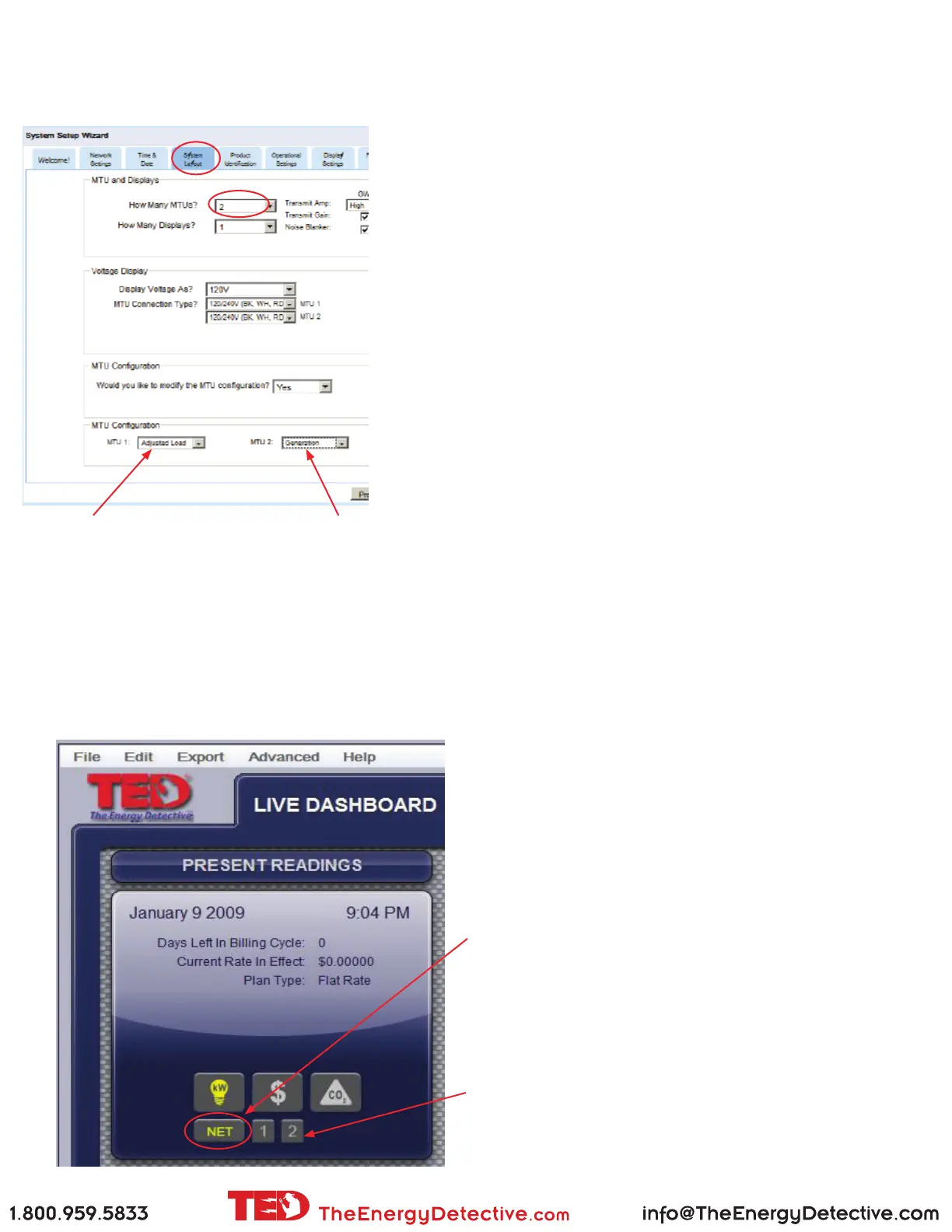
Under the EDIT tab, select System Setup Wizard
- Select the tab System Layout
- Under “How Many MTUs?”, click the drop-down and
select how many you have installed.
- Under “Multiple MTU Conguration,” select
“SOLAR” if you have installed a Generating system.
In a Solar conguration where
the inverter ties into the house
panel, MTU 1 should be set to
ADJUSTED
LOAD. (MTU 1
should be the MTU in the main
electrical panel). If the inverter
ties in up-stream between the
meter and the panel, then MTU
1 should be shown as “LOAD.”
Set the remaining
MTU which is
connected to your
Solar/Wind inverter
to “Generation.”
Only after you have completed the Setup of your system
will the changes be noted on the Live Dashboard.
By selecting “NET”, you will see a combined view of
both/all of your MTUs...showing you a positive number
if your consumption is greater than your generation, or a
negative view if you are generating more electricity than
you are consuming (sending electricity back to the grid).
You can view MTU1, MTU2, (MTU3 & MTU4 - if you
have that many installed) all independently simply by
selecting the appropriate MTU.
Please also refer to Page 7 for some critical
settings for Footprints (which will help set
up your graphing of solar activity).


 To Next Page
 Loading...