Page 34
© Copyright 2008-2012 Energy, Inc. All rights reserved
APPENDIX A
Connecting TED 5000 Gateway Directly to a Computer
Note: It is highly recommended that you connect your Gateway directly to your router, and not your computer.
• Installation and setup is simplied.
• Energy information can be viewed by any device connected on your home network.
• Time is automatically synchronized.
• Up to the minute weather information is available.
If you do not have a router, we highly recommend that you purchase one.
To connect your Gateway directly to your computer, you will most likely need to change the network settings on
your computer. Please carefully follow these steps:
1. Plug the Gateway into a 120V outlet.
2. Connect your PC to the Gateway with the included Ethernet Patch Cable.
2.1. If you need a longer cable, any CAT V cable with RJ45 jacks may be used.
2.2. A cross-over cable can be used to direct-connect to the computer, but it is not necessary. The Gateway
automatically senses the cable conguration.
3. Open your web browser (Internet Explorer, Firefox, Chrome, etc.)
3.1. In the address bar type in: http://192.168.7.2/Footprints.html
3.2. FootPrints 5000 Dashboard should load (Note: could take up to 1 ½ minutes to load)
4. If you get a “Cannot Open Webpage” or “File Not Found” error on your browser, then you will need to change
the IP of your PC.
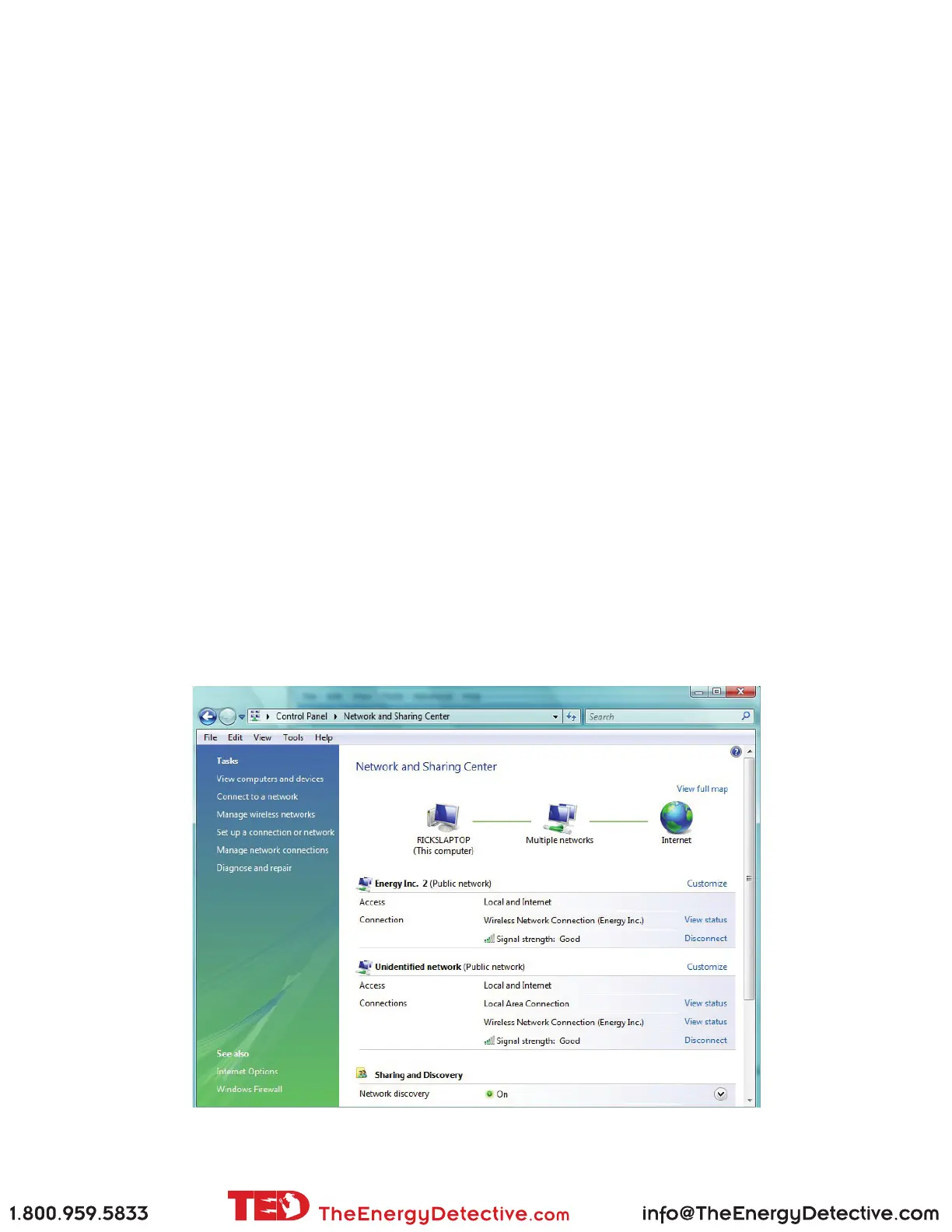
4.1. Go to Control Panel/Network and Sharing Center (accessed from Start Menu)
4.2. Click on Manage Network Connections.



 To Next Page