9
10. Access and Organization of Programming Menus
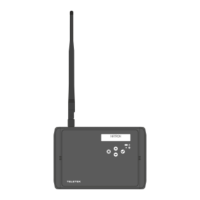
The access to programming mode and setup menus of Natron WE-C wireless expander (network
gateway) module is limited for support engineers and maintenance technicians only.
At normal operation mode, the screen of Natron WE-C is switched off. Pressing any of the
operation buttons will activate the screen, as according the current state of the module, NATRON
text or fault/warning message will appear. To enter in programming mode, you have to open the
enclosure box and single press the programming button on the control module’s PCB – see item
6, position 6.
The scrolling between available menus is realized with UP/DOWN operation buttons. The
confirmation of set parameters is with ENTER button and rejecting and exit from current menu –
with CANCEL button – see item 8, position 4.
The SETUP MENU includes the following main menus for operation and settings:
The exit of the setup menus can be done at any time with pressing the programming button on the
control PCB - see item 6, position 6. The exit is also automatic after 2 minutes if there is no
activity with the module (pressed operation button).
11. Enrolling of Wireless Devices
Natron WE-C wireless expander (network gateway) module supports operation with Natron series
wireless devices. The enrolment algorithm is common for all devices.
1. Prepare the device for enrolment. Remove the mounting base to access the PCB with the
batteries compartment. The batteries of all new devices are protected from activation with a folio
strip.
Note: If the device is not new, you have to reset it before enrolment to the module. To reset a
device, power it on with the batteries and after that press and hold ENROLL button for 5-7
seconds. The reset is complete when the LEDs of the device flash 3 times in green, followed from
1 long flash in red and 1 long flash in green.
2. Enter in programming mode of the module. Select menu 1. ADD DEVICE and press ENTER
button. A list with already enrolled devices is shown on the screen with an order number and type
of the device: SD (optical-smoke detector), TD (heat detector), MD (combined detector), MCP
(manual call point), WSS (sounder with strobe), MIO (input-output module) – you can find detailed
information about the wireless devices in their installation manuals.
3. Scroll down to find a free address to enroll the device. The free address is labeled as EMPTY.
4. Press ENTER button. Message SEARCHING >>> (arrows are blinking) appears on the screen
showing that the module is scanning for signals from wireless device in its covering range.
Note: If there is no signal from the device in 2-minute period, the module will exit automatically the
programming mode.
5. Power on the wireless device. If the device is new just remove the protective folio from the
batteries – the enrolling process starts automatically. If the device is powered and reset - single
press the ENROLL button. The LEDs of the device start flashing in red.


 To Next Page
 Loading...