ASCII Keyboard
•
•
I·
•
This section describes the ASCII keyboard.
If
you
havean AT keyboard.refer
to
the previoussection;
if
you havea DEC style keyboard. refer to the next
section.
Types
of
Keys
Keyboard areas are shown in Figure 3-4.
Function keys
(F1
through F16)
are
pro-
grammable by the user.
Alphanumeric keys produce a printable let-
ter, number, or symbol, just like typewriter
keys. Special keys (Ctrl, Shift, and Funct)
in
this area control computer operations.
Editing keys are used to move pages onto
the
screen, to move the cursor about on
the
displayed page, and to modify displayed
characters.
Numeric keypad keys are typically used for
calculator functions.
Remote keys
Remote keys send signals (printable characters
or
operating messages) to the computer when the
terminal is
on
line. When remote key signals go
to
the computer. your program then controls their
effect.
For
example, the Backspace key may erase
the character to the left
of
the cursor in some
programs. and move the cursor in other programs.
Most keys (even alphanumeric keys!) are remote
keys. This means that when the computercontrols
the terminal. this manual cannotpredict what hap-
pens when you press a remote key. Consult your
software manual.
When the terminal is not
on
line to the computer.
it receives signals from the remote keys and re-
sponds to their commands.
Local keys
Local keys send codes only to the tenninal itself.
TIley cause the same terminal operations regard-
less
of
communication
or
tenninal personality
mode.
Local Key Commands
NOTE: The Enter key and numerals refer-
enced
in
the following commands are lo-
cated
on
the numeric keypad.
OPERATION
3-8
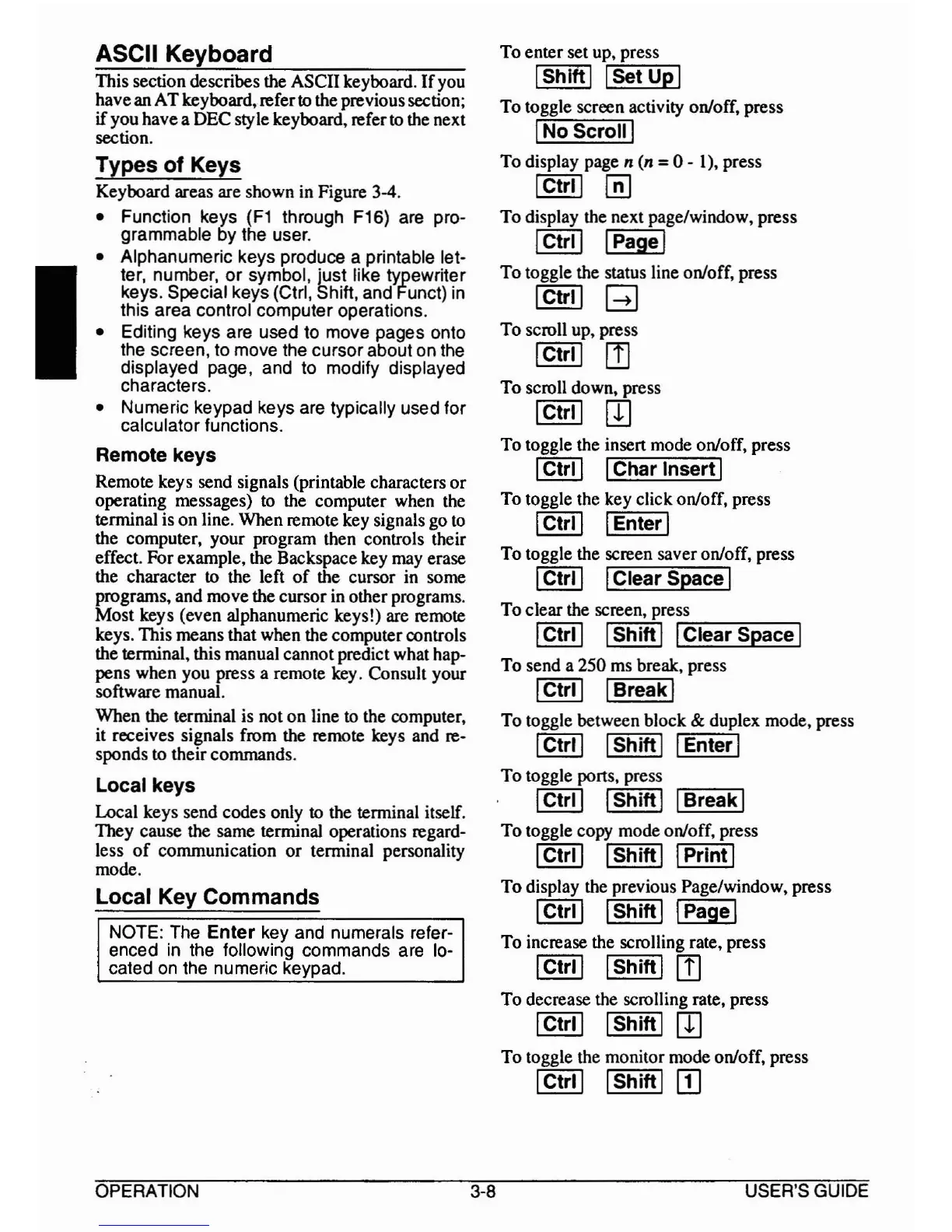
To enter set up, press
IShiftl
I
set
upl
To toggle screen activity on/off. press
INo Scroll I
To
display page n (n =0 - 1). press
ICtrl I
~
To
display the next page/window. press
I
Ctrll
IPage I
To
toggle the status line on/off. press
ICtrl1 B
To
scroll up. press
ICtr11
I]
To
scroll down. press
ICtr11
rn
To
toggle the insert mode on/off. press
I
Ctrll
IChar InsertI
To toggle the key click on/off, press
I
Ctrll
IEnter I
To toggle the screen saver on/off. press
I
Ctrll
IClear Space I
To
clear the screen. press
I
Ctrll
IShiftI
I'-C:":"'le-a-r
=Sp-a-c-e
I
To send a 250 ms break, press
I
Ctrll
IBreak I
To toggle between block & duplex mode, press
I
Ctrll
IShiftI IEnter I
To
toggle ports, press
I
Ctrll
IShiftI IBreakI
To
toggle copy mode on/off, press
I
Ctrll
IShiftI IPrintI
To
display the previous Page/window. press
I
Ctrll
IShiftI IPage I
To increase the scrolling rate. press
I
Ctrll
IShiftI
rn
To
decrease the scrolling rate. press
I
Ctrll
IShiftI
rn
To
toggle the monitor mode on/off. press
I
Ctrll
IShiftI [I]
USER'S GUIDE


 To Next Page