04
TROUBLESHOOTING
TIPS
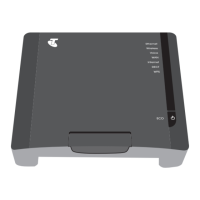
Connecting to your Gateway
If you are having trouble connecting to your Gateway, make sure that:
• The cabling is connected correctly, as shown in Part 1 Set Up Your Telstra Gateway.
• The power supply is connected.
If you still have trouble, try restarting your Gateway and computer/device
by turning them off. Wait 10 seconds,
before turning them on again.
Can’t find your Telstra Broadband password?
On an internet-enabled device, such as your phone, go to
www.telstra.com.au/password to retrieve your password.
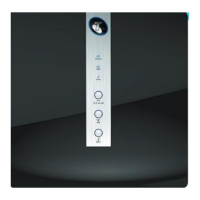
Gateway LEDs
affected
Gateway LED
status combination
Suggested Actions
W
AN + Internet
completion email
,
be
fore continuing
the set up of your service
.
WAN + In
te
rnet
Green + Green - Check you have received your
or
der completionemail, and
follow
Section 3 in this Quick Start Guide
.
Can’t get onto the Internet?
- Check you have received your order
OFF
+ Re
d
05
MANAGING YOUR
GATEWAY
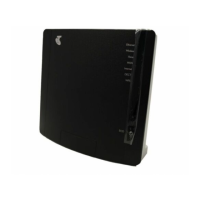
Using the Gateway Max Control Panel
Use the Gateway control panel to manage and customise your Gateway
settings
.
The control panel can be
accessed from
any device connected to
the Gateway. To access the Gateway control panel:
1. Open a web browser on your computer/device.
2. Enter the URL telstra.mygateway/
Useful control panel functions:
• Use Parental Control to protect children from inappropriate content,
and restrict internet usage.
• Go to Wi-Fi to change your Wi-Fi network name and security key.
•
G
o to Broadband to change your Telstra Broadband username
and password.


 To Next Page