11
.
1. Press
Menu
, scroll
to
Clock & Alarm
and press
Select
.
2.
Date/Time
is highlighted. Press
Select
.
3.
To change the date format, scroll to
Date Format
and scroll or to
select either
DD/MM
or
MM/DD
.
4.
the date, e.g. when set to DD/MM, 27/08/19 for
27 August 2019 and press
Ok
.
5. Once the date is set, to change the time format, scroll to
Time Format
and
scroll
or
or
to select either
12 Hours
or
24 Hours
.
6. Scroll to
Enter Time
,
enter the time, e.g. when set to 24 Hours, 1430 for
2:30pm and press
Save
. If the current time format setting is 12 hour,
scroll or to select
AM
or
PM
.
7. Press BACK button
Press BACK button
to return to standby.
Your phone is now ready for use.
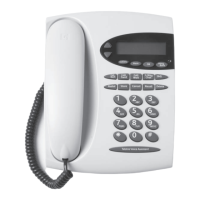
Your phone has an easy to use menu system.Each menu has a list of options,
which you can see on the menu map on the following page.
When the phone is in standby:
Scrolling through menus
1. From the standby screen, press
Menu
.
The main menu is opened.
2. Use the /
keys to scroll through the menu.
3. Left softkey - press : key to action the corresponding word prompt shown
in the lower left corner of the display.
Right softkey - press : key to action the corresponding word prompt in the
lower right corner of the display.
4. to return to standby.
Enter Date is selected. Enter
Navigating the menus



 To Next Page