18
4. Date & time
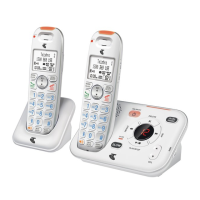
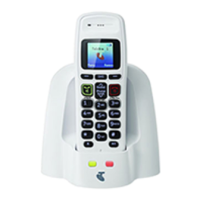
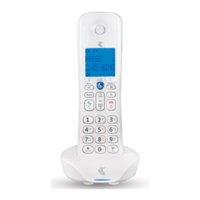
The date and time on your Telstra TVC-C device are set automatically during set-up
with the Telstra Voice app. If you subscribe to caller ID service, the day, month and
time are set automatically with each incoming call, and will override manually set
date and time. However, the ‘Year’ must still be set manually. The ‘Year’ information
is not sent with the caller ID information.
In the event your handset date and time get out of sync after events like power
cuts or a switch to daylight-saving time, you can set the date and time manually.
4.1 Set the date and time
1. Press
Menu
, scroll to
Advanced Settings
and press
Select
.
2. Scroll to
Date/Time
and press
Select
.
3. The last set date is displayed. Enter the date, e.g., when set to DD/MM,
25/09/2019 for 25 September 2019 and press
OK
.
4. To change the date format, scroll to
Date Format
and scroll or to select
either
DD/MM
or
MM/DD
. Press
OK
.
5. The last set time is displayed. Enter the time, e.g., when set to 24 Hours, 14:30
for 2:30pm.
If the current time format setting is 12 Hours, scroll or to select
AM
or
PM
.
6. Once the time is set, to change the time format, scroll to
Time Format
and
scroll or to select either
12 Hours
or
24 Hours
. Press
Save
.
7. Press to return to standby.
Date & time



 To Next Page