TEMPUR-PEDIC ACTIVEBREEZE® USER MANUAL | 21
PROSMART® AIR REMOTE GUIDE
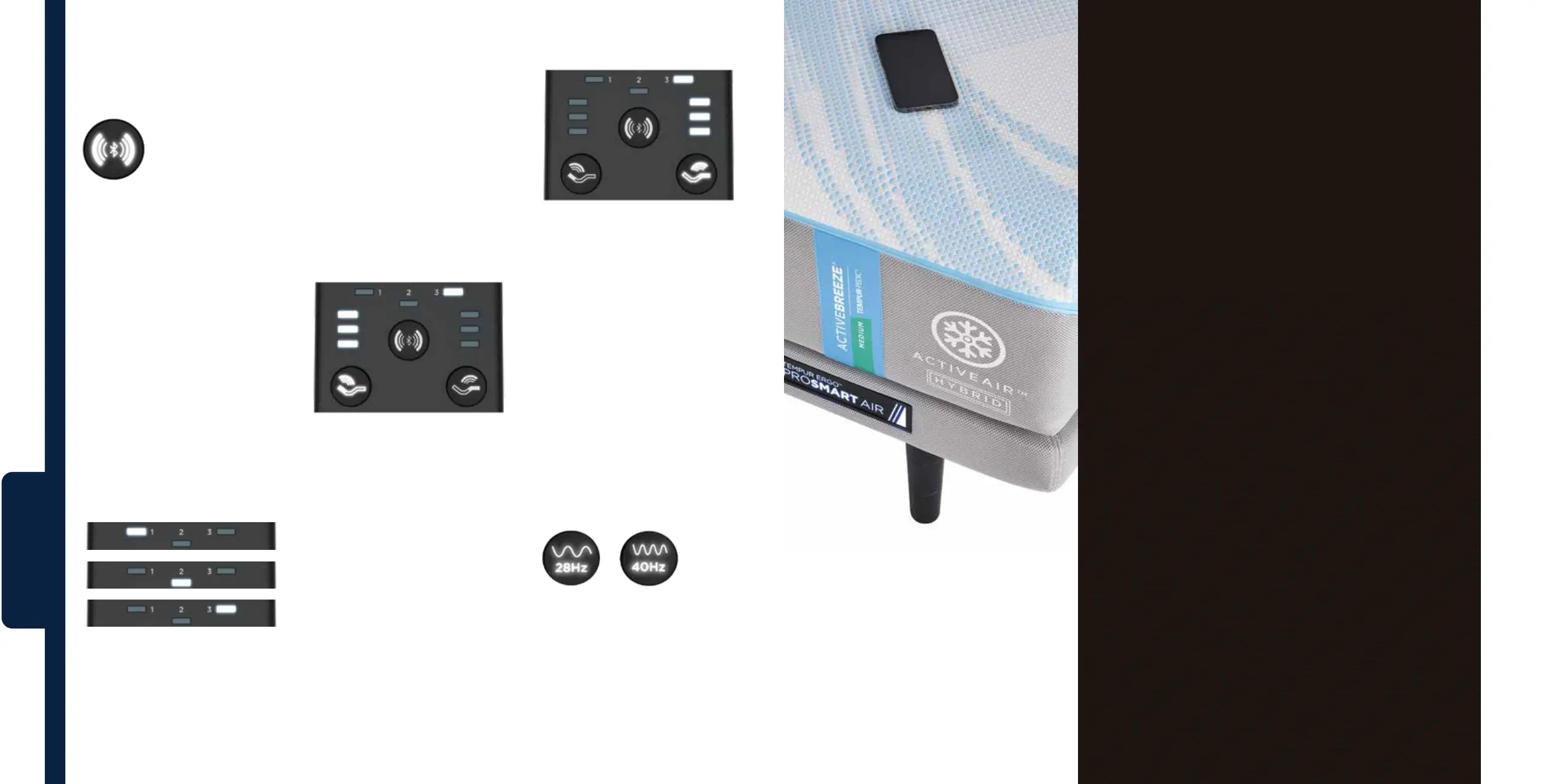
Wave Form™ Massage/
SoundScape™ Mode and Wave
Pattern Selection
You can select Wave
Form™ massage or
SoundScape™ mode
with this button.
Press and hold the button
for 3 seconds to switch from
Wave Form™ massage mode
to SoundScape™ mode or vice
versa. During mode switch, the 3
LED lights will flash followed by a
verbal cue from the soundbar of
“Sound Mode” for SoundScape™
mode and “Massage Mode” for
Wave Form™ massage.
You can also use this button to
select the massage pattern in
massage mode and the bass level
in SoundScape™ Mode.
Default mode is massage mode.
Once you have selected Wave
Form™ massage mode, press this
button to cycle through and select
wave pattern 1, 2 or 3.
If you have selected SoundScape™
mode, press this button to cycle
through and select bass level
output 1, 2, 3 – which corresponds
to low, medium, high.
Head Zone Massage
In Wave Form™ massage or
SoundScape™ mode, use this
button to select the massage
intensity at the head zone.
When in Wave Form™ massage
mode:
Select from 3 intensity levels
for Wave Form™ massage: low,
medium, high.
When in SoundScape™ mode:
Adjust the bass level output when
in SoundScape™ mode: low,
medium, high.
Foot Zone Massage
In Wave Form™ massage or
SoundScape™ mode, use this
button to select the massage
intensity at the foot zone.
When in Wave Form™ massage
mode: Select from 3 intensity
levels for Wave Form™ massage:
low, medium, high.
When in SoundScape™ mode:
Adjust the bass level output
when in SoundScape™ mode: low,
medium, high.
Wave Form™ Massage Frequency
When in Wave Form™ massage
mode, use these buttons to select
a low or high massage experience.
The Sleeptracker-AI® app oers
all the same functionality as the
remote control and includes
advanced settings for even
more relaxation experiences.
o Wave Form™ Massage Mode
Access Wave Form™ massage
mode in the Sleeptracker-
AI® app within the Relax
section, found in the bottom
taskbar. There, you can select
your massage frequency
and duration, and your base
position.
o SoundScape™ Mode
SoundScape™ mode allows
you to both hear and feel
sound through your bed. Start
by pairing your smartphone
or other Bluetooth®
compatible devices to your
TEMPUR-ActiveBreeze®.
Once complete, using the
Relax section within the
Sleeptracker-AI® app, you can
toggle SoundScape™ mode
on, and play the audio of your
choice through the bed, via
the smart device. For ultimate
relaxation, we recommend
the specially curated Tempur-
Pedic® playlist on Spotify®.
o Wind Down
®
Programs
Wind Down® programs are
designed to help relax your
mind and body for sleep. The
two preset program options
cycle through dierent
base positions and soothing
massage types. Using the Relax
section of the Sleeptracker-
AI® app, you can review and
select the program of your
choice, and your smart bed
will automatically adjust the
position and massage for the
duration of your experience.
o Individual Profiles
Setting up individual profiles
allows you and your partner
to receive personalized
functionality and advanced
sleep insights.
o Custom Programs
Using the Sleeptracker-AI®
app allows you to create
custom “set it and forget it”
programs that match your
specific sleep schedule and
sleep climate needs.
Sleeptracker-AI
®
app guide.



 To Next Page