6
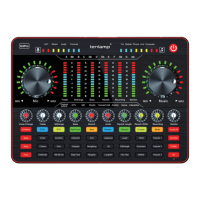
9. Personality murmur button /status light:
Turn on special voice function, and the 6 voice modes can be cyclically switched by Chan-
geVoice fader adjusting.
10. Interesting sound effect buttons area:
24 buttons in total.
11. Voice changer button:
Three preseted interesting voice changer buttons: Goddess, Uncle and Children’ s.
12. Pattern button:
short press to cyclically switch 5 preseted reverb modes: original sound mode, Karaoke
mode, shout mode, popping mode, magic sound mode.
13. Pattern Lamp :
Indicates the current reverb mode, a total of five modes.
14. Microphone knob:
Rotate the knob clockwise to adjust the input volume of mic(via microphone, Headset port).
15. Microphone level indicator and breathing lamp.
16. BT status indicator:
BT is waiting for pairing When the indicator blink. When indicator is always ON, BT has been
paired and connected successfully.
17. Microphone volume level indicator:
Eight segment dynamic level display .
18. MIC EQ fader :
To up to increase treble effect of microphone vocals, slide down to increase bass effect of
microphone vocals.
19. ChangeVoice fader:
Fine-tune the current voice changer effect when turn on special voice or the Goddess, Uncle
and Children's.
20. Reverb fader:
Adjust reverb effect from min to max reverberation effect in the original sound. Fine tuning in
other modes, make the sound more nature.
21. Monitor fader:
Adjust the monitoring output volume(via Earphone port, Headset port, Audio port)
22. Record fader:
Adjust the main output volume(output to live streaming or recording devices), via PC/Charging,
and Broadcast ports.
23. Music EQ fader:
To up, increase treble effect of singer’ s vocals in background music; slide down, increase bass
effect of singer’ s vocals in background music.
24. Accompaniment dynamic level indication.
25: Long press the button for 2 seconds to turn on First level noise reduction function
26: Long press the button for 2 seconds to turn on Second level noise reduction function
27: Long press the button for 2 seconds to turn on Third level noise reduction function
Realtec High Definition Audio
Realtec High Definition Audio


 To Next Page