7
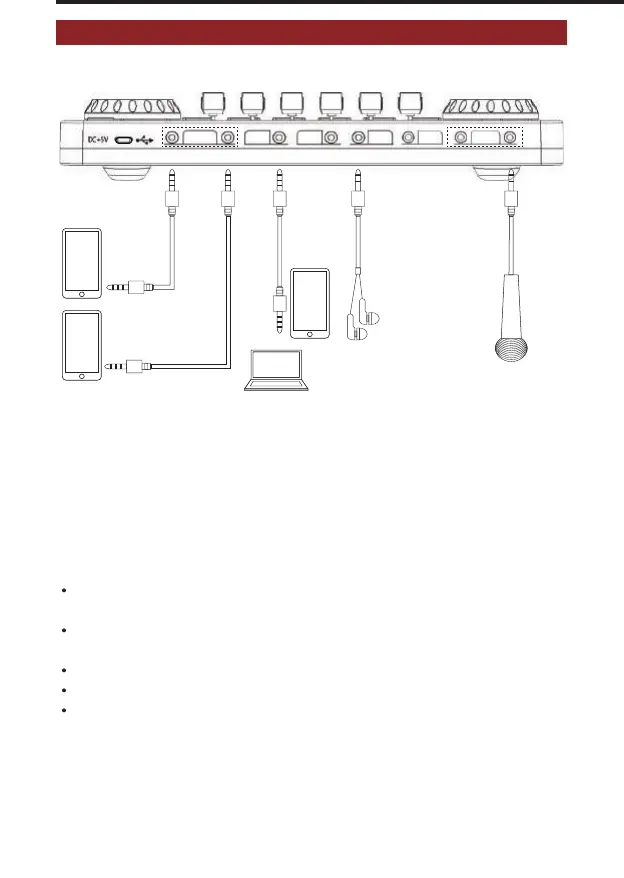
G3 USING CONNECTIONS
PC/Charging
Broadcast Music Audio
Earphone
Headset
Microphone
Live Streaming/Recording on Smartphone
or
monitoring
headphone
accompaniment
streaming
phone
Warm Tips
Please use the 3.5mm to USB-C or 3.5mm to Lightning adapter from the manufacturer
if your phone has no the 3.5mm audio port.
The mixer can support live streaming up to 2 different smartphones, 2 mics & 1 headset
inputs at the same time. Do not have to connect all output and input ports if not needed.
PC/Charging port also can connect PC device for inputting accompaniment music.
If has surroundings noise, please turn on denoise function, or lower mic volume.
NOTE: when you interact and stream with live audiences, guest, followers and other streamers
through smartphone via Broadcast port, you can hear the sound of live audiences, guest,
followers and other streamers in monitoring headphone, but the sound volume from live
audiences, guest, followers and other streamers depend on the other side, G3 can not control
the volume of the sound.
Realtec High Definition Audio
Realtec High Definition Audio
Headphone with microphone input vocals please insert into Headset port, wireless mic
please insert into Microphone port, including Lavalier mic,Wireless lavalier mic.
1. Connect the live streaming mobile phone, accompaniment mobile phone, monitoring
earphone and microphone to the mixer as shown in the above.
2. Download the live steaming app on smartphone.
3. Power on the mixer and set the voice FX needed and functions, then test the live
streaming effect.
4. Open the accompaniment music app on the accompaniment mobile phone and start
live streaming.


 To Next Page