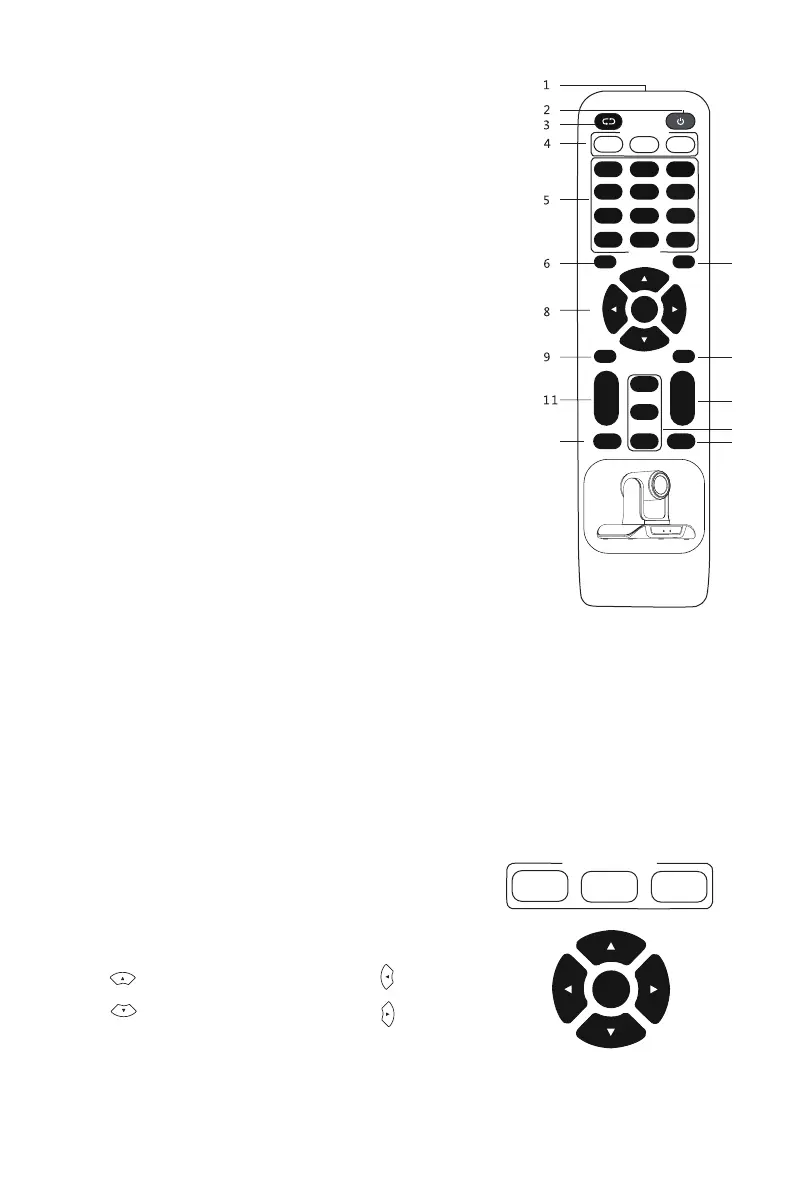
Remote Control Button Description
(1)Remote Control Launch Window.
(2)【POWER】Standby Button, pressing it, camera goes into Standby Mode;
pressing again, camera goes Power ON.
(3)【PT/Reset 】Camera Pan/Tilt reset Function same with⑨( PT/RESET)
(4)【CAMERA SELECT】Choose the camera number that needed to control,
to correspond the dial-up code on the back of camera.
(5)【POSITION】Preset position setup keys, include 【PRESET】and 【RESET】.
(6)【UP】camera rotating horizontally in regular
installed direction.
(7)【DOWN】camera rotating horizontally in reversed installed direction.
(8)【PAN -TILT】camera rotation control.
key: press this button and move by the arrow direction,
press【HOME】to back to the center of vertical and horizontal position.
(9)【Camera Pan/Tilt Reset 】Camera Pan/Tilt reset.
(10)【 MENU】Not Applicable for this model.
(11)Slow Zoom Key.
【ZOOM SLOW+】:Zoom in at low speed.
【ZOOM SLOW-】:Zoom out at low speed.
(12) Fast Zoom Key
【ZOOM FAST +】:Zoom in at fast speed.
【ZOOM FAST -】:Zoom out at fast speed.
(13) Manual Focus Mode.
【MANUAL FOCUS】Start manual focus function.
【FAR】Manually far focus button, clearer for the distant objects, loose
finger to stop.
【NEAR】Manually near focus button, clearer for the nearby objects,
loose finger to stop.
(14)【AUTO FOCUS】Auto Focusing Button.
(15)【L/R DIRECTION/SET】Not Applicable for this model.
4
Common Operations Introductions
1.Common Operations Introductions
(1)Camera Select
Refer to the dial-up at the back of camera and choose camera
address number that you want to control(1-3)。
(2)Camera Direction Control
★Note: Press direction key to move the camera.Press the direction key when you need to change the angle. If you
want to move the camera slowly, just click the direction key; If you want to move the camera fast at a large scale,
just long-press the button.
Turning up
Turning down
Turning to left
Turning to right
1 2 3
CAMERA SELECT
HOME
14
13
15
12
7
10
1 2 3
1 2 3
4 5 6
7 8 9
PRESET
0
RESET
CAMERA SELECT
STD REV
POSITION
UP
DOWN
HOME
PAN-TILT
MENU
PT/RESET
ZOOM
SLOW
+
-
ZOOM
FAST
+
-
FAR
NEAR
MANUAL
FOCUS
L/R
SET
AUTO
FOCUS
★Attentions for Remote Control
1.If remote control doesn't work, please replace batteries.
2.If there is an object between remote control and specialized remote control sensor, the camera will not work. Please
make sure the remote control is aimed at the sensor which in front of the camera when controlling it.
3.L/R SET and Menu keys are not applicable for this model.
4.Fast zoom key, slow zoom key, manual and auto focus keys not applicable for fixed focus model.


 To Next Page
 Loading...