Teo IP Phone 4104 User Guide 12
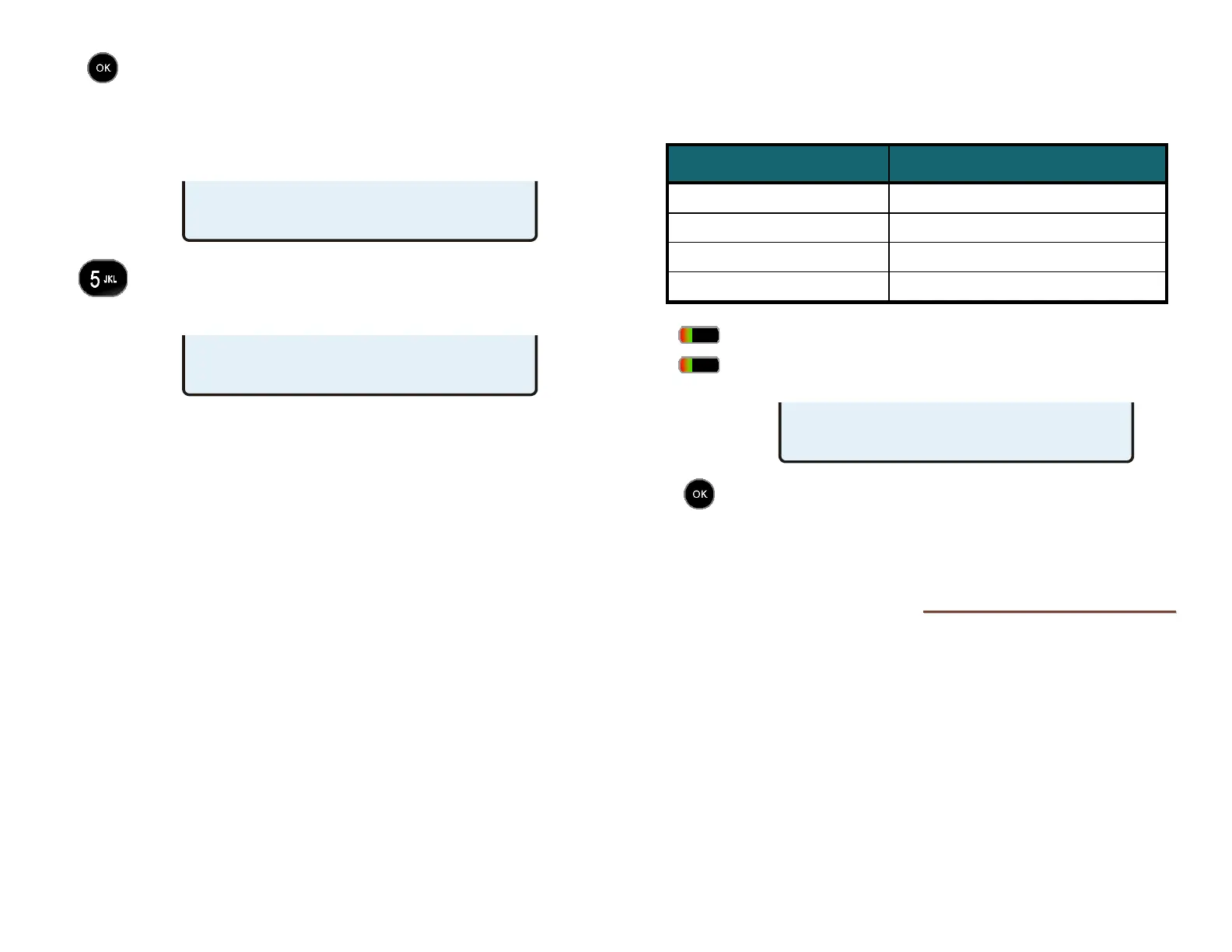
Press the OK key or the PRESENCE key to save the
selected presence status.
Your presence status will be shown in the phone’s
idle display, and the
PRESENCE key will be lit
red/green, unless your status is set to “Available”.
If you selected “Call Forward” (dial pad key 9), enter
the number that calls will be forwarded to, and then
press the
OK key.
You can also set your presence status from other telephone
devices on the Teo UC System that share your line
configuration, such as the Teo Softphone, from the Teo UCM
User Portal, or through the Teo UC Mobile Client.
The presence status displayed on your phone is your “system”
presence status that can be viewed by other users.
Note: “On The Phone” and “Offline” presence states are set
automatically by the Teo UC System, and cannot be set
manually.
V
V
i
i
e
e
w
w
i
i
n
n
g
g
t
t
h
h
e
e
P
P
r
r
e
e
s
s
e
e
n
n
c
c
e
e
S
S
t
t
a
a
t
t
u
u
s
s
o
o
f
f
O
O
t
t
h
h
e
e
r
r
U
U
s
s
e
e
r
r
s
s
You can view the presence status of other users whose lines
appear on your phone’s DSS/BLF keys.
DSS/BLF Key Indicator Presence Status
OFF Available (On-Hook)
Steady Red / Green Other Presence State (On-Hook)
Steady Red On The Phone (Off-Hook)
Flashing Green Ringing
To view presence details, press the
PRESENCE key.
Press DSS/BLF keys to view other users’ presence
status (one at a time).
When finished, press the OK key or the PRESENCE
key again.
U
U
s
s
i
i
n
n
g
g
N
N
e
e
t
t
w
w
o
o
r
r
k
k
F
F
e
e
a
a
t
t
u
u
r
r
e
e
s
s
In some systems, multifunction keys can be programmed to
access features provided by the telephone network, such as
Directed Call Pickup. A feature is active when the key’s red
indicator is on.
Note: Call Forwarding and Do Not Disturb are controlled locally by
the phone.
08=2036
AFTER HOURS
FWD TO:5551234
DELETE CLEAR 123
ON VACATION
REDIAL



 To Next Page