Teo IP Phone 4104 User Guide 4
C
C
o
o
n
n
t
t
r
r
o
o
l
l
s
s
a
a
n
n
d
d
I
I
n
n
d
d
i
i
c
c
a
a
t
t
o
o
r
r
s
s
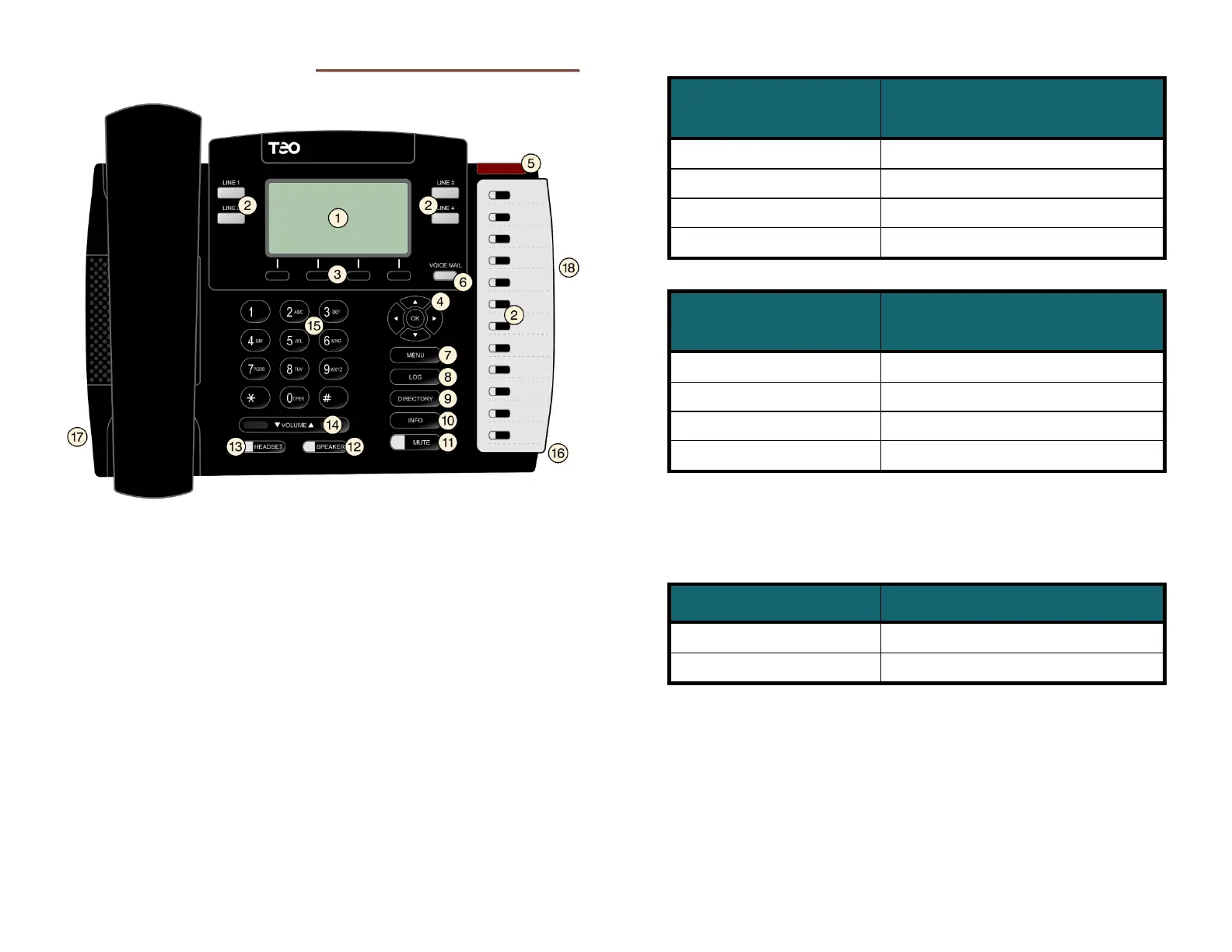
1) Display – shows the line ID, call state, caller ID, dialed digits,
network call control messages, elapsed time during calls,
the date and time of day, and softkey options.
The viewing angle is primarily set by changing the
base/mounting bracket angle (page 19). Display contrast can
be adjusted by a menu selection (page 27).
2) Multifunction Keys – used for Line Appearance, Direct
Station Selection/Busy Lamp Field (DSS/BLF), Feature, or
Speed Dial keys. The optional 8030X Button Expansion
Module provides 30 additional multifunction keys.
Red and green indicators on the keys show line appearance,
DSS/BLF and feature status.
Red/Green DSS/BLF presence status is only available if your
phone is connected to a Teo UC System (page 11).
Line Appearance Key
Indicator
Line State
OFF Idle (On-Hook)
Steady Green In Use (Off-Hook)
Winking Green On Hold
Flashing Green Ringing
DSS/BLF Key
Indicator
Monitored Station State
OFF Available (On-Hook)
Steady Red / Green Other Presence State* (On-Hook)
Steady Red On The Phone (Off Hook)
Flashing Green Ringing
* Note: If your phone is connected to a Teo UC System, steady
red/green is used to indicate Busy, Away, Not Available, Do
Not Disturb, On Holiday, On Vacation, After Hours, or Call
Forward presence states (page 11).
Feature Key Indicator Feature State
OFF Deactivated
Steady Red Activated
3) Softkeys – select the function displayed above the key on
the bottom line of the display.
4) Navigation (Arrow) Keys – navigate within menus. In editing
modes, the
key moves the cursor one position to the right
and the
key moves the cursor one position to the left. The
and
keys are used to shift between pages on multi-
page screens. The
OK key exits the current menu, saves any
changes made, and returns to the previous menu options.



 To Next Page