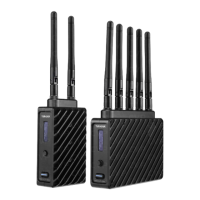
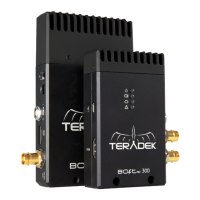
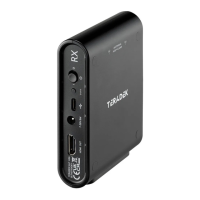
PAIRING/UNPAIRING VIA FRONT PANEL
Using the Menu Joystick, navigate to the
menu on both the transmitter and
the receiver front panel.
to begin the pairing process. The transmitter will begin scanning for a
receiver within range and automatically pair to the receiver.
Once paired, the front panel will indicate whether or not Pairing is successful.
menu on either the transmitter and the receiver.
Select the transmitter/receiver you want to unpair. If you have multiple devices
Open the Bolt App from your iOS or Android device, then tap the
Select the transmitter you wish to pair, then tap the
Select the receiver(s) you wish to pair with the transmitter, then tap the
button. The Bolt App will indicate when the pairing process is complete.
Open the Bolt App from your iOS or Android device, then tap the TX settings
button (3 dots) on the top right corner of the screen.
menu, select the receiver(s) you wish to unpair, then tap the
If you’re having trouble getting units to pair, we recommend keeping the
transmitter and receiver six feet apart when pairing. Keep all other RF
devices nearby turned off or out of range to ensure the transmitter and
receiver are only detecting each other. To eliminate any chance of
interference, perform the Wired Pairing process via Bolt Manager.
Bolt 6 LT Quick Start Guide | Bolt 6 | Teradek User Guide
https://guide.teradek.com/a/1604143-bolt-6-lt-quick-start-guide



 To Next Page