11
ENG
Press “SOURCE” key either on the remote control or on the panel. ‘’Input Source’’ will be displayed on the screen
(Fig.3). Then press “/’’ key on remote control or “CH+/CH-” key on the panel to select the signal source. Press
“OK”key on the remote control and the TV will replace the current signal source with the source you selected.
(Note: YPBPR signal source is optional, please refer to the device.)
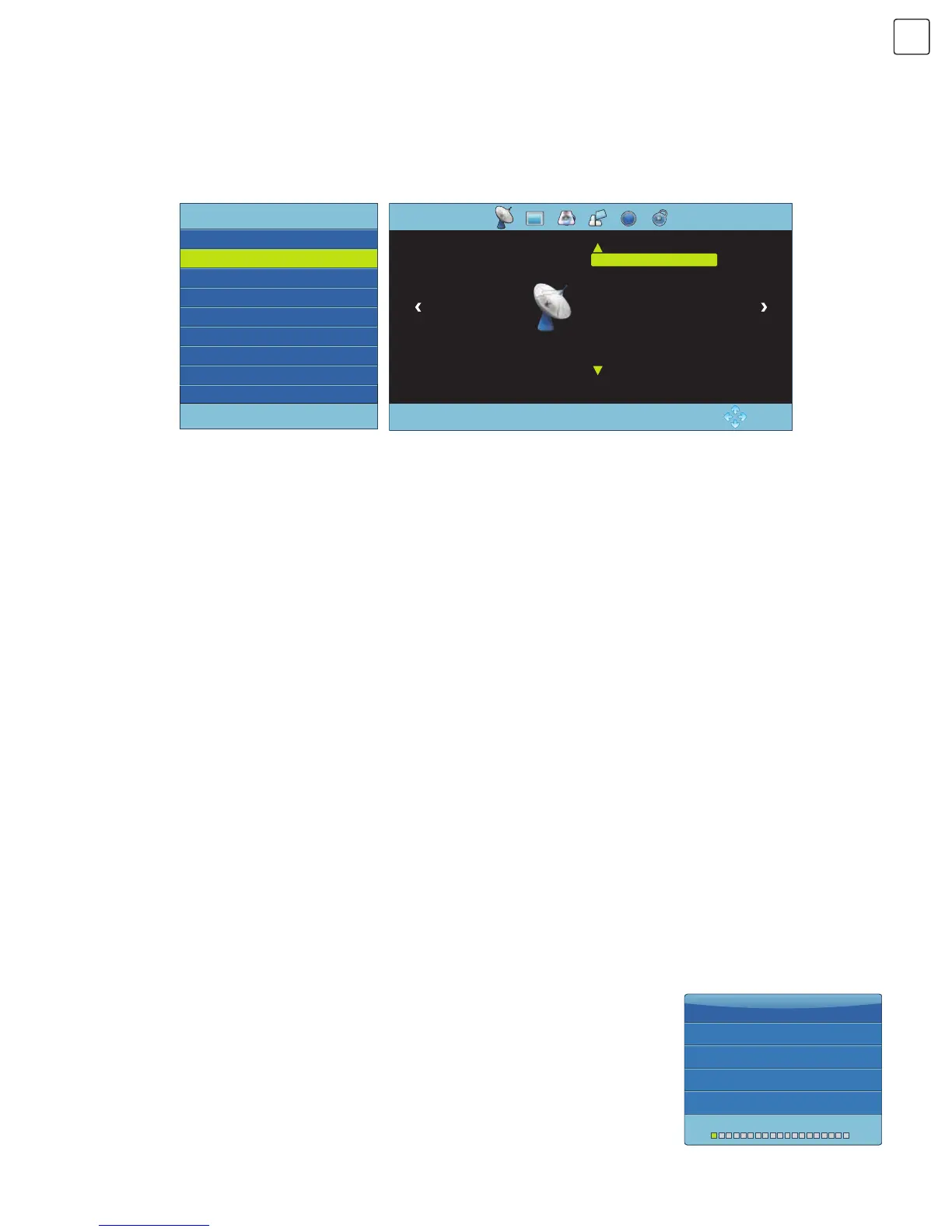
Press “MENU” key on the remote control or on the panel. The screen will display the main menu (Fig.4).
1. Press “t/u” key on the remote control or “VOL+/VOL-” key on the panel to select the adjustment sort menu,
which includes 6 sorts: CHANNEL, PICTURE, SOUND, OPTION, TIME, LOCK.
2. Press “ /” key on the remote control or “CH+/CH-” key on the panel to select what you want to adjust in
sort menu.
3. Press “OK” key on the remote control to set or enter into next menu.
4. Press “MENU” key to exit the main menu when the TV displays the Main Menu. Press “MENU” key to return to the
previous menu when the TV displays the sub-menu. Press “SOURCE” key to display the signal source menu.
5. During the operation, the options which cannot be adjusted at current mode will be hidden automatically and the
colour of these options will be changed into gray.
6. Menu Operation Instructions provided in this manual is explained according to TV mode. The operations in other
modes are similar to the one in TV mode. Users can take it as reference.
Note: “ //t/u’’ keys in this Manual stand for the direction cursor keys on the remote control unless specifically
defined otherwise. The operating instructions in the text below are all based on keys on the remote control. Please
understand the keys on the panel by yourself.
Press “MENU” key and CHANNEL menu will be displayed on the screen (Fig.4). Press “/” key to select the item you
want to adjust or set.
Auto Tuning
Press “MENU” key and CHANNEL menu will be displayed on the screen. Press “/”
keys to select Auto Tuning. Press “OK” key and the ‘’DVB Select type’’ will be displayed
on the screen. Press “/” keys on the remote control to select desired DVB type,
then press “OK” key to continue to the next step (Fig.2). (The provided example shows
channel searching DVB type under DVB-T.) Press “t/u” keys to select Tune Type: DTV
+ ATV, ATV, DTV. Press “” key. You can select desired country by pressing “//t/u”,
then press “OK” key to confirm. The device will start auto tuning (Fig.5). During the auto
tuning, you can press “MENU” key to return and exit auto tuning.
Signal Source Selection
Menu Operation Instruction
CHANNEL
Fig. 3 Fig. 4
Fig. 5
Input Source
DTV
AV
YPBPR
HDMI 1
HDMI 2
VGA
USB
ATV
OK:Enter
Auto Tuning
CHANNEL
DTV Manual Tuning
ATV Manual Tuning
Programme Edit
Signal Information
OK: Enter
MENU: Return
1 %... 63.25 MHz
MENU
Exit
Channel Tuning
ATV
DTV
Radio
Data
0 Programme(s)
0 Programme(s)
0 Programme(s)
0 Programme(s)
:
:
:
:


 To Next Page
 Loading...