Overview
Cybertruck has convenience lights that automatically
turn on and o based on what you are doing. For
example, interior lights, marker lights, signature lights,
door handle lights, and puddle lights turn on when you
unlock
Cybertruck, when you open a door, and when
you shift into Park. They turn o automatically after a
minute or two when you shift out of Park, or when you
lock your vehicle.
Touch Controls > Lights to control the lights.
NOTE: You can also access an abbreviated lights menu
while driving by touching the headlights button on the
steering wheel. A lights menu displays on the
touchscreen, providing quick access to headlight
controls.
•
Headlights: Exterior lights (headlights, tail lights,
signature lights, side marker lights, parking lights, and
license plate lights) are set to Auto each time you
start Cybertruck. When set to Auto, exterior lights
automatically turn on when driving in low lighting
conditions. If you change to a dierent setting, lights
always revert to Auto on your next drive.
Touch one of these options to change the exterior
light setting until adjusted again or the next time you
drive:
◦
O: Exterior lights turn o. When driving, daytime
running lights may remain on based on regulations
in various market regions.
◦
Parking: Parking lights, side marker lights, the tail
light bar, and license plate lights turn on.
◦
On: Low beam headlights, side marker lights,
parking lights, signature lights, and license plate
lights turn on.
•
Dome Lights: Turn the interior dome (map) lights on
or o. If set to Auto all interior dome lights turn on
when you unlock your vehicle, open a door upon
exiting, or shift into Park.
Cybertruck is also equipped with a rear dome light on
each side of the rear seats, located next to the coat
hangers (see Coat Hangers on page 57).
NOTE: To manually turn an individual dome light on
or o, press the lens. If you leave a dome light on, it
turns o when Cybertruck powers o. If the vehicle
was already powered
o when you manually turned
the light on, it turns o after 60 minutes.
• Ambient Lights: When enabled, interior ambient
lights turn on whenever the headlights are on.
• Accent Lights: Choose O, On, or Auto. When set to
Auto, interior accent lights turn on based on sunrise/
sunset, and when Cybertruck is parked. Customize
the color of the lights to your preference.
• Footwell Lights
: When headlights are enabled,
footwell lights illuminate the front and rear footwells.
Footwell lights will also enable when you unlock your
vehicle, open a door upon entry/exit, or shift into
Park.
•
Bed Lights: The lights running on the sides of the
truck cargo bed can be set to O, On, or Auto. When
set to Auto, the bed lights turn on when Cybertruck
is parked and the tonneau cover or tailgate is open.
You can also toggle the tailgate button to turn the
bed lights on or o for your convenience. See Cargo
Bed on page 60 for more information.
CAUTION: Ensure the headlights and tail lights are
On during low visibility conditions (for example,
when it is dark, foggy, snowy, or the road is wet,
etc.). The tail lights are o while daytime running
lights are on. Failure to do so can cause damage or
serious injury.
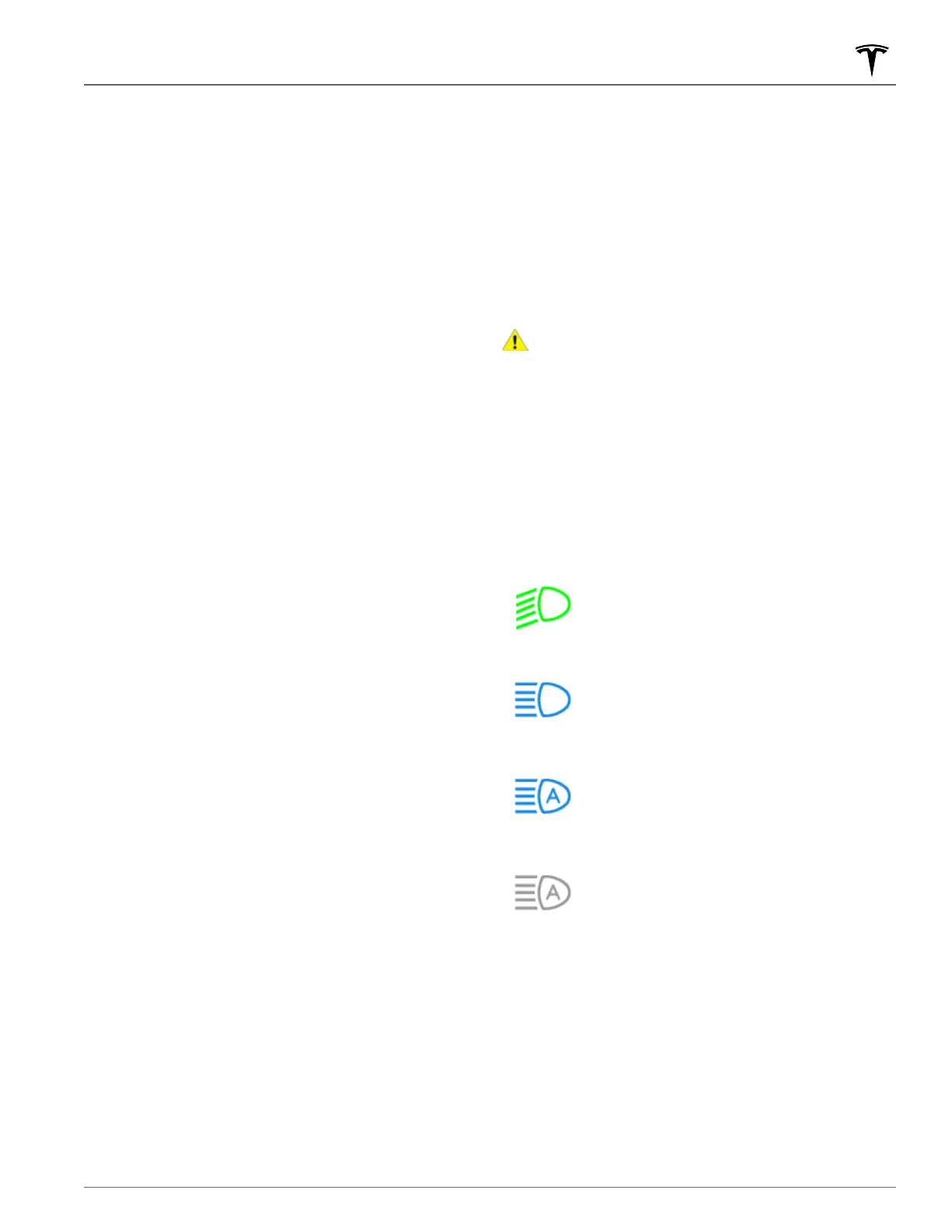
Headlights
The following indicator lights are visible on the
touchscreen to show the status of the
headlights. If none
of these indicator lights are on, the headlights are o.
Low beam
headlights are on.
The
headlights are on. Illuminates when
headlights are on but the Auto High Beam
setting is turned o or if the Auto High
Beam setting is turned on but is
temporarily unavailable.
High beams are currently turned on, and
Auto High Beam is ready to turn o the
high beams if light is detected in front of
Cybertruck.
High beams are temporarily turned
o
because Auto High Beam is operating and
light is detected in front of Cybertruck.
When light is no longer detected, high
beam headlights automatically turn back
on.
Use the headlights button on the left side of the steering
wheel to control the headlights:
• Press and quickly release to flash headlights.
• Press and hold to turn on headlights - the
touchscreen displays a brief timer and you must hold
for the duration of the timer to latch the
headlights to
the on position. When headlights are on, press the
button a second time to turn them o.
Lights
83Driving


 To Next Page