NOTE: Throughout this Owner's Manual, the front touchscreen is referred to as the "touchscreen" whereas the rear
touchscreen is referred to as the "rear touchscreen".
WARNING: Always pay attention to road and trac conditions when driving. To minimize driver distraction and
ensure the safety of vehicle occupants as well as other road users, avoid using the touchscreen to adjust
settings while the vehicle is in motion.
Use the touchscreen to control many features that, in traditional vehicles, are controlled using physical buttons (for
example, adjusting the cabin heating and air conditioning, headlights, etc.). You also use the touchscreen to control
media, navigate, use entertainment features, and customize
Cybertruck to suit your preferences. For hands-free
access to common touchscreen controls, use voice commands (see Voice Commands on page 24).
If the touchscreen is unresponsive or demonstrates unusual behavior, you can restart it (see Restarting the
Touchscreen on page 9).
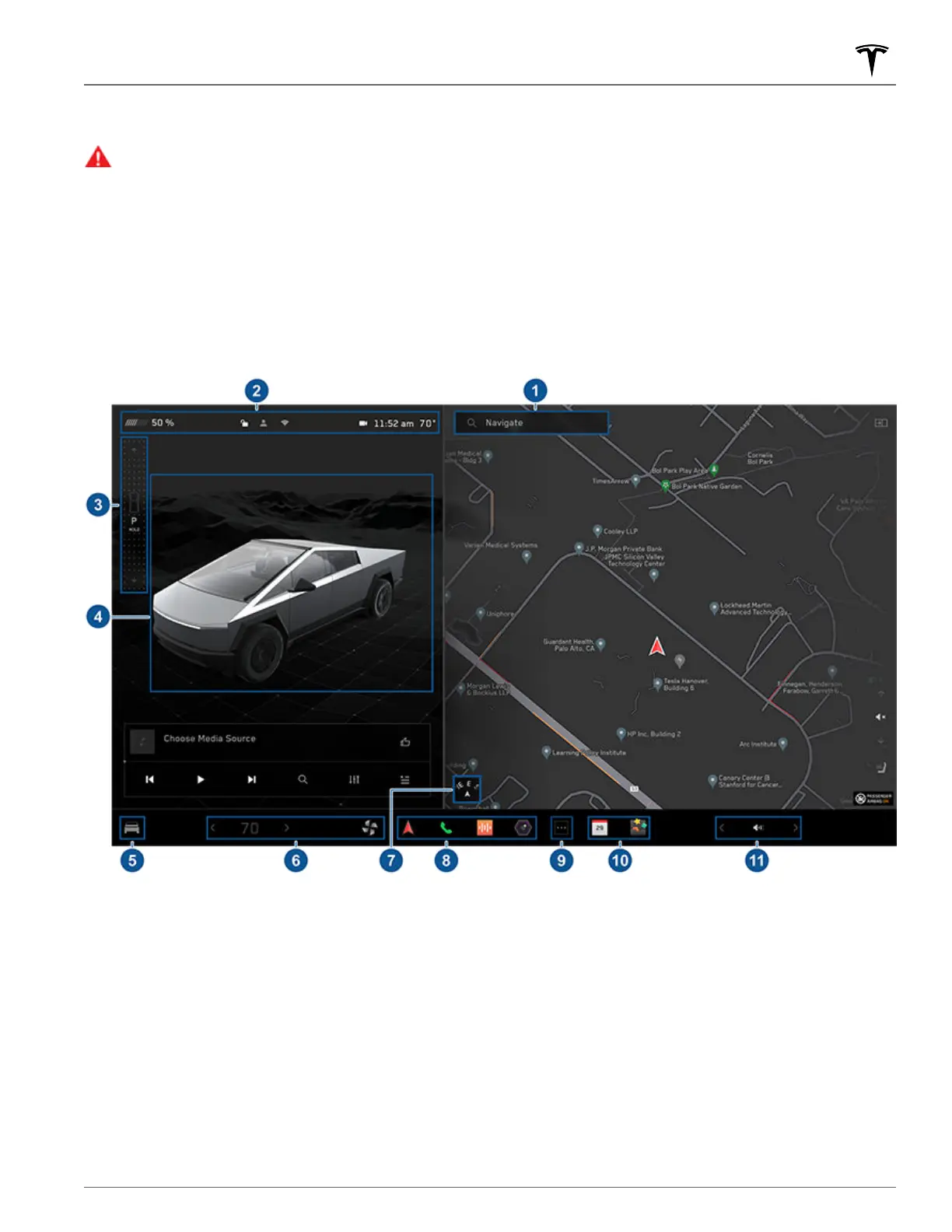
The following shows the touchscreen while Cybertruck is parked.
1.
Navigation: Find or navigate to a destination (see Maps and Navigation on page 154).
2. Status bar: This area on the top of the touchscreen displays the time of day, the outside temperature, and more
(see
Top Status Bar Icons on page 8).
3.
Drive mode strip: Use to shift into Park, Reverse, or Drive. Swipe right from the upper-left side of the screen to
display the drive mode strip (see Shifting on page 75).
NOTE: To shift into Neutral, open Controls, then press and hold the Neutral icon.
4. Vehicle status: This area dynamically displays the current status of Cybertruck as you drive, park, open doors,
turn lights on, etc. Monitor this area when driving as it displays important information such as driving speed and
warning messages (see
Vehicle Status on page 14). When in Park, you can interact with the vehicle and open
the powered frunk, tonneau, tailgate, and charge port door, and change the ride height setting. This area is also
used for shortcut cards for media, tire pressures, and trip information.
Touchscreen
7Overview


 To Next Page