5 First steps
31
5.2.9. Switching the imager on/off
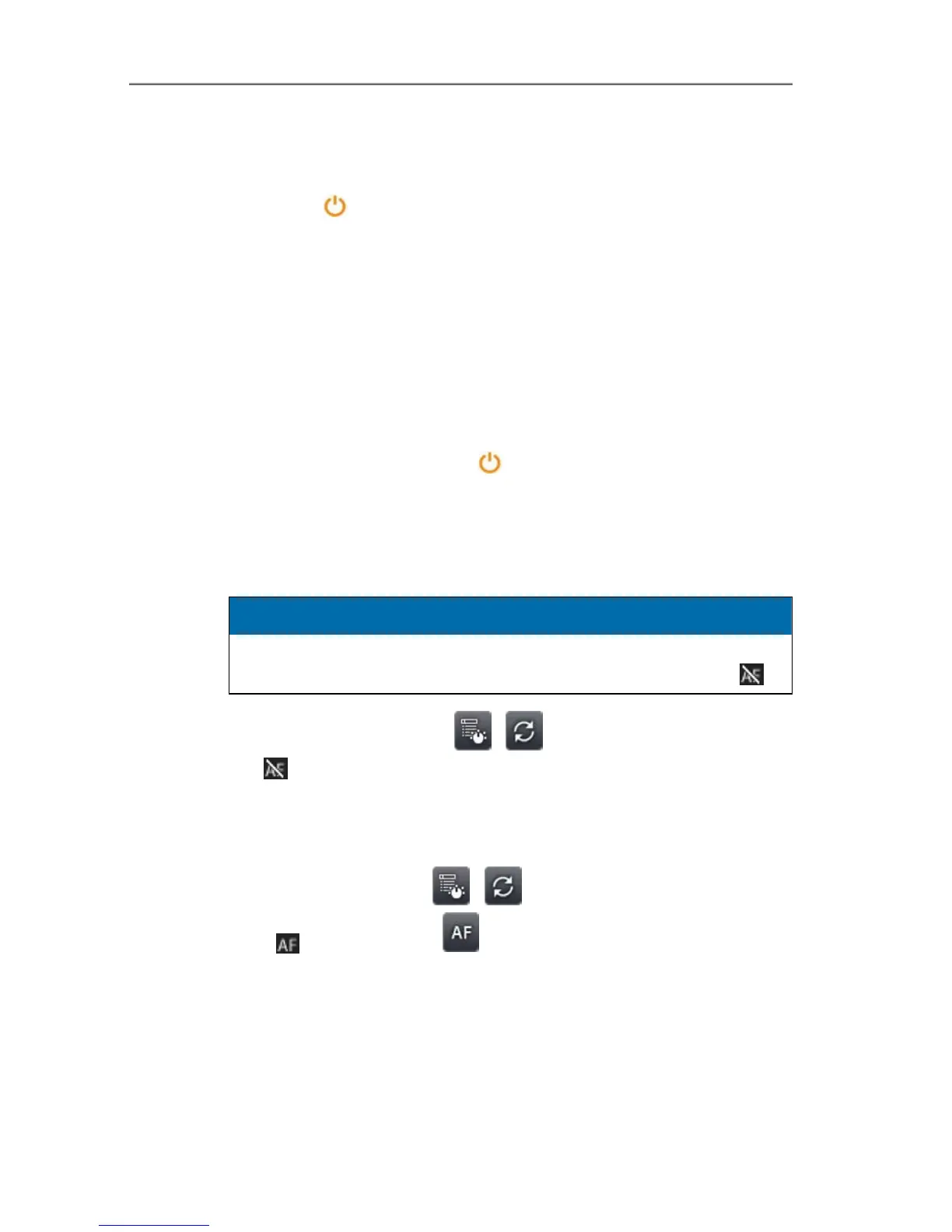
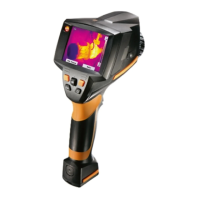
1. Remove protection cap from the lens.
2. Press [ ].
- The start screen appears on the display. Instrument information
is displayed (e.g. serial number, type designation, firmware
version).
- The measurement view is opened. Measurement values on the
cursor and scale are only displayed when the stabilisation
phase is complete (indicated by a rotating symbol in the top
right of the display).
- The imager performs automatic adjustment approx. every 60 s.
This can be recognized by means of a "click". The image is
frozen briefly when this occurs.
> To switch off: Hold down [
] until the confirmation prompt is
no longer displayed.
- The imager is switched off.
Pos: 63 /TD/Erst e Schritte/WBKs/ testo 885/Produkt kennen ler nen/885, 890: Bild manue ll scharf stellen @ 9\mod_ 1305290594649_79. docx @ 80365 @ 3 @ 1
5.2.10. Manually focusing the image
CAUTION
Auto mechanism may be damaged!
> Only turn focusing ring when auto-focus is deactivated (
).
> Deactivate auto-focus: | .
- is displayed.
> Turn the lens focusing ring until the image is in sharp focus.
Pos: 64 /TD/Erst e Schritte/WBKs/ testo 885/Produkt kennen ler nen/885, 890: Bild mi t Autofokus scharf stel len @ 9\mod_1305528366247 _79.docx @ 80403 @ 3 @ 1
5.2.11. Automatically focusing the image
> Activate auto-focus: | .
- - is displayed and is highlighted orange.
> Touch [Trigger button].
- The image is automatically focussed. The area to be focussed
must be inside the orange box, which is shown by touching the
trigger button.
Pos: 65 /TD/Erst e Schritte/WBKs/ testo 885/Produkt kennen ler nen/885, 890: Bild aufneh men @ 9\mod_13055299783 65_79.docx @ 80436 @ 3 @ 1


 To Next Page