12
Set Time and Scheduled Cleaning
Note: Make sure the me is set correctly to your local me before seng a
scheduled cleaning.
1. Make sure the main power switch on the bottom of the M1 is turned on.
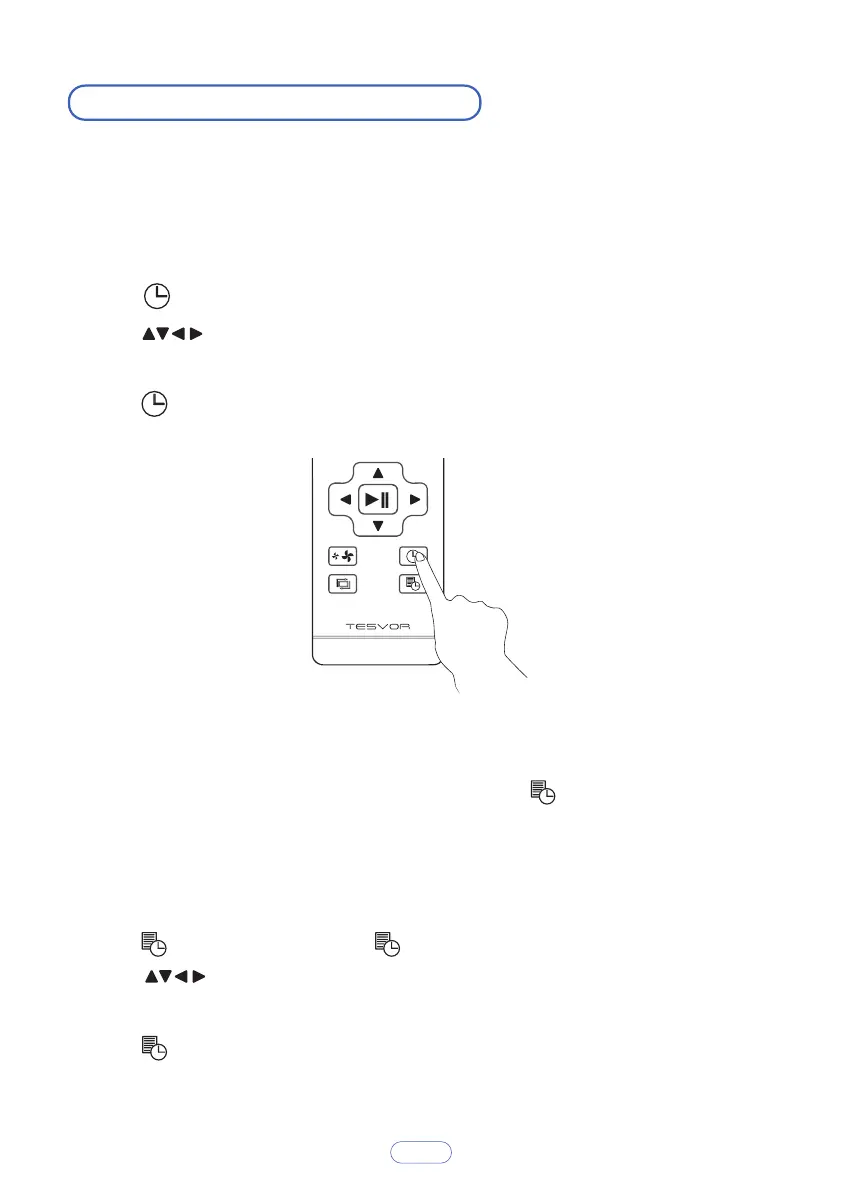
2. Press on the remote control. The time will blink on the display.
3. Press to set the “hour” and “minute”.
Note: Make sure AM/PM is set correctly.
4. Press to save the setting.
You can schedule the M1 to start cleaning at a specified time. To cancel a
previously scheduled cleaning session, press and hold for 3 seconds.
Note: Before seng a scheduled cleaning, make sure the me has been set
correctly to your local me; refer to the previous secon “Set Time” for how to set
the me.
1. Make sure the main power switch on the bottom of the M1 is turned on.
2. Press on the remote control. will blink on the display.
3. Press to set the “hour” and “minute”.
Note: Make sure AM/PM is set correctly.
4. Press to save the setting.
Set Time
Set a Scheduled Cleaning


 To Next Page