EasyManua.ls Logo

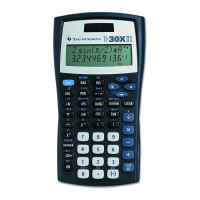
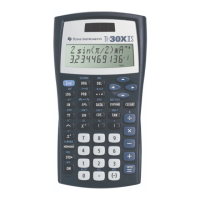
Texas Instruments TI-30X B - User Manual

Texas Instruments TI-30X B
5 pages
Print Icon
To Next Page IconTo Next Page
Loading...
ENG 30XÖàOMà1L1/A Page 1
TI-30X
×
B
and
TI-30X
×
S
Scientific Calculators
1999 Texas Instruments Incorporated
General Information
Examples
: See the last page of these instructions for
keystroke examples that demonstrate many of the
TI-30X
Ö
functions. Examples assume all default settings.
&
turns on the TI-30X
Ö
.
%
'
turns it off and clears
the display.
APD™ (Automatic Power Down™) turns off the TI-30X
Ö
automatically if no key is pressed for about 5 minutes.
Press
&
after APD. The display, pending operations,
settings, and memory are retained.
2-Line Display
: The first line (
Entry Line
) displays an entry
of up to 88 digits (or 47 digits for Stat or Constant Entry
Line). Entries begin on the left; those with more than 11
digits scroll to the right. Press
!
and
"
to scroll the line.
Press
%
!
or
%
"
to move the cursor immediately to
the beginning or end of the entry.
The second line (
Result Line
) displays a result of up to 10
digits, plus a decimal point, a negative sign, a “
x10
indicator, and a 2-digit positive or negative exponent.
Results that exceed the digit limit are displayed in Scientific
Notation.
Indicator Definition
2nd
2nd function.
HYP
Hyperbolic function.
FIX
Fixed-decimal setting.
SCI, ENG
Scientific or Engineering Notation.
STAT
Statistical mode.
DEG, RAD,
GRAD
Angle mode (degrees, radians, or
gradients).
K
Constant mode is on.
x10
Precedes the exponent in Scientific or
Engineering Notation.
º
»
An entry is stored in memory before and/or
after the active screen. Press
#
and
$
to
scroll.
¹
¸
An entry or menu displays beyond 11 digits.
Press
!
or
"
to scroll.
2nd Functions
:
%
displays the
2nd
indicator, and then
selects the 2nd function (printed above keys) of the next
key pressed. For example,
%
b
25
E
<
calculates the square root of 25 and returns the result, 5.
Menus
: Certain TI-30X
Ö
keys display menus:
z
,
%
h
,
L
,
%
t
,
u
,
%
w
,
H
,
I
,
=
,
%
k
,
%
d
,
%
, and
%
.
Press
!
or
"
to move the cursor and underline a menu
item. To return to the previous screen without selecting the
item, press
-
.
To select a menu item:
¦
Press
<
while the item is underlined, or
¦
For menu items followed by an argument value, enter the
argument value while the item is underlined. The item and
the argument value are displayed on the previous screen.
Previous Entries
#
$
After an expression is evaluated, use
#
and
$
to scroll
through previous entries, which are stored in the TI-30X
Ö
memory. You cannot retrieve previous entries while in
STAT
mode. You can edit a previous entry and press
<
to
evaluate the new expression.
Last Answer
%i
The most recently calculated result is stored to the variable
Ans
.
Ans
is retained in memory, even after the TI-30X
Ö
is
turned off. To recall the value of
Ans
:
¦
Press
%
i
(
Ans
displays on the screen), or
¦
Press any operations key (
T
,
U
,
F
, etc.) as the first
part of an entry.
Ans
and the operator are both displayed.
Order of Operations
The TI-30X
Ö
uses EOS
é
(Equation Operating System) to
evaluate expressions.
1st Expressions inside parentheses.
2nd Functions that need a
)
and precede the argument,
such as
sin
,
log
, and all
R
Í
P
menu items.
3rd Fractions.
4th Functions that are entered after the argument, such
as
x
2
and angle unit modifiers (
Ä
Å
Æ
r
g
).
5th Exponentiation
(^)
and roots (
x
).
6th Negation (
M
).
7th Permutations (
nPr
) and combinations (
nCr
).
8th Multiplication, implied multiplication, division.
9th Addition and subtraction.
10th Conversions (
A
b
Ì
c
Í
d
Ì
e
,
F
Í
D
,
4
DMS
).
11th
<
completes all operations and closes all open
parentheses.
Clearing and Correcting
-
Clears an error message.
Clears characters on entry line.
Moves the cursor to last entry in history
once display is clear.
J
Deletes the character at the cursor.
Deletes all characters to the right when
you hold down
J
; then, deletes 1
character to the left of the cursor each
time you press
J
.
%
f
Inserts a character at the cursor.
%
{
Clears all memory variables.
%
t
CLRDATA
Clears all data points without exiting
STAT
mode.
%w
Y
Clears all data points and exits
STAT
mode.
%
Y
or
&
&
-
Resets the TI-30X
Ö
. Returns unit to
default settings; clears memory
variables, pending operations, all entries
in history, and statistical data; clears
constant mode and
Ans
.
Fractions
N
%j
%O
Fractional calculations can display fractional or decimal
results. Results are automatically simplified.
¦ N
enters a fraction. Press
N
between whole number,
numerator, and denominator. The unit, numerator, and
denominator must be positive integers.
¦ %
j
converts between fractions and decimals.
¦ %
O
converts between mixed numbers and
simple fractions.
Pi
g
p
=3.141592653590 for calculations.
p
=3.141592654 for display.
Angle Modes
I
=
I
displays a menu to specify the Angle mode as
degrees, radians, or gradients.
=
displays a menu to specify the Angle unit modifier—
degrees (
Ä
), radians (
r
), gradients (
g
), or DMS (
Ä
Å
Æ
). It
also lets you convert an angle to DMS Notation (
4
DMS
).
To set the Angle mode for any part of an entry:
¦
Select the Angle mode. Entries are interpreted and results
displayed according to the Angle mode, or
¦
Select a unit modifier (
Ä
Å
Æ
) for any part of an entry.
Entries with unit modifiers are interpreted accordingly,
overriding the Angle mode.
To convert an entry:
¦
Set the Angle mode to the unit you want to convert to.
Then use a unit modifier to designate the unit to convert
from. (Angles of trigonometric functions convert values
inside parentheses first.), or
¦
Select
4
DMS, which converts an entry to DMS (
Ä
Å
Æ
)
Notation.
Trigonometry
>
?
@
%Z[\
Enter trigonometric functions (sin, cos, tan, sin
-1
, cos
-1
, tan
-1
),
just as you would write them. Set the desired Angle mode
before starting trigonometric calculations.
Hyperbolics
%Y
%
Y
displays the
HYP
indicator and accesses the
hyperbolic function of the next trigonometry key that you
press. Angle modes do not affect hyperbolic calculations.
Logarithms
A
B
%]^
A
yields the common logarithm of a number.
B
yields the logarithm of a number to the base e
(e=2.819291929).
%]
raises 10 to the power you specify.
%^
raises e to the power you specify.
Rectangular
Í
Polar
%k
%
k
displays a menu to convert rectangular
coordinates (x,y) to polar coordinates (r,
q
) or vice versa.
Set Angle mode, as necessary, before starting calculations.
Constants
%l
%
l
turns Constant mode on and lets you define a
constant.
To store an operation to
K
and recall it:
1. Press
%l
.
2. Enter any combination of numbers, operators, and/or
values, up to 44 characters, beginning with an operator.
3. Press
<
to save the operation.
K
displays in the
indicator line.
4. Each subsequent time you press
<
, the TI-30X
Ö
recalls the stored operation and applies it to the last
answer or the current entry.
Press
%
l
again to turn Constant mode off.
Memory
z
L
%h{
The TI-30X
Ö
has 5 memory variables—
A
,
B
,
C
,
D
,
and
E
.
You can store a real number or an expression that results
in a real number to a memory variable.
¦ z
accesses the menu of variables.
¦ L
lets you store values to variables.
¦ %
h
recalls the values of variables.
¦ %
{
clears all variable values.
Notation
%‚
%d
%C
%
displays the
Decimal Notation
mode menu.
These modes affect
only
the display of results.
F
(default)
restores standard notation (floating-decimal) format.
0123456789
sets decimal places to
n
(0–9), retaining
numeric notation mode format.
%
d
displays the
Numeric Notation
mode menu.
These modes affect
only
the display of results.
¦
FLO (default): Floating Notation, with digits to the left and
right of the decimal
¦
SCI: Scientific Notation
¦
ENG: Engineering Notation (exponent is a multiple of 3)
%
C
enters a value in
Scientific Notation
, regardless
of the numeric notation mode. Press
M
before entering a
negative exponent.

Question and Answer IconNeed help?

Do you have a question about the Texas Instruments TI-30X B and is the answer not in the manual?

Summary

General Information

Calculator Functions

Last Answer

Stores the most recently calculated result for recall. Retained in memory even after power off.

Order of Operations

Explains the TI-30X II's Equation Operating System (EOSTM) for expression evaluation.

Clearing and Correcting

Details functions for clearing errors, entries, variables, and resetting the calculator.

Fractions

Covers fractional calculations, conversions between fractions and decimals, and simplification.

Angle Modes

Explains setting angle modes (degrees, radians, gradients) and using angle unit modifiers.

Trigonometry

Instructions for entering trigonometric functions and setting the angle mode.

Hyperbolics

How to access and use hyperbolic functions, noting angle modes do not affect them.

Logarithms

Details common and natural logarithms, plus base-10 and base-e exponentiation.

Rectangular Polar

Guidance on converting between rectangular and polar coordinates using the RP function.

Constants

How to define and use a constant for repeated operations or calculations.

Memory

Explains the use of 5 memory variables (A-E) for storing values and expressions.

Notation

Describes Decimal and Numeric Notation modes (FIX, SCI, ENG) and scientific notation entry.

Statistics

1-VAR and 2-VAR Statistics

How to enter and analyze statistical data for one or two variables.

Statistical Variables

Definitions and explanations of statistical variables used in calculations.

Probability

Permutations and Combinations

Calculates nPr (permutations) and nCr (combinations) for sets of items.

Factorial

Explains the factorial function (!), its usage, and limitations.

Random Number Generation

How to generate random real (RAND) and integer (RANDI) numbers.

Errors, Battery, and Troubleshooting

Error Messages

Lists common error messages and their causes, like ARGUMENT, DOMAIN, SYNTAX.

Battery Replacement

Step-by-step guide for replacing the calculator's battery.

Troubleshooting

Advice for common issues, including checking battery and resetting the calculator.

Overview

The Texas Instruments TI-30X IIB and TI-30X IIS are scientific calculators designed for a range of mathematical and scientific computations.

Function Description:

These calculators utilize the EOST™ (Equation Operating System) for evaluating expressions, following a standard order of operations:

  1. Expressions inside parentheses.
  2. Functions that precede the argument (e.g., sin, log, RP menu items).
  3. Fractions.
  4. Functions entered after the argument (e.g., x², angle unit modifiers).
  5. Exponentiation (^) and roots (x√).
  6. Negation (-).
  7. Permutations (nPr) and combinations (nCr).
  8. Multiplication, implied multiplication, division.
  9. Addition and subtraction.
  10. Conversions (A b/c↔d/e, F↔D, ►DMS).
  11. ENTER completes all operations and closes all open parentheses.

The calculators support various mathematical functions including:

  • Basic Arithmetic: Addition, subtraction, multiplication, division, and negation.
  • Fractions: Input and conversion between fractional and decimal results, including mixed numbers and simple fractions. Results are automatically simplified.
  • Pi (π): A dedicated key for the value of π (3.141592653590 for calculations, 3.141592654 for display).
  • Angle Modes: Degrees (DEG), Radians (RAD), and Gradients (GRAD). Users can select the angle mode for an entire entry or use unit modifiers (° ' " r g) for specific parts of an entry, overriding the global angle mode. Conversion to DMS Notation (° ′ ″) is also supported.
  • Trigonometry: Sine (sin), Cosine (cos), Tangent (tan), and their inverse functions (sin⁻¹, cos⁻¹, tan⁻¹). Angle mode should be set before calculations.
  • Hyperbolics: Hyperbolic sine (sinh), cosine (cosh), and tangent (tanh), accessed via the HYP indicator. Angle modes do not affect hyperbolic calculations.
  • Logarithms: Common logarithm (LOG), natural logarithm (LN), 10 to the power of x (10ˣ), and e to the power of x (eˣ).
  • Rectangular/Polar Conversions: Conversion between rectangular coordinates (x,y) and polar coordinates (r,θ) and vice versa. Angle mode should be set as necessary.
  • Constants: A Constant mode (K) allows users to define and store an operation (up to 44 characters) for repeated use. The stored operation is applied to the last answer or current entry each time ENTER is pressed.
  • Memory: Five memory variables (A, B, C, D, E) are available for storing real numbers or expressions that result in real numbers. Values can be stored (STO►), recalled (2nd [RCL]), and cleared (2nd [CLRVAR]).
  • Notation: Decimal Notation modes (FIX) allow setting the number of decimal places (0-9) or restoring standard floating-decimal format (F). Numeric Notation modes (SCI/ENG) include Floating Notation (FLO), Scientific Notation (SCI), and Engineering Notation (ENG, where the exponent is a multiple of 3). Scientific Notation values can be entered directly using 2nd [EE].
  • Statistics: 1-VAR mode analyzes data from one set with one measured variable (x). 2-VAR mode analyzes paired data from two sets with two measured variables (x, the independent variable, and y, the dependent variable). Up to 42 data sets can be entered. Statistical variables include n (number of data points), x̄ or ȳ (mean), Sx or Sy (sample standard deviation), σx or σy (population standard deviation), Σx or Σy (sum of values), Σx² or Σy² (sum of squares), Σxy (sum of (x*y) for all xy pairs), a (linear regression slope), b (linear regression y-intercept), r (correlation coefficient), x′ (predicted x value), and y′ (predicted y value).
  • Probability: Permutations (nPr), combinations (nCr), and factorials (!).
  • Random Numbers: RAND generates a random real number between 0 and 1. RANDI generates a random integer between two specified integers.

Important Technical Specifications:

  • Display: 2-Line Display.
    • Entry Line: Displays up to 88 digits (47 digits for Stat or Constant Entry Line). Scrolls horizontally for entries longer than 11 digits.
    • Result Line: Displays up to 10 digits, plus a decimal point, negative sign, "x10" indicator, and a 2-digit positive or negative exponent. Results exceeding the digit limit are displayed in Scientific Notation.
  • Power: Automatic Power Down™ (APD™) turns off the calculator after approximately 5 minutes of inactivity, retaining display, pending operations, settings, and memory. The TI-30X IIS model operates in well-lit areas using a solar cell and in other light settings using a battery.
  • Error Handling: The calculator displays specific error messages for various issues, including:
    • ARGUMENT: Incorrect number of arguments for a function.
    • DIVIDE BY 0: Attempted division by zero or n=1 in statistics.
    • DOMAIN: Argument outside the valid range for a function (e.g., negative under square root, log of non-positive numbers, invalid angles for TAN, |x|>1 for SIN⁻¹/COS⁻¹, non-integer/negative n or r for nCr/nPr, non-integer/out-of-range n for x!).
    • EQUATION LENGTH ERROR: Entry exceeds digit limits (88 for Entry Line, 47 for Stat/Constant Entry lines).
    • FRQ DOMAIN: FRQ value in 1-VAR stats is <0, >99, or not an integer.
    • OVERFLOW: Result is too large (|| ≥ 1E10).
    • STAT: Attempting to use STATVAR with no defined data points or using DATA, STATVAR, or 2nd [EXIT STAT] outside STAT mode.
    • SYNTAX: Syntax error in command (e.g., more than 23 pending operations, 8 pending values, misplaced functions/arguments/parentheses/commas).

Usage Features:

  • On/Off: ON turns on the calculator. 2nd [OFF] turns it off.
  • 2nd Function: The 2nd key accesses functions printed above the keys.
  • Menus: Certain keys display menus (e.g., MEMVAR, 2nd [RCL], STO, 2nd [STAT]). Users navigate menus with or and select items with ENTER or by entering an argument value. CLEAR returns to the previous screen without selecting.
  • Previous Entries: After an expression is evaluated, and can be used to scroll through previous entries stored in memory. Entries can be edited and re-evaluated. Not available in STAT mode.
  • Last Answer (Ans): The most recently calculated result is stored in the Ans variable and retained even after power-off. It can be recalled using 2nd [ANS] or by pressing an operation key as the first part of an entry.
  • Clearing and Correcting:
    • CLEAR: Clears error messages, entry line characters, or moves the cursor to the last entry in history.
    • DEL: Deletes the character at the cursor. Holding DEL deletes all characters to the right; subsequent presses delete characters to the left.
    • 2nd [INS]: Inserts a character at the cursor.
    • 2nd [CLRVAR]: Clears all memory variables.
    • 2nd [STAT] CLRDATA: Clears all data points without exiting STAT mode.
    • 2nd [EXIT STAT] Y: Clears all data points and exits STAT mode.
  • Reset: 2nd [RESET] Y or ON & CLEAR resets the calculator to default settings, clears memory variables, pending operations, history entries, statistical data, and constant mode/Ans.

Maintenance Features:

  • Battery Replacement: Requires a small Phillips screwdriver. Users are instructed to remove screws from the back case, carefully separate the front from the back, replace the old battery, and then press ON and CLEAR simultaneously to reset the calculator. Proper disposal of old batteries is advised.
  • Troubleshooting: Users are advised to review instructions, press ON and CLEAR to reset, and check the battery if the unit does not turn on, the screen is blank, or unexpected results occur.
  • TI-30X IIS (Battery/Solar) specific: If the battery needs changing, users can expose the solar panel to brighter light and press ON and CLEAR to reset the calculator to continue using it temporarily.

Texas Instruments TI-30X B Specifications

General IconGeneral
BrandTexas Instruments
ModelTI-30X B
CategoryCalculator
LanguageEnglish

Related product manuals