
 Need help?
Do you have a question about the Texas Instruments TI-30 eco RS and is the answer not in the manual?
Instructions for turning the TI-30 eco RS calculator on and off using the solar panel.
How to access and utilize secondary functions printed above calculator keys.
Understanding result display formats and performing fundamental arithmetic operations.
Performing percentage, ratio, add-on, and discount calculations.
Using CE/C, ON/AC, and backspace keys to clear data and errors.
Storing and recalling values using constants (κ) and memory locations (M1, M2, M3).
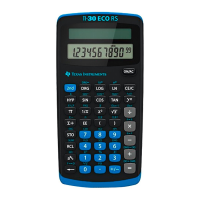
The TI-30 eco RS is a scientific calculator designed for a range of mathematical operations. It operates using solar power, requiring exposure to light to turn on. To ensure accurate calculations, it's recommended to press ON/AC upon startup to clear any previous data from memory and display. The calculator does not have a dedicated off button; instead, it turns off by covering the solar panel with its slide case.
The calculator supports 2nd functions, which are printed above the keys. These functions are accessed by pressing the 2nd key followed by the desired function key. For example, to calculate the cube of a number, you would press the number, then 2nd and [x³].
The display can show up to 10 digits, including a minus sign, and a 2-digit exponent. Results exceeding 10 digits are automatically displayed in scientific notation.
Basic arithmetic operations are straightforward. The +, -, ×, and ÷ keys perform addition, subtraction, multiplication, and division, respectively. The = key completes all pending operations. A constant feature, denoted by κ, allows for the repetition of an operation and its value. The +/- key changes the sign of the currently entered value. Parenthetical expressions are supported, with up to 15 open parentheses allowed. The ) key closes all open parentheses.
The calculator handles percentages, including calculating a percentage of a number, ratios, add-ons, and discounts. For example, to find 5% of 250, you would enter 250 × 5 2nd [%].
Fractions can be entered as proper or improper fractions using the a b/c key. The format b/c allows for b up to 6 digits and c up to 3 digits. Improper fractions are displayed as mixed numbers when possible. The 2nd [d/c] key toggles the display between a mixed number and an improper fraction. Single-variable functions applied to fractions will display decimal results. The 2nd [F↔D] key toggles the display between fraction and decimal formats. Note that fraction to decimal conversion does not occur if the result overflows or if the fixed decimal setting is 0, which is not considered an error. The denominator must be a whole number less than or equal to 999.
Powers and roots are also supported. Functions include 1/x for reciprocals, x² for squares, √x for square roots, 2nd [x³] for cubes, 2nd [³√x] for cube roots, yˣ for raising a number to a power, and 2nd [ʸ√x] for finding the y-th root of x.
Logarithmic functions include LOG for base-10 logarithm, 2nd [10ˣ] for 10 to the power of x, LN for natural logarithm, and 2nd [eˣ] for e to the power of x.
Angle units can be cycled between degrees (DEG), radians (RAD), and grads (GRAD) using the DRG key. This changes the angle-unit setting without affecting the displayed number. The 2nd [DRG↔] key cycles and converts the angle-unit setting for display, entry, and calculation.
DMS (Degrees/Minutes/Seconds) values are entered as D.MMSSs, using zeros as necessary. For example, 48°5'3.5" is entered as 48.05035. Before using a DMS value in a calculation, it must be converted to decimal using 2nd [DMS↔DD]. The 2nd [DD↔DMS] key temporarily displays the current value as DMS.
The calculator can convert between rectangular and polar coordinates. 2nd [R↔P] converts rectangular coordinates (x,y) to polar coordinates (r,θ). 2nd [P↔R] converts polar coordinates (r,θ) to rectangular coordinates (x,y).
Trigonometric functions include SIN, COS, TAN, and their inverse functions 2nd [SIN⁻¹], 2nd [COS⁻¹], and 2nd [TAN⁻¹]. The appropriate angle unit (DEG, RAD, or GRAD) must be selected using DRG before using these functions.
Hyperbolic functions are accessed by pressing HYP followed by the desired trigonometric function (e.g., HYP SIN, HYP COS, HYP TAN, HYP 2nd [SIN⁻¹], etc.). Note that DEG, RAD, or GRAD settings do not affect hyperbolic calculations.
One-variable statistics are supported. 2nd [CSR] clears all statistical data. Σ+ enters a data point. 2nd [Σ-] removes a data point. 2nd [FRQ] adds or removes multiple occurrences of a data point. Statistical calculations include 2nd [Σx] (sum), 2nd [Σx²] (sum of squares), 2nd [x] (mean), 2nd [σxn] (population standard deviation), 2nd [σxn-1] (sample standard deviation), and 2nd [n] (number of data points).
Probability functions include combinations and permutations. 2nd [nCr] calculates the number of possible combinations of n items taken r at a time. 2nd [nPr] calculates the number of possible permutations of n items taken r at a time. Factorials are calculated using 2nd [x!], where n must be a positive whole number less than or equal to 69.
Clearing and correcting functions are available. CE/C clears the value before an operation key and the constant κ, but not memory registers M1, M2, M3, or STAT data. Pressing CE/C twice clears the display, errors, all pending operations, and κ, but still not M1, M2, M3, or STAT. ON/AC clears the display, errors, all pending operations, κ, STAT data, M1, M2, and M3, and sets the angle units to DEG and the format to floating-decimal. The ← key deletes the right-most character in the display. 0 STO n clears memory n. 2nd [FLO] clears scientific or engineering notation. 2nd [FIX .] clears fixed-decimal notation. 2nd [CSR] clears all statistical data.
The calculator supports constants for repeated operations. To establish a constant, press 2nd [K] after entering the operation and value. Pressing = repeats the calculation. Another operation, ON/AC, or CE/C clears the constant κ.
The calculator has three memory registers: M1, M2, and M3. If a memory contains a non-zero number, M1, M2, or M3 will be displayed. To clear a single memory, press 0 STO 1, 0 STO 2, or 0 STO 3. To clear all three memories (solar only), press ON/AC. STO n stores the displayed value in memory n, replacing the current value. RCL n recalls the value from memory n. 2nd [SUM] n adds the displayed value to memory n. 2nd [EXC] n exchanges the displayed value and the memory value.
The TI-30 eco RS uses the AOS™ (Algebraic Operating System) for order of operations. This system prioritizes expressions inside parentheses first, followed by single-variable functions (square, square root, cube, cube root, trigonometric, factorial, logarithmic, percent, reciprocals, angle conversions). Next are combinations and permutations, then exponentiation and roots, followed by multiplication and division, and finally addition and subtraction. The = key completes all operations. The calculator can store up to 4 pending operations (2 when STAT is displayed).
Notation settings include 2nd [SCI] for scientific notation and 2nd [ENG] for engineering notation (where the exponent is a multiple of 3). 2nd [FLO] restores standard (floating-decimal) format. 2nd [FIX] n sets the number of decimal places (0-9) while retaining the current notation format. 2nd [FIX .] removes the fixed-decimal setting. The EE key is used to enter an exponent. Values can be entered in floating-decimal, fixed-decimal, or scientific notation, regardless of the display format, as the display format only affects results. To enter a number in scientific notation, enter up to 10 digits for the base (mantissa), press +/- if negative, then EE, and finally a 1 or 2-digit exponent, pressing +/- for a negative exponent.
Display indicators provide information about the calculator's status. M1, M2, or M3 indicates a non-zero value in the respective memory. 2nd shows that the 2nd function will be accessed. HYP indicates that a hyperbolic function will be accessed. SCI or ENG shows scientific or engineering notation is active. FIX indicates a fixed-decimal setting. STAT means the statistical register contains data. DEG, RAD, or GRAD specifies the current angle unit. x indicates the x-coordinate for polar to rectangular conversion. r indicates the r-coordinate for rectangular to polar conversion. () means one or more open parentheses are present. Error indicates an error has occurred, requiring the calculator to be cleared and restarted. K shows that a constant is active.
Error conditions can occur due to various reasons. These include a number, result, or memory sum x exceeding 9.999999999 x 10⁹⁹. More than 4 pending operations (or 2 when STAT is displayed) or more than 15 open parentheses will also trigger an error. Specific function errors include x! for x not an integer between 0 and 69; yˣ for y and x = 0 or y < 0 and x not an integer; ˣ√y for x = 0 or y < 0 and x not an odd integer. Division by 0, √x for x < 0, LOG or LN for x ≤ 0, and TAN for specific angle values (e.g., 90°, -90°, 270°) will also result in errors. Inverse trigonometric functions SIN⁻¹ or COS⁻¹ for |x| > 1, and TANH⁻¹ for |x| ≥ 1 are also error conditions. In rectangular to polar conversion (R↔P), an error occurs if x or y has an exponent greater than 63. For combinations (nCr) or permutations (nPr), n or r must be non-negative integers. More than 9999 statistical data points, or a statistical data point x where |x| ≥ 1E64 will cause an error. Attempting to remove the only data point with 2nd [Σ-] or calculating mean or standard deviation with no data points (or σxn-1 with one data point) will also result in an error. Finally, 2nd [CSR] with no data points is an error condition.
In case of difficulty, users should review the instructions to ensure calculations were performed correctly. If the display is blank, exposing the solar panel to adequate light and pressing ON/AC should resolve the issue.
For maintenance, the device is solar-powered, eliminating the need for battery replacement. Regular cleaning of the solar panel and keys with a soft, dry cloth is recommended to maintain optimal performance. Avoid using harsh chemicals or abrasive materials. The device is designed for durability, but care should be taken to protect it from extreme temperatures, moisture, and physical impact. The manual does not specify any user-serviceable parts beyond general cleaning.
 General
| Type | Scientific |
|---|---|
| Cover | Yes |
| Form factor | |
| Control type | Buttons |
| Product color | Black |
| Housing material | Plastic |
| Digits | 10 digits |
| Display tilting | No |
| Display number of lines | 1 lines |
| Storage media type | - |
| Power source | Solar |


 To Next Page