2928
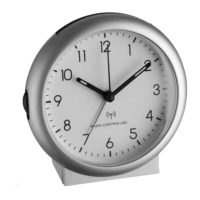
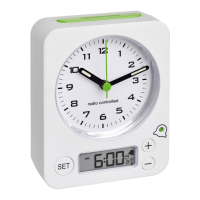
ICON – Design Radio-controlled alarm clock
ICON – Design Radio-controlled alarm clock
Weak display ➜ Wait for the DCF signal reception
➜ Set the brightness with the SNOOZE/LIGHT sensor button
No DCF reception ➜ Press and hold the UP button for 2 seconds to activate the reception.
➜ Wait for an attempt reception during the night
➜ Restart the instrument according to the manual
➜ Choose another place for your product
➜ Check if there is any source of interference.
➜ Set the clock manually
Incorrect indication ➜ Restart the instrument according to the manual
If your device fails to work despite these measures, contact the retailer where you purchased the product.
11. Waste disposal
This product has been manufactured using high-grade materials and components which can be recycled
and reused.
• The alarm will be interrupted for the set time (5 minutes default).
• To deactivate the alarm function slide the ALARM ON/OFF switch to OFF. The alarm symbol disappears.
8. Display light
• Press the SNOOZE/LIGHT sensor button to adjust the brightness in 2 levels or to switch it off (LOW –
HIGH – OFF). The default setting is LOW.
9. Care and maintenance
• Clean the device with a soft dry cloth. Do not use solvents or scouring agents.
• Remove the batteries if the device will not be used for an extended period of time.
• Store the device in a dry place.
10. Troubleshooting
Problem Solution
No display ➜ Connect the device to the power adapter
➜ Check the power adapter
➜ Set the brightness with the SNOOZE/LIGHT sensor button
TFA_No. 60.2543_Anleit_02_20 27.02.2020 17:28 Uhr Seite 15


 To Next Page