EasyManua.ls Logo

Thermo Scientific Orion Star A212 - User Manual

Thermo Scientific Orion Star A212
110 pages
Print Icon
To Next Page IconTo Next Page
Loading...
Thermo Scientific
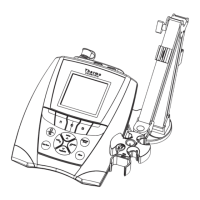
Orion Star A210 Series
Electrochemistry Benchtop Meters
68X000441 Revision A June 2015
User Manual

Table of Contents

Other manuals for Thermo Scientific Orion Star A212

Questions and Answers

  • J
    James CrossAug 13, 2025
    Why does the measurement value freeze and not change on my Thermo Scientific Orion Star A212 Measuring Instruments?
    • S
      silvabrendaAug 13, 2025
      If the measurement value freezes on your Thermo Scientific Measuring Instruments and doesn't change, it might be because the read type is set to Auto-Read mode (indicated by the AR icon on the display). To resolve this, press the measure (esc) key to initiate a new measurement. Alternatively, you can navigate to the setup menu and change the read type to continuous.
  • P
    Patrick HarmonAug 17, 2025
    What to do if the Thermo Scientific Orion Star A212 meter keypad is unresponsive when using the Star Com computer software?
    • R
      Robert GonzalezAug 17, 2025
      If your Thermo Scientific Measuring Instruments meter keypad is unresponsive when using the Star Com computer software, it's likely because the keypad lock option is enabled within the Star Com program. To disable it, open the Star Com program, click the Settings icon, uncheck the box next to Keypad Lock, and then click the Save icon.
  • E
    Erica SnyderAug 21, 2025
    Why doesn't my Thermo Scientific Orion Star A212 Measuring Instruments meter automatically recognize the pH buffer during calibration?
    • R
      Rebecca HernandezAug 21, 2025
      If your Thermo Scientific Measuring Instruments meter does not automatically recognize the pH buffer during calibration, it could be due to the electrode aging or becoming dirty, which causes its mV readings to drift. To fix this, first verify that you've selected the correct buffer set in the setup menu. Then, check the buffers and clean the electrode according to the instructions in the electrode manual, as the meter relies on raw mV readings to recognize the buffer.
  • S
    seanstevensAug 25, 2025
    What to do if the Thermo Scientific Orion Star A212 meter display goes blank, shows random lines or intermittently freezes?
    • A
      anabrownAug 26, 2025
      If your Thermo Scientific Measuring Instruments meter display goes blank, shows random lines, or intermittently freezes, ensure you are using the correct power supply specifically designed for the Star A series meter. Note that this power supply differs from the one provided with Thermo Scientific Orion Versa Star meters. It's also recommended to use a surge protector or uninterruptible power supply (UPS). Additionally, try performing a factory reset on the meter.
  • J
    jrobertsAug 28, 2025
    What to do if the Thermo Scientific Measuring Instruments meter locks up while connected to a computer via the USB cable?
    • F
      fyatesAug 28, 2025
      If your Thermo Scientific Measuring Instruments meter is locking up while connected to a computer via the USB cable, try disconnecting the USB cable from both the meter and the computer. Then, disconnect and reconnect the power adapter from the meter. Finally, reestablish the USB connection between the meter and the computer.
  • Z
    zcarrilloSep 1, 2025
    Why doesn't the Thermo Scientific Orion Star A212 Measuring Instruments meter recognize the conductivity standard during calibration?
    • G
      Guy JacksonSep 1, 2025
      If your Thermo Scientific Measuring Instruments meter does not recognize the conductivity standard during calibration, verify that the correct nominal cell constant is entered in the setup menu for the conductivity sensor you are calibrating. Also, make sure that the conductivity standard is one that the meter can automatically recognize. Try recalibrating the conductivity sensor using a fresh conductivity standard.
  • S
    Sue StewartSep 4, 2025
    How to fix a Thermo Scientific Orion Star A212 Measuring Instruments that is flashing 9999 and displaying Over Range or Under Range?
    • C
      christopherjacobsSep 5, 2025
      If the measurement value on your Thermo Scientific Measuring Instruments is flashing 9999 and displaying Over Range or Under Range, verify that the correct channel is selected on the meter display. Also, ensure that the electrode or sensor is securely and fully connected to the meter.
  • S
    Susan WatsonSep 8, 2025
    What to do if the Thermo Scientific Orion Star A212 meter does not recognize an RDO optical or polarographic dissolved oxygen sensor?
    • A
      Amy MitchellSep 8, 2025
      If your Thermo Scientific Measuring Instruments meter does not recognize an RDO optical or polarographic dissolved oxygen sensor, ensure that the dissolved oxygen sensor is fully connected to the meter and confirm that the correct channel is displayed on the meter. After connecting the dissolved oxygen sensor, wait approximately 15 seconds for the meter to recognize the DO sensor type. Press the measure (esc) key to initiate a new measurement and update the meter display.

Summary

Meter Introduction

Meter Overview

Provides an overview of the Orion Star A210 series benchtop meters' features and operation.

Intended Use

States the proper use of the meter and warnings against misuse.

Meter Basics

Using the Universal Power Adapter

Instructions on how to connect and use the universal power adapter for the meter.

Installing Batteries (Optional Power Source)

Step-by-step guide for installing AA batteries as an optional power source for the meter.

Meter Connections

Details the various connectors on the Orion Star A210 series meters and their functions.

Meter Keypad

Explains the functions of the meter's keypad keys.

Meter Display

Illustrates and describes the various elements of the meter's display screens.

Meter Models and Measurement Capabilities

Table showing available meter models and their measurement capabilities.

Meter Maintenance

Basic guidelines for routine cleaning and maintenance of the meter.

Meter Setup Menus

Main Setup Menu

Overview of the main setup menu for measurement, instrument settings, and diagnostics.

General Setup Menu Navigation

Step-by-step instructions for navigating the meter's setup menus.

Channel-Specific Method, Mode and Temperature Menus

Details on customizing measurement, calibration, and alarm settings per channel.

Method Menu

Instructions for creating, loading, and managing custom measurement methods.

Mode and Settings Menu

General options within the Mode and Settings menu, including Read Types and Stability.

Calibration Due Alarm Setting

Setting up alarms for upcoming calibration reminders.

Mode and Settings Menu for pH Channel

Specific settings for the pH channel, including Measure Mode and Read Type.

Mode and Settings Menu for COND Channel

Settings for the Conductivity channel, including Cell K and Temperature Compensation.

Mode and Settings Menu for DO;RDO Channel

Settings for the Dissolved Oxygen channel, including Baro Press and Salinity Correction.

Temperature Menu

Customizing temperature settings, units, and calibration.

Instrument Settings Setup Menu

Configuring data transfer, logging, date/time, and other meter settings.

Log View Menu

Accessing and managing data logs and calibration logs.

Diagnostics Menu

Options for meter reset, self-tests, and viewing meter information.

Electrode Stability Test Procedure

Testing the stability of connected electrodes.

Using the pH or pH;ISE Channel

Meter and Electrode Preparation

Steps for preparing the meter and electrodes for pH/ISE measurements.

pH Calibration Procedure

Step-by-step guide for performing pH calibration.

ORP Calibration Procedure (Relative mV Mode)

Procedure for ORP calibration in relative mV mode.

ISE Calibration Procedure

Steps for calibrating ion selective electrodes.

Measurement Procedure

General procedure for taking measurements with pH/ISE channels.

Using the Conductivity Channel

Meter and Sensor Preparation

Steps for preparing the meter and conductivity sensors.

Conductivity Calibration Procedure

Step-by-step guide for conductivity calibration.

Conductivity Meter Verification Procedure

Procedure to verify the accuracy of conductivity measurements.

Measurement Procedure

General procedure for taking conductivity measurements.

Using the DO;RDO Channel

Meter and Sensor Preparation

Steps for preparing the meter and DO/RDO sensors.

Dissolved Oxygen Calibration Procedure

Overview of the different dissolved oxygen calibration methods.

Air (Water-saturated Air) Calibration

Procedure for calibrating dissolved oxygen using saturated air.

Manual (Winkler) Calibration

Procedure for dissolved oxygen calibration using the Winkler method.

Measurement Procedure

General procedure for taking dissolved oxygen measurements.

Data Transfer and Software Updates

Data Storage and Transfer Settings

Settings affecting data storage and transfer, including read type and data log.

Export Data Settings

Configuration for exporting data to a computer or printer.

Computer Compatibility and Requirements

Requirements for connecting the meter to a computer.

Using the USB-to-Serial Computer Cable

Instructions for connecting via a USB-to-Serial cable.

Using the USB Computer Cable

Instructions for connecting via a USB cable.

Orion Star Com Communication Software

Information about the software for data transfer.

Meter Software Upgrade Procedure

Instructions for upgrading the meter's software.

Customer Services

Troubleshooting Tips

Common issues and recommended solutions for meter problems.

Meter Factory Reset Procedure

Steps to reset meter settings to factory defaults.

Meter Specifications

Technical specifications for operating conditions and meter features.

Thermo Scientific Orion Star A212 Specifications

General IconGeneral
pH Range-2.00 to 16.00 pH
pH Resolution0.01 pH
pH Accuracy±0.01 pH
Temperature Range-5.0 to 105.0 °C
Temperature Resolution0.1 °C
Temperature Accuracy±0.5 °C
Calibration PointsUp to 5 points
mV Range-2000 to 2000 mV
mV Resolution0.1 mV
mV Accuracy±0.2 mV
ConnectivityUSB
Display BacklightYes
DisplayLCD with backlight
Power Supply4 AA batteries or AC adapter
Data LoggingYes
Weight400 g

Related product manuals