When handling the M.2 solid-state drive, observe the following guidelines:
• Replace the M.2 solid-state drive only for upgrade or repair. The M.2 solid-state drive is not designed for
frequent changes or replacement.
• Before replacing the M.2 solid-state drive, make a backup copy of all the data that you want to keep.
• Do not apply pressure to the M.2 solid-state drive.
• Do not touch the contact edge of the M.2 solid-state drive. Otherwise the M.2 solid-state drive might get
damaged.
• Do not make the M.2 solid-state drive subject to physical shocks or vibration. Put the M.2 solid-state drive
on a soft material, such as cloth, to absorb physical shocks.
To replace the M.2 solid-state drive, do the following:
1. Disable the built-in battery. See “Disabling the built-in battery” on page 84.
2. Ensure that the computer is turned off and disconnected from ac power and all cables.
3. Close the computer display and turn the computer over.
4. Remove the base cover assembly. See “Replacing the base cover assembly” on page 85.
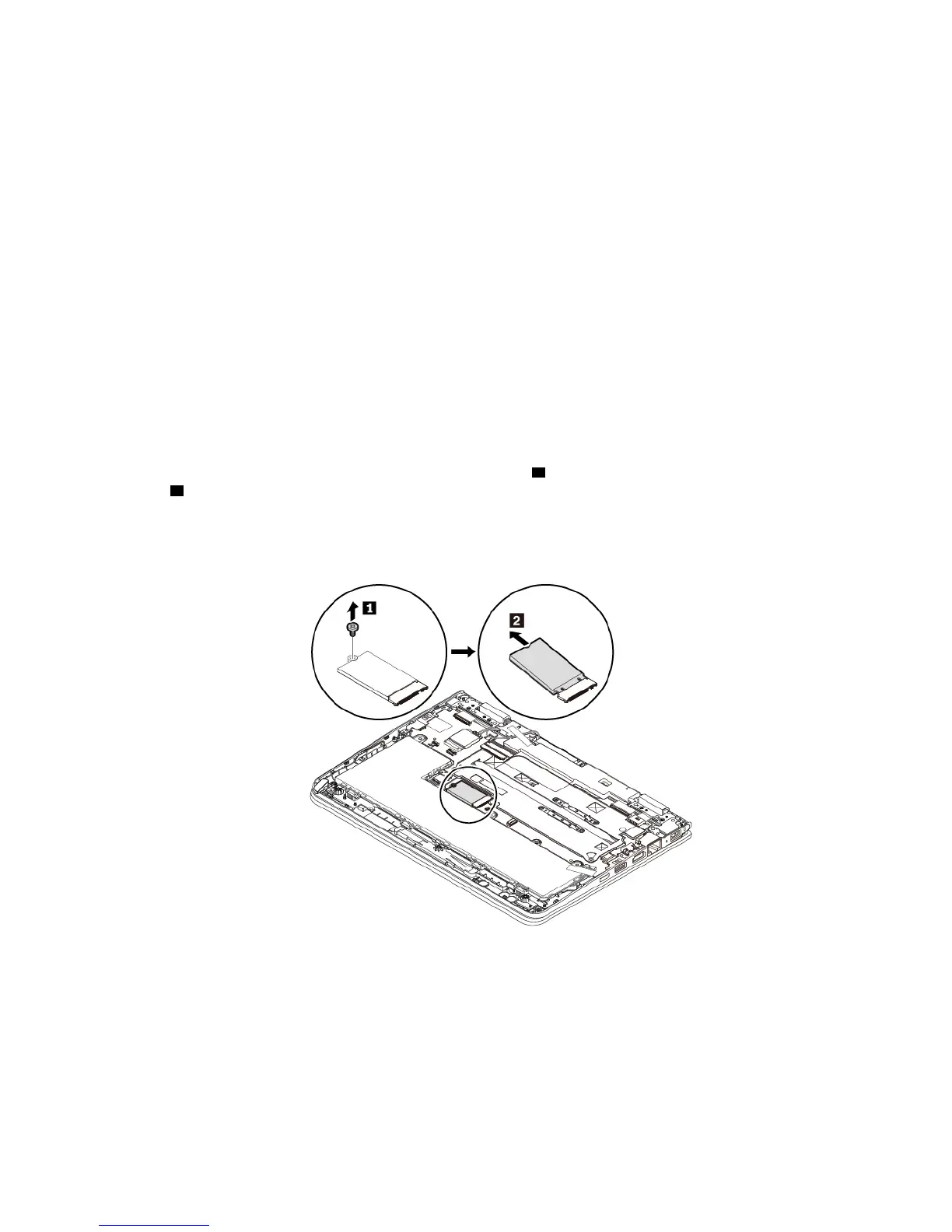
5. Remove the screw that secures the M.2 solid-state drive
1 . Remove the M.2 solid-state drive out of the
slot
2 .
Note: A film might cover the solid-state drive. To access the solid-state drive, open the film first.
Chapter 9. Replacing devices 87


 To Next Page