22
DVB–Sconguration
DVB-S Conguration Setting screen will be displayed next. First Antenna type should be set (This option may
be named as Satellite type depending on the country selection.) Universal, Single Cable and Jess Single cable
options are available. Set the Antenna Type as Universal for Direct and DiSEqC satellite systems. If you set the
antenna type as Universal, press the Right directional button to proceed to the next step. If the antenna type is
set as Single Cable or Jess Single cable, there will be three more additional options on the DVB-S Conguration
Setting screen: Tuner, Band frequency and User Dened. User Dened option will be available if the Band
frequency is set as User Dened. Set these options if available and press the Right directional button to proceed.
Depending on the country and satellite type selections you made in the earlier steps of the initial setup process,
Load Preset List screen may be displayed next. Highlight Load Preset List and press OK or the Right directional
button to proceed with the SatcoDX installation. You can also skip this step by selecting Skip option. After the
parameters on the DVB-S Conguration Setting screen are congured according to your environment and pre-
set list installation preference is selected the next step may be Select Satellite screen. You may be able to set up
dierent satellites depending on the selected antenna type and operator in the previous steps. Highlight the
desired satellite option and press OK to set the parameters (If you have a Direct satellite system, DiSEqC Set
option should be set as DiSEqC A.). The Satellite Status of the rst satellite option will be set as On.
In order to congure other settings of the satellite and to enable scan this option should be set as On rst. Press
Back button and select the next satellite you want to set. After you completed the conguration changes, press
the Right directional button to proceed.
If Load Preset List option is selected in the previous step next steps will be skipped and the preset channel list
installation will start. If the correct satellite has not been selected for SatcoDX installation, a warning dialogue
will be displayed on the screen. The satellite/s that can be selected will be listed. Press OK to close the dialogue
and then set the satellite accordingly.
Channel Scan screen will be displayed next. Select Scan and press OK or the Right directional button to proceed with
the scanning congurations. Select Skip Scan to proceed without performing a scan and complete the initial setup.
DVBS Scan Congure screen will be displayed next if Scan option is selected. Following options will be available:
Scan Mode and Channels. You can choose to perform a full scan or a network scan. Set the Scan Mode accordingly.
If you are going to perform a network scan, make sure that you have adjusted the Frequency, Symbol Rate
(kSym/s) and Polarisation parameters under the Transponder option accurately on the Satellite Setup screen. You
may not be able to change the Scan mode setting depending on the previous selections. If the Channels option
is set as Free encrypted channels will not be installed. Additional options may also be available depending on the
selected operator, congure these settings according to your preferences. Once you are done with setting the
available options, press the Right directional button to start scan while Scan Mode or Channels is highlighted.
While the search continues you can press the Back button to cancel the search. The channels that have already
been found will be stored in the channel list. When the initial setup is completed, results will be displayed. Press
OK to nish the setup. Home Screen will be displayed. You can highlight Live TV app and press OK to switch to
Live TV mode and watch.
7. Home
To enjoy the benets of your Android TV, your TV must be connected to the Internet. Connect the TV to a home
network with a high-speed Internet connection. You can connect your TV wirelessly or wired to your modem/
router. Refer to the Network & Internet and Connecting to the Internet sections for further information on how
to connect your TV to the internet.
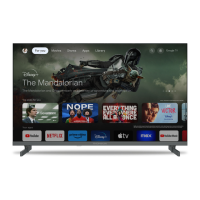
The Home menu is the centre of your TV. Press the Home button to display the Home Screen. From the Home
menu you can start any application, switch to a TV channel, watch a movie or switch to a connected device.
Depending on your TV setup and your country selection in the initial setup the Home menu may contain dierent
items.



 To Next Page