- EN 24 -
number appears on the display. Press the MEM again to conrm and save the current
ation.
5. (Auto) Press and hole MEM button, The unit will automatically art and search the
frequencies,
all available ations are programmed in the order of waveband reception rength, the r
programmed radio ation is broadca automatically.
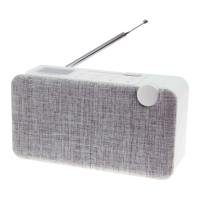
ATTENTION: For optimal reception, fully extend and adju the position on the antenna.
Bluetooth mode
You need to carry out several eps to connect your mobile phone:
1. Activate Bluetooth on your mobile phone (refer to the inructions for your phone).
2. Push the POWER button to turn on the unit, then press the SOURCE button
repeatedly until the LCD screen displays “BT”. It will then be ready to be paired
automatically.
3. Using your mobile phone, search for the Bluetooth device called “DS120CD”.
4. Your mobile phone will detect the “DS120CD” and will ask you if you want to connect.
To connect, enter the password 0000 (if applicable). Once the connection is made, the
“Connected” symbol will appear on the LCD screen.
Automatic connection with your smartphone
Pairing is only necessary when you r use the appliance with the phone. Once the device
has been paired with the phone, it will connect to the appliance automatically when it is
turned on and Bluetooth is activated on the phone. The next time you turn on the appliance,
it will automatically connect to the mobile phone it was la connected to.
Press and hold the button to disconnect the Bluetooth.
Playing from a Bluetooth device
Once the Bluetooth has been paired, press the button to play. Press the or button
to switch to the previous or next track. To pause or resume play, press the button again.
Play from external audio
You can play from an external audio device such as MP3 player through this unit.
Line in Jack (Requires a 3.5mm cable)
1. Connect a 3.5mm cable to the Line jack on top panel. Connect the other end of the
3.5mm cable to an Mp3 player or other audio device.
2. Press the button to turn the unit on.
3. Press the SOURCE button to switch to Line In mode.
4. Use the controls on the connected device to begin playing audio routed through the unit.
Using the USB/SD input
1. Plug your USB ash drive or SD card to the USB socket or SD slot.
2. Press SOURCE button to select USB or SD mode, the unit can play automatically. If not,
press .
3. Press the or to select track.
4. Press the VOL+/VOL– to adju the volume.
Remarks:
• USB/SD port is easy to sensitive equipment, will cause the equipment work is not able.



 To Next Page