11
5.3. Apps
Select the Apps tab at the top of your screen to view all of your installed apps, or search for new apps you would
like to install.
Note: Some apps work only in your own network. These apps are not open internet services but only in-house
solution for several TV sets in the same household. The operation of these applications can therefore be
determined by your IP TV or Network operator.
Some apps are available for download according to the Geo-Location. This means that the Geo-Location
dependent applications are only available on Google TV according to the Geo-Location rules and cannot be
downloaded and installed in dierent countries
Some apps that are available for mobile devices such as cell phones and tablets are for legal reasons not
available for download on Google TV devices.
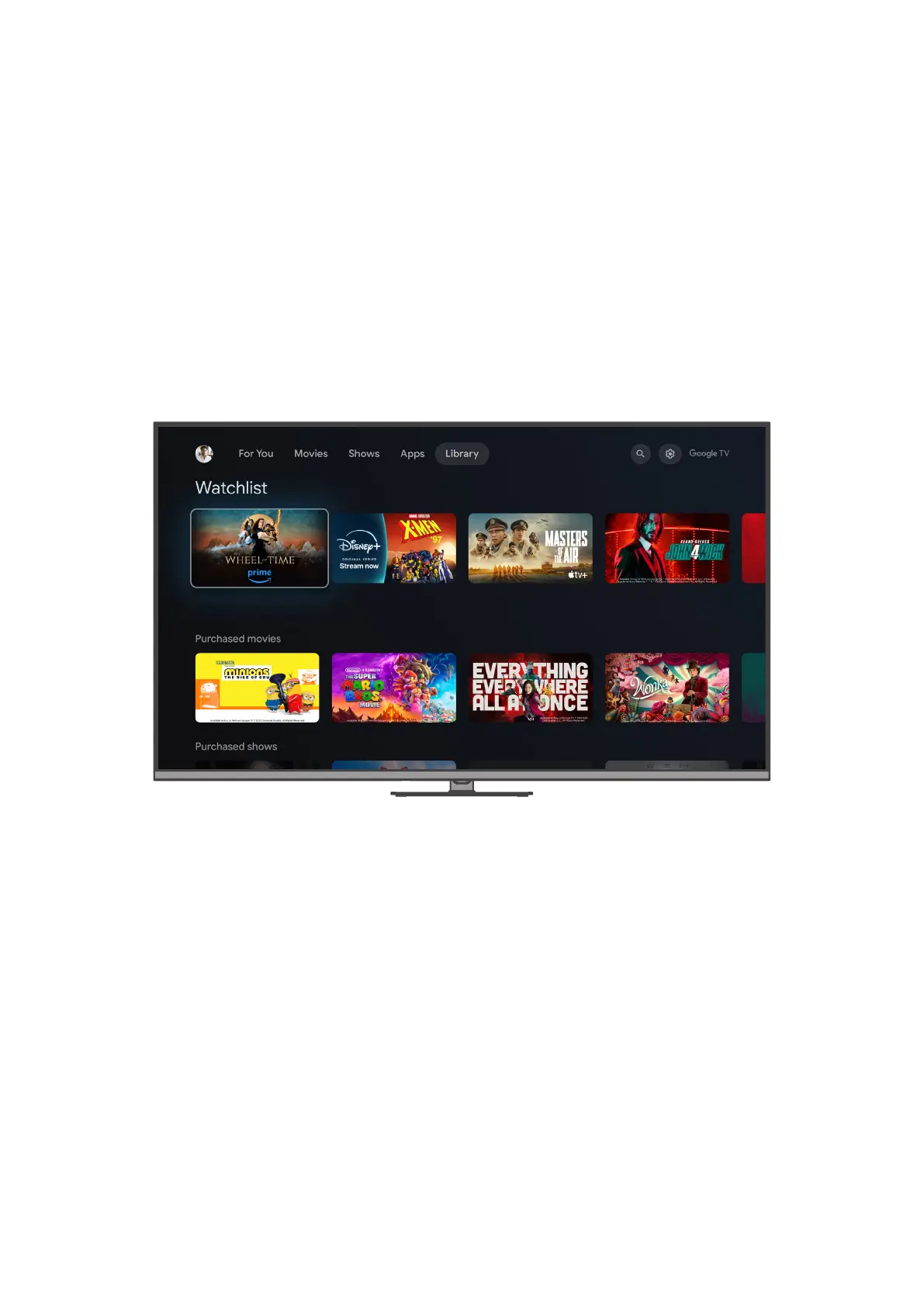
5.4. Watchlist
Add movies and shows you’re interested in to your watchlist from your TV, phone, laptop, or through Google
Search on any browser and pick right up on the big screen later. To access your watchlist, select the Library tab
at the top of your screen.
5.5. Search
To use the search function on your device, navigate to the search icon in the top right corner of your screen and
press the OK button on your remote control to open the search bar.
Voice search – Press the microphone icon to start the voice search function. Google voice search eld appears
at the top of the screen. Ask your question to Google and your TV will answer you. For local search terms it is
important that the Menu language of the TV is set to the local language.
Type to search - Select the search bar and press the OK button on your remote control. Then type what you want
to search for using the keyboard on the screen.
5.6. Notication
Notication icons only appear when you have unread notications. To view your notications, select the Settings
icon in the top right corner of your screen. Your latest notications will Please revise this copy to: appear at the
bottom of the Settings menu.



 To Next Page