E-DOC-CTC-20060911-0081 v1.0
Chapter 4
Troubleshooting
43
How to Establish a Wireless Connection using the WZC
Proceed as follows to start and use the WZC service:
1 Open the Wireless Network Connection window (see above)
2 From the list, double-click the network you wish to connect to, or select it and click Connect.
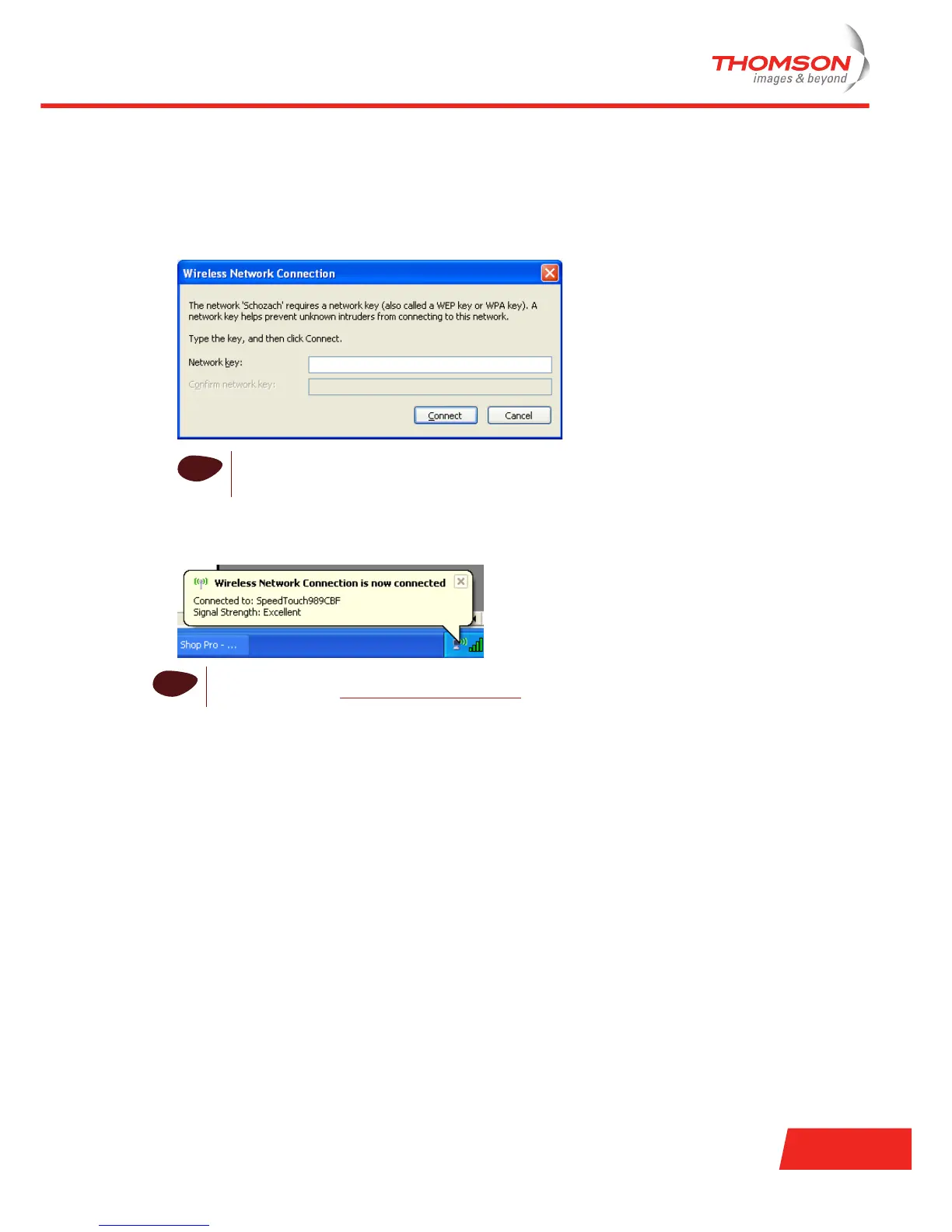
Result: The WZC may prompt you for an SSID and a WPA or WEP Key (in case of a secure network):
3 If applicable, fill in the SSID and the key and click Connect.
Result: a wireless connection to your Thomson Gateway will be established. When the connection is
ready, Windows informs you through a popup balloon in the notification area:
i
The typical SSID is SpeedtouchXXXXXX where XXXXXXrepresents a set of alphanumerical
characters. You can find the SSID and the key on the label on the bottom of the Thomson
Gateway.
i
For more detailed information about starting and using the WZC service, visit the Microsoft
knowledge base on http://support.microsoft.com.



 To Next Page