3-2
3.Driver installation and uninstallation
3.1.Driver installation based on Windows system
• Before installing the drive, you need to learn about printer model by printing printer
information page out and check the product name.
• In case of covering the installed driver, the installation language cannot be changed. Please
uninstall the printer driver and then install the driver of new version.
Note: • Driver installation interface may differ because of different models and functions,
so the schematic diagram is only for your reference.
3.1.1.Installation via USB connection
1. Connect the printer to computer with USB cable and then turn power on.
2. Insert the installation CD companying with the printer in the CD driver of computer and
operate Autorun.exe installation program.
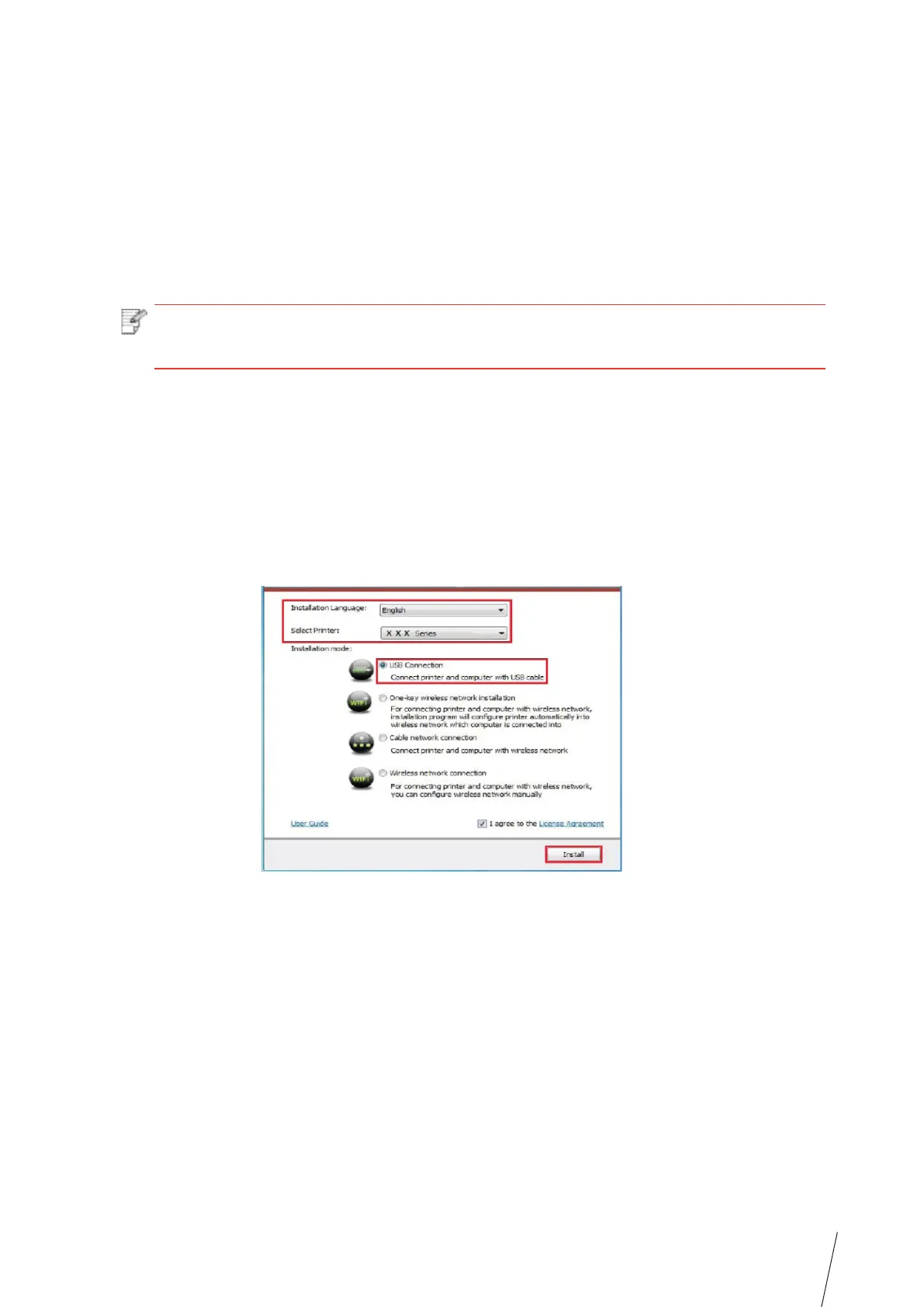
3. Read and agree to the licensing agreement, select installation language and printer model,
select “ USB Connection” and then click “ Install” .
4. The system starts to install driver, and it may take several minutes.
5. After installation is finished, “Installation Complete” interface will pop out, and it will be
closed automatically in about 3s.
3.1.2.One-key wireless network installation
If your computer is connected to network wirelessly and you also expect to connect a printer
to the network, it is recommended that you use the one-click wireless network installation
method.
1. Turn on power of the printer and the computer. Connect the computer to the wireless
network.
2. Use a USB cable to connect a Wi-Fi model printer with a computer.
3. Insert the installation CD companying with the printer in the CD driver of computer and
operate Autorun.exe installation program.



 To Next Page