6.4.2.1.Preliminary preparations
1. A printer that has wireless network function.
2. Mobile device of Android OS 4.4-7.0.
6.4.2.2.Method of QR code quick connection
1. Turn on the power supply of the printer and mobile device.
2. Verify that “Thomson Print” APP of the latest version has been downloaded and installed in
mobile device (Refer to Chapter 6.2 for how to download “Thomson Print” APP), and WiFi Hot
has been enabled in the printer. (Refer to Chapter 5.2.2 .)
3. Press and hold “Cancel/Continue” button in the printer to print info. page.
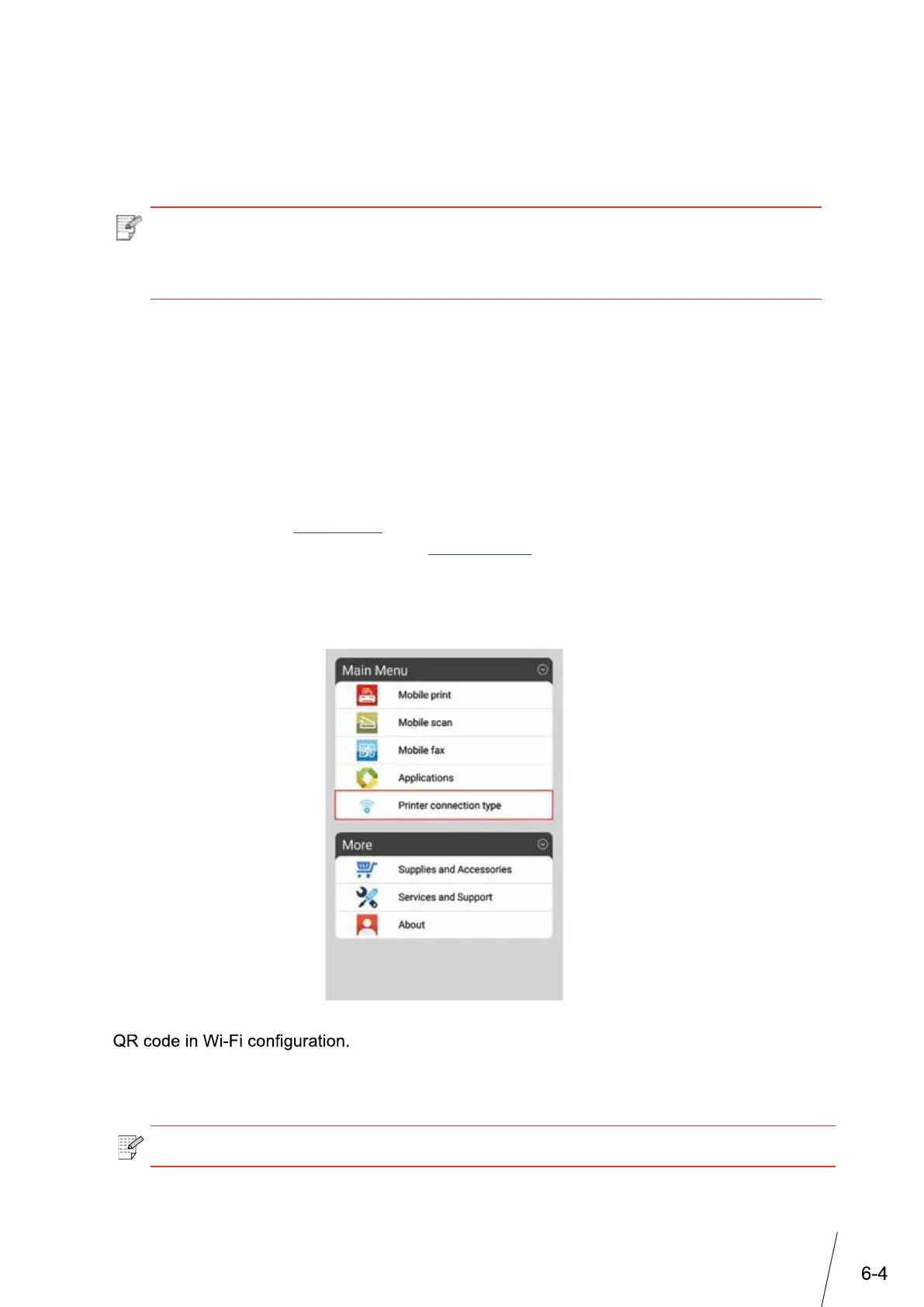
4. Click “Thomson Print” APP in Android mobile device, and select “Printer connection type” in
the following interface.
5. Enter “Printer connection type” interface, select “QR code quick connection”, and scan the
6. Mobile device will connect with the printer automatically after successfully scanning QR
code.
6.4.2. QR code quick connection
Scan the QR code in print info. page of the printer with ”Thomson Print” Android APP to
connect mobile device with the printer quickly and wirelessly.
Note: • Parts of the models are not applicable to QR code quick connection. If you have
any more doubts, please consult Thomson Customer Services.
• The time and distance required for QR code scan vary from phone to phone.
Note: • If QR code connection by scanning fails, it will exit after 2min.



 To Next Page