3-9
3. Click “Continue”.
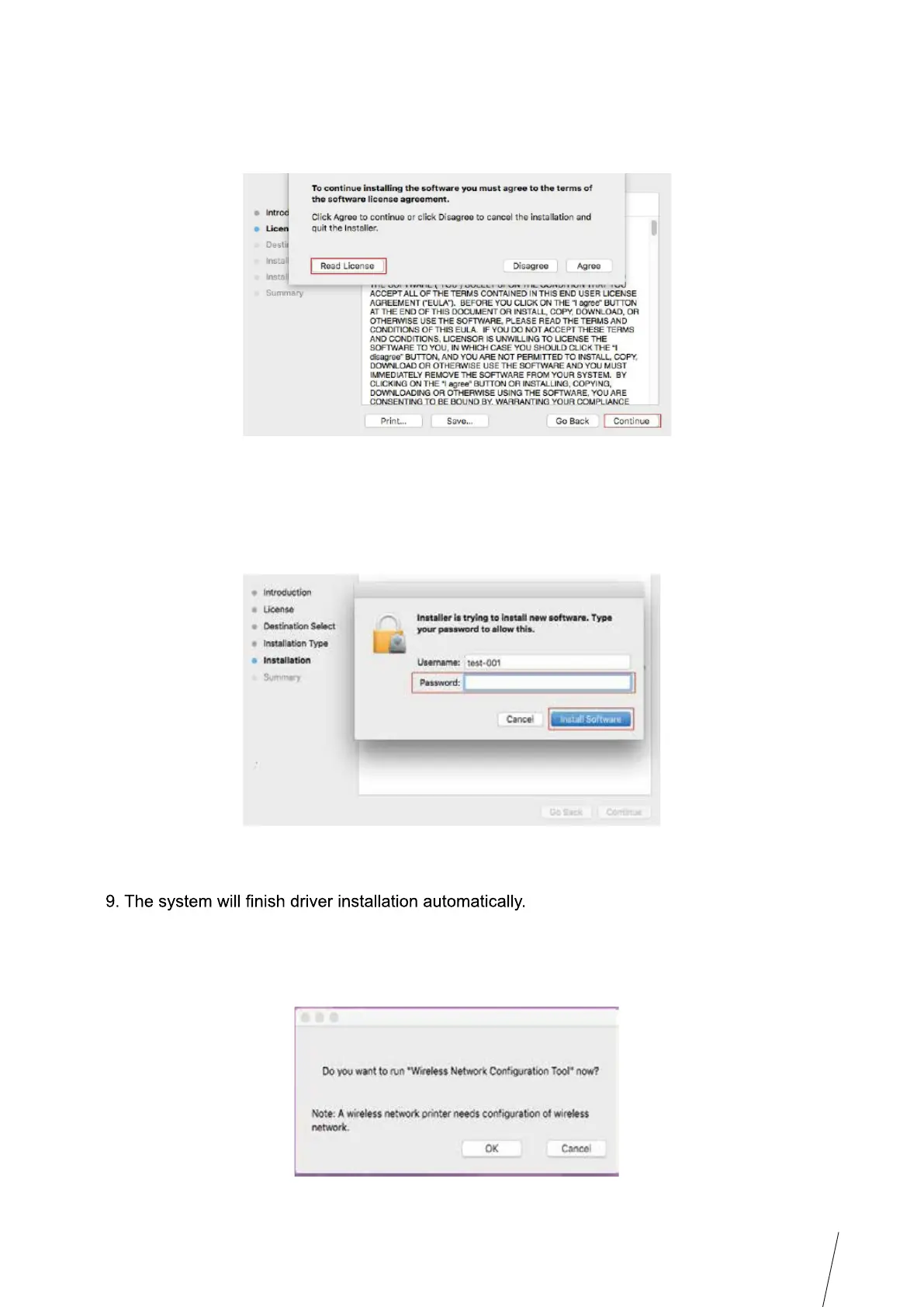
4. Read licensing agreement and then click “Continue”.
5. Click “Agree” on the prompt window popping out to accept the licensing agreement.
6. Click “Install”.
7. Input computer password and click “Install Software”.
8. Click “Continue Installation” on the prompt window popping out.
• If using a USB cable to connect a computer with a Wi-Fi model printer, a wireless network
configuration prompt window will pop up during driver installation, as shown in following
picture.



 To Next Page