Need help?
Do you have a question about the TMEZON MZ-IP-V1026TW and is the answer not in the manual?
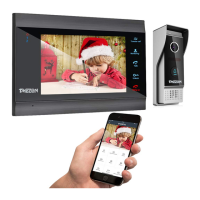
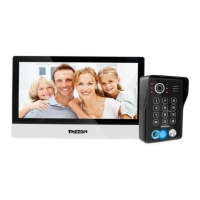
Diagram showing a 10" monitor connected to one outdoor doorbell.
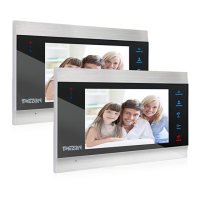
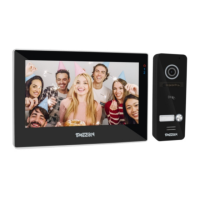
Diagram illustrating a system with two 7" monitors and one outdoor doorbell.
Detailed wiring schematic for the MZ-VDP-NE201 outdoor doorbell model.
Detailed wiring schematic for the MZ-VDP-NA262F outdoor doorbell model.
Instructions to change the administrator password for the outdoor doorbell.
Steps to add a new password for unlocking the door.
Process for adding an RFID card for door access.
Guide to register fingerprints for unlocking the door.
Procedures for removing user credentials from the device.
Configuration options for the backlight LED behavior.
Description of the 'At home' mode and its notification behavior.
Explanation of the 'Not at home' mode for message recording.
Details on the 'Sleep' mode with no ringing and mobile notifications.
How to interpret the network connection status indicator.
Accessing and viewing call history records.
Accessing and viewing recorded messages.
Accessing and viewing motion detection recordings.
Accessing and viewing alarm event logs.
Describes the user interface in Win10 style.
Describes the user interface in Android style.
Describes the user interface in Standard style.
Configuration options for system parameters like language and formatting.
Options for managing screen timeout and clock display.
How to set up and manage digital photo frame features.
Configuration for Door1, including enable, unlock delay, and signal modes.
Configuration for Door2, including message and motion detection settings.
Settings for Camera1 and Camera2, including motion detection and ringtone.
Configuration for ringtone schedules, modes, and volumes for Door1.
Configuration for ringtone schedules, modes, and volumes for Door2.
Guide to connect the monitor to the network using EZ mode via the TuyaSmart app.
Step-by-step instructions for adding the device to the app using EZ mode.
Instructions to configure the device using AP mode via the TuyaSmart app.
Steps on how to add the device to the Tuya app using AP mode.
Steps to create a new home in the management system.
How to add family members or users to the home management.
General guidance on completing the device sharing configuration.
Procedures for adding/deleting devices on the app for multiple users.
Description of key app features like taking pictures, talking, and unlocking.
 General
| Brand | TMEZON |
|---|---|
| Model | MZ-IP-V1026TW |
| Category | Intercom System |
| Language | English |

 To Next Page