22
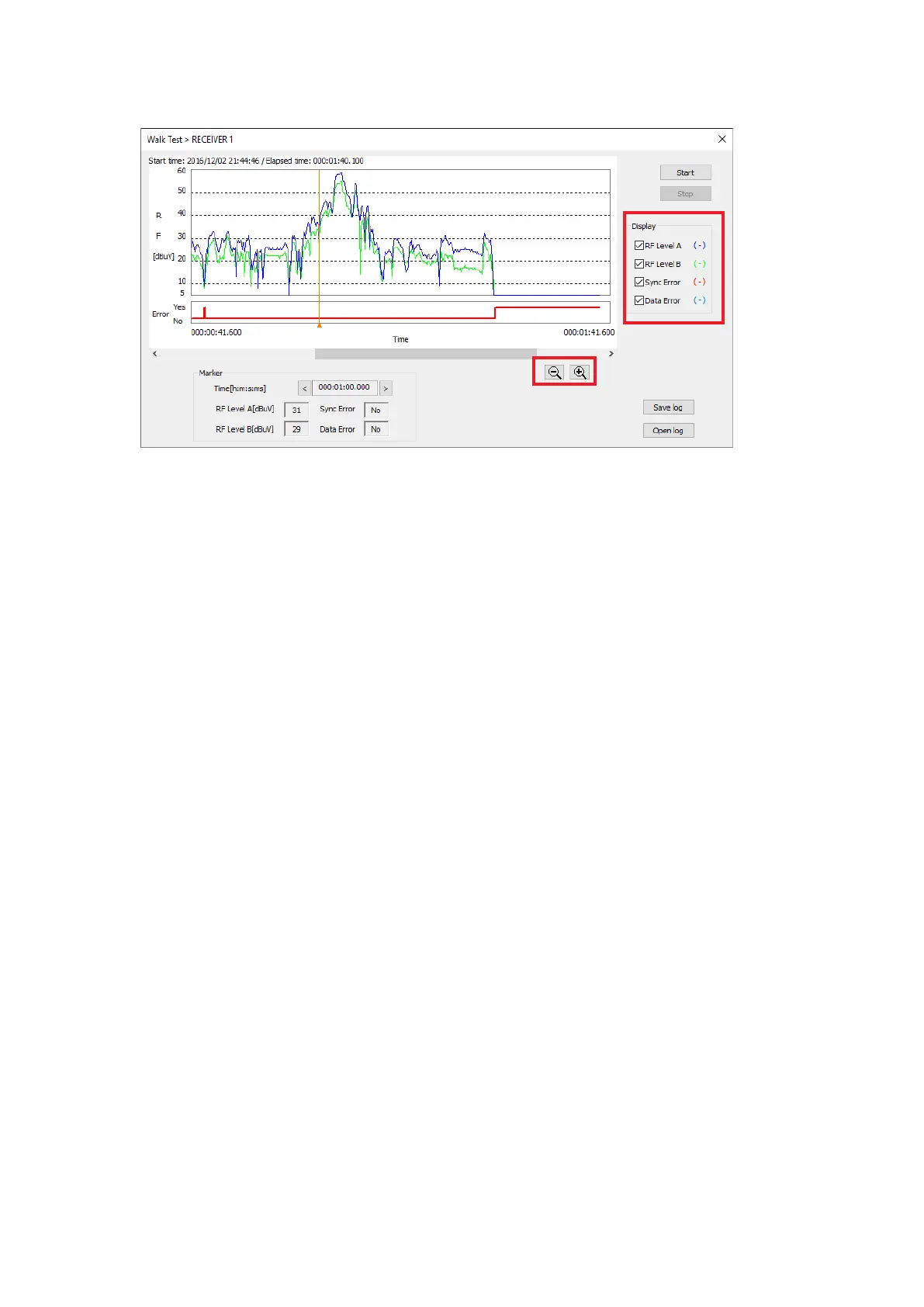
The Walk-Test screen will be displayed.
[Walk-Test Screen]
4
7
8
6
6
3
Note
There is only one display for the Walk-Test screen.
Step 3. Click a check on the Display Switch to select the graph to be displayed.
Step 4. Click the Start button.
The Walk-Test will start.
Step 5. Turn on the wireless microphone and walk in the area where the microphone will be used.
Step 6. Use the Marker, Zoom out/Zoom in button if necessary.
Step 7. Click on the Stop button.
Ends the Walk-Test.
Note
After an hour, the Walk-Test will be forced to end.
Step 8. Click on the Save Log button when the result of the Walk-Test needs to be saved as log data.
The log le will be stored in the data folder (p. 4).
See p. 4 for the le name.
Step 9. Analyze the graph and take the appropriate measures if there are any problems.
When the reception graph shows a dramatic dip where reception seems to be extremely weak, please
change the location of the antenna, etc.
Interference is a possible reason for the Data Error or Sync Error if the reception level does not show
any large uctuations, and seems to be consistently good. In this case, specify the cause of interference
by conducting a Channel Scan (p. 11) or Spectrum Scan (p. 24) to prevent it.



 To Next Page