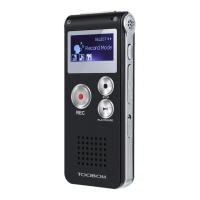
TOOBOM VOICE RECORDER
E: support@toobomworld.com W: http://toobomworld.com
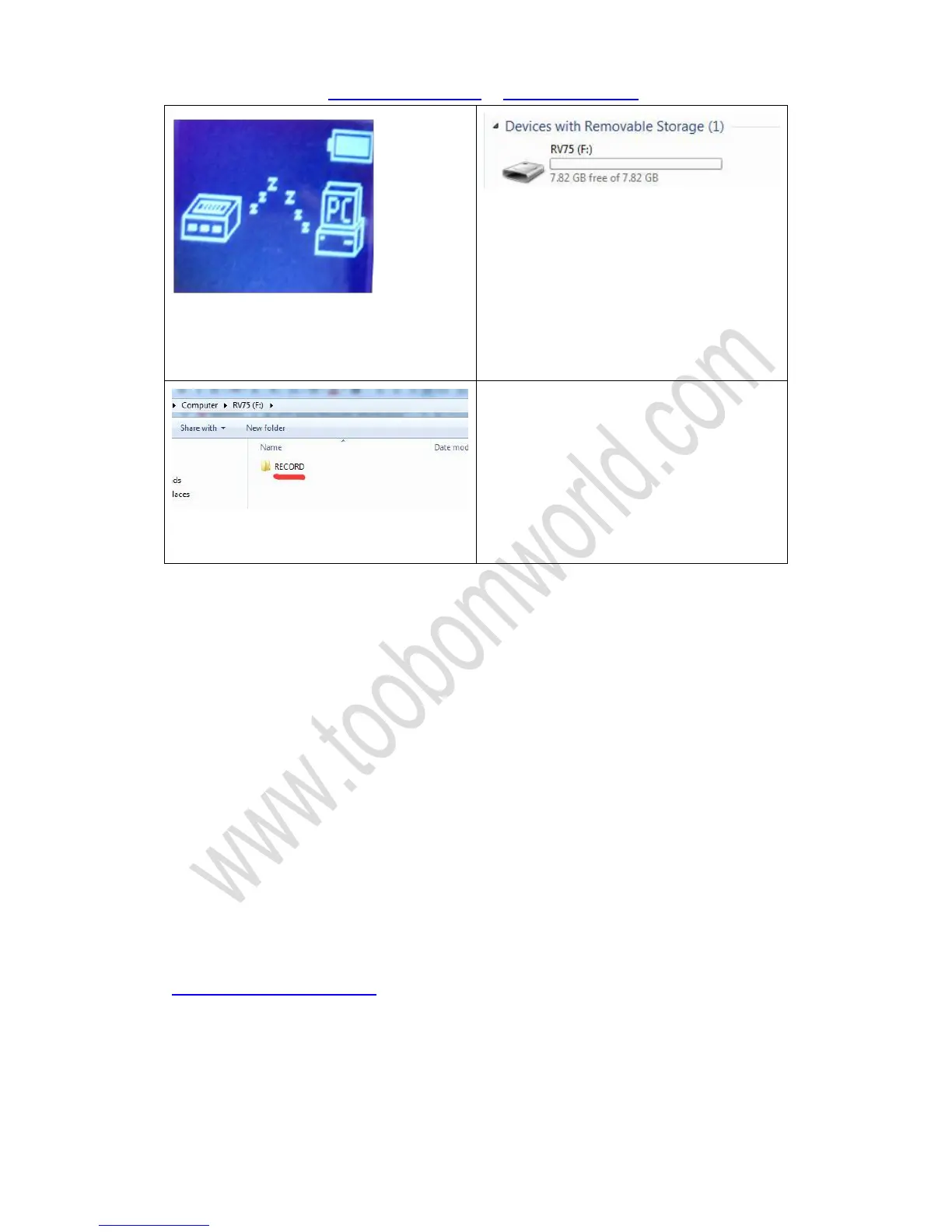
1) Use USB cable connect recorder to
computer, recorder screen will display
connection icon
2) Find removable drive “R750” on
computer
3) All recordings was inside the folder
“RECORD”
NOTE: when failed connection, you could
try a new USB cable have a test.
Don’t press any button, when connect to
computer
Switch off recorder before connecting to
computer
Use the MicroUSB cable, connect to your computer. And you will find the removable
drive named R75
Go to the drive, there is a folder “RECORD” , all your recordings will be inside this
folder
You could copy them to your computer
NOTE: when connect to computer keep this in mind,
1) because of the recorder support to record while charging, so do not press any
buttons when connect to computer, or it will exit connection mode
2) Switch off your voice recorder before connect to computer
3) When successfully connected to computer you will see the connection ICON on
4) If unfortunately, failed connect to computer, do not give up the last chance,
please kindly contact us by email:
support@toobomworld.com
And describe how this issue happened, we will give you solutions.
8. Transfer music to recorder
When successfully connected your voice recorder to computer.


 To Next Page