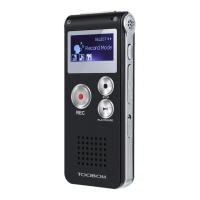
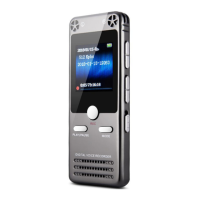
Just copy your music file into the R75 drive directly
The recorder support normal music songs format, like .mp3 .wav .flac and so on
After you successfully uploaded music songs into the recorder drive, reject it from
your computer
And open your voice recorder
Press the M (menu) buttons, switch it to music folder, now the recorder will read the
songs in your recorder
Just press PLAY button, it will playback the songs inside the voice recorder.
Do not create too many folders or copy files to the recorder that cannot support.
When too many folders on the R75 recorder drive, it will cause to the recorder stop
recording.
If this happened, please kindly make a copy of your important files in the recorder,
and then format the recorder
Switch on your voice recorder,press down and hold M (menu) button, enter menu
Find record settings, press M (menu) button, enter it
Find record format, press M (menu) button, enter it
You could select MP3 Rec or WAV Rec, based on your requirement
Select the format in need, and then press M (menu) button, confirm it
NOTE:
1) Recordings at MP3 format, it could directly playback on MAC computer
2) Recordings at WAV format, for MAC user, it may need to download the free VLC
media player to playback the recordings.
Here is the VLC Media Player Official Website
https://www.videolan.org/
3) In default, recorder save recordings at WAV format, and WAV format could record
files at PCM flawless 1536kpbs high quality


 To Next Page