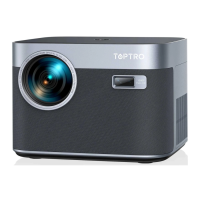
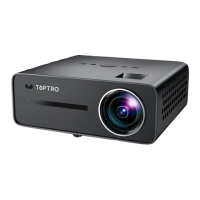
2.USB Disk Input Mode
Play Movie/Music/Photo/Office Suite in the USB Disk Input Mode
1).Input the USB Disk;
2).Select the option [Video/Music/Picture/Office ]
3).Select the desired file (or folder to enter the sub folder) in the USB disk, then
press the [ OK ] button to play it.
USB
3.WiFi Setting
Wireless Connection
Warming Tips:
①The fluency of screen mirroring with wireless connection will be affected by the
network environment. A bandwidth of 100Mbit or more is recommended when
using screen mirroring.
②Make sure your mobile device is close to the projector when using wireless
connection. A distance within 1 meter is recommended.
③Some mobile devices may not support screen mirroring due to the compatibility.
④Any questions, please feel free to email TOPTRO via
service@toptro.com
3.1.iOS Cast (for iOS Devices)
1.Go to home page -- Select the [ ] menu -- Select the [ WiFi ] menu
-- Open the WiFi function -- Select your home WiFi from the list -- Connect the
K3 projector to your home WiFi.
EN
08
service@toptro.com


 To Next Page