Using the TV’s features
1 FromthePICTUREmenu,presssorrto
selectActive Backlight Control.
2 PressvorwtoselectOnorOff.
Activating Auto Brightness Sensor
WhentheAuto Brightness Sensorisactivated,
itwillautomaticallyoptimisethebacklighting
levelstosuitambientlightconditions.
1 FromthePICTUREmenu,presssorrto
selectAuto Brightness Sensor.
2PressvorwtoselectOnorOff.
Sound adjustment
Setting the MTS (Multi-channel TV Sound)
Auto mode
TheMTS Automodeautomaticallyrecognize
stereo/bilingualprogrammesdependingonthe
broadcastsignal.
1 PressMENU,andthenpressvorwto
displaytheSOUNDmenu.
2 PresssorrtoselectMTS,andthenpress
vorwtoselectAutoorMono.
Mono mode
Ifyouexperiencenoiseorpoorreceptionofany
stereo/bilingualprogramme,settheMTSmode
toMono.
Noisewillbereducedandreceptionmay
improve.
Note:
Ifyouexperiencenoisewithaparticular
programmeonwhosechannelreceptionis
usuallygood,trysettingMTSmodetoAuto,
thenswitchg to e Mono (monaural).
Selecting the Dual 1 or Dual 2 mode
YoucanhearonlyDual 1orDual 2sound
selected,wheneverbilingualprogrammesare
received.
1 PressMENU,andthenpressvorwto
displaytheSOUNDmenu.
2 PresssorrtoselectDual,andthenpress
vorwtoselectDual 1orDual 2.
Notes:
• WhentheMTSsettingisinMono mode, the
Dual menu is not selectable.
• TheDual menu setting status remains even if
theTVisturnedoff.
2 PresssorrtoselectAuto NR,andthen
pressvorwtoselectOnorOff.
Off mode :
MPEG NRmenuandDNRmenuareavailable.
•MPEG NRmode:Low,Middle,HighorOff
•DNR(DigitalNoiseReduction)mode:Low,
Middle,HighorOff
Note:
DNRfunctionisavailablefor480iand576i
signals.
Adjusting the Colour Management
Youcanadjustthepicturecolourqualityby
selectingfrom6basecolouradjustments:Red,
Green,Blue,Yellow,MagentaorCyan.
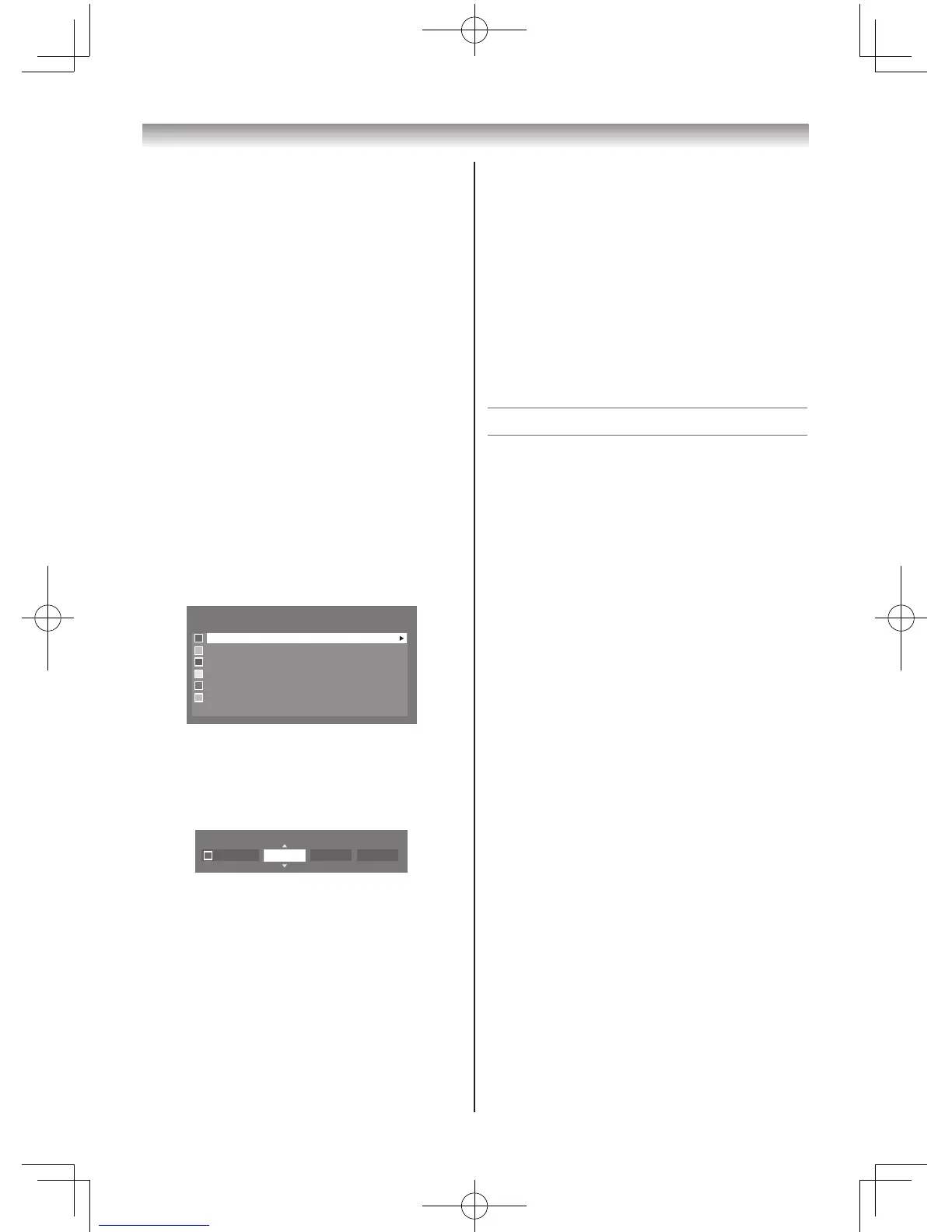
1 FromthePICTUREmenu,presssorrto
select3D Colour Management.
2 Pressvorw,thenpressvorwtoselect
On.
3 PressQ,thenpresssorrtoselectBase
Colour Adjustment.
4 PressQ,thenpresssorrtoselectan
itemyouwanttoadjust.
Resetting the Base Colour Adjustment
Theresetfunctionadjuststhebasecolour
adjustmenttothefactorysettings.
1 FromtheBase Colour Adjustmentmenu,
presssorrtoselectReset.
2 PressQ.
Using the Active Backlight Control
Inordertoimprovescreenvisibility,theActive
Backlight Controlsetsthescreenbrightness
automaticallyduringdarkscenes.



 To Next Page
 Loading...